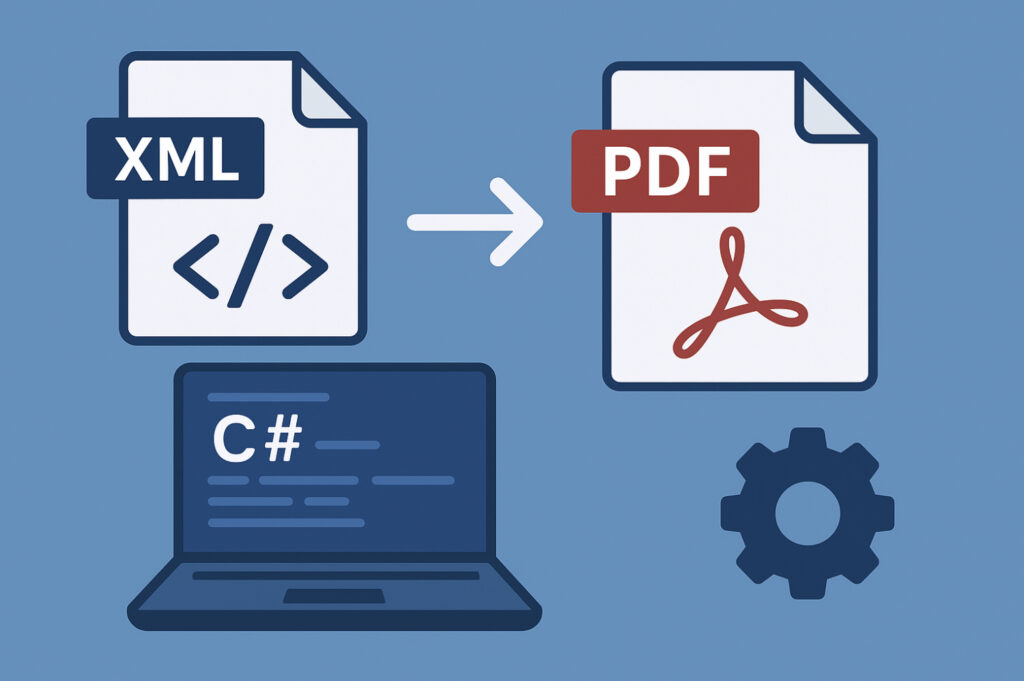
Working with XML files is a common task for developers, but turning that structured data into a polished, readable PDF can quickly become a headache. Whether you’re generating reports, invoices, or dynamic documents for your application, having a reliable way to convert XML to PDF in C# can save you hours of manual formatting. In this guide, we’ll walk through practical, easy-to-follow steps to make that conversion smooth and efficient—no complicated hacks, just tools and techniques you can start using right away.
Why XML-to-PDF Still Matters in Modern .NET Projects
In today’s web apps and cloud-based systems, XML remains a common way to store and exchange structured data. Many applications output XML—whether it’s configuration files, API results, or report data. While working with XML is routine for developers, turning that data into something readable for end users often requires more effort.
Here’s why converting XML to PDF is still valuable:
- Readable reports and documents: Raw XML isn’t user-friendly. Converting it to PDF makes your reports, invoices, or dynamic documents easy to read.
- Consistent formatting across devices: PDFs preserve layout, fonts, and styling, ensuring your documents look professional no matter where they’re opened.
- Time-saving automation: Automating XML-to-PDF conversion reduces manual formatting and speeds up workflows, especially for recurring reports.
- Professional presentation: A well-formatted PDF adds polish to your application, making it feel more complete and reliable to end users.
In short, converting XML to PDF bridges the gap between structured data and user-friendly documents, making your applications more polished and professional.
What are the challenges of converting XML to PDF?
Converting XML to PDF might seem straightforward at first, but there are several challenges that developers often run into:
- Different data structures: XML can range from simple lists to complex nested elements, making mapping to PDF tricky.
- Layout and styling: PDFs have fixed layouts, so tables, headings, and paragraphs need careful formatting.
- Large datasets: Big XML files can slow or break PDF generation if not handled properly.
- Dynamic content: Optional or variable sections must be managed to maintain the PDF layout.
- Maintaining readability: PDFs should remain clear, structured, and professional to avoid confusing users.
Understanding these challenges upfront helps you choose the right approach and tools to make the conversion smoother and more reliable.
How can Developers Approach XML to PDF Conversion?
There are a few common approaches that developers use:
Manual parsing and PDF libraries
You can read the XML using C#’s built-in classes (like XDocument or XmlDocument) and then use a PDF library to create the document directly. This gives you full control over the layout, but it can be time-consuming to handle complex formatting like tables, headers, and pagination.
Intermediate document formats
Another approach is to convert XML into an intermediate format, such as Word/Doc, first. This makes it easier to handle structured content, apply styles, and arrange tables and headings. Once the document is ready, you can export it to PDF.
Using third-party libraries
Leveraging specialized libraries designed to handle document processing and conversions. This is often the most pragmatic and efficient approach for developers seeking robust and feature-rich solutions.
When it comes to robust document processing in C#, **Spire.Doc for .NET** stands out as an excellent choice. It’s a professional .NET Word component. Its comprehensive feature set makes it particularly well-suited for the complex task of XML to PDF conversion.
Choosing the right method depends on your project requirements: if you need full control over layout and formatting, manual parsing might be best. If you want speed and simplicity, an intermediate document or a third-party library can make the process much smoother.
How to Convert XML to PDF by Third-party Libraries?
Below is a simple, developer-friendly process you can follow:
Step 1: Set up your C# project
Before writing any code, make sure your project has everything it needs:
- Create a new C# console or .NET project.
- Install Spire.Doc for .NET through NuGet.
Step 2: Load and parse your XML data
Read your XML file into the application using XDocument or XmlDocument.
This allows you to access each element and value you want to include in the PDF.
Note: Spire.Doc can directly load XML files that follow the WordprocessingML structure.
If your XML uses a custom schema, you may need to apply an XSLT transformation or build the document content programmatically before exporting it as a PDF.
Step 3: Build the document content
- Create a
Documentobject using Spire.Doc. - Load XML content into the document.
- You can add simple formatting like bold titles if needed.
Step 4: Export the document as a PDF
- Call
SaveToFile()withFileFormat.PDF. - The PDF will be generated in your project folder.
Here is the full working example:
using System;
using Spire.Doc;

namespace XmlToPdfDemo
{
    class Program
    {
        static void Main(string[] args)
        {
            try
            {
                var doc = new Document();

                string xmlPath = @"C:\Users\Tommy\Desktop\sample.xml";
                doc.LoadFromFile(xmlPath, FileFormat.Xml);

                string pdfPath = @"C:\Users\Tommy\Desktop\sample.pdf";
                doc.SaveToFile(pdfPath, FileFormat.PDF);

                Console.WriteLine($"Conversion successful! PDF generated at: {pdfPath}");
            }
            catch (Exception ex)
            {
                Console.WriteLine($"Conversion failed: {ex.Message}");
            }
        }
    }
}
What are Common Pitfalls and How to Avoid Them?
Even simple XML-to-PDF workflows can run into a few common issues. Here are the ones developers hit most often—and how to prevent them quickly.
- Inconsistent or missing XML nodes: add null checks and validate input before processing.
- Encoding issues (special characters / multilingual): ensure UTF-8 and use fonts that support needed glyphs.
- Raw, unreadable output: apply headings, spacing, and tables instead of dumping values.
- Hardcoded styles that are hard to maintain: use reusable paragraph/table styles.
- Large files and performance bottlenecks: process in batches or stream data rather than loading everything at once.
- Malformed XML, missing files, and empty nodes: wrap parsing and exporting in try/catch and add fallback values.
Conclusion
Converting XML to PDF is a practical skill that helps bridge the gap between structured data and user-friendly documents. By understanding your XML, planning the layout, and handling common pitfalls, you can create clear, professional PDFs with minimal effort.
Whether it’s reports, invoices, or dynamic documents for your application, following a consistent workflow ensures your PDFs are reliable, readable, and polished—saving time and reducing frustration for both developers and end users.