Key Takeaways
- What is Droppy? A free, open-source macOS utility that combines a file shelf, clipboard manager, and system HUD into one native interface.
- Core Feature: Turns the MacBook notch (or screen edge) into a temporary “parking spot” for files, simplifying drag-and-drop across full-screen apps.
- Tech Stack: Built entirely in Swift and SwiftUI, ensuring it is lightweight (~400MB RAM) and visually consistent with macOS design.
- Requirements: Requires macOS 14 Sonoma or later and works on both Intel and Apple Silicon machines.
If you use a Mac professionally, you likely know the specific frustration of dragging a file.
You are dragging a file from Downloads, navigating through full-screen apps and multiple Spaces, only to hover over the wrong window and lose your grip. macOS is excellent at many things, but it has never provided a true temporary shelf for files, images, and text. This omission adds friction to complex workflows involving tools like Figma, Xcode, and Final Cut.
Droppy fills this gap. It is a free, open-source utility that transforms your MacBook’s notch or screen edge into a cohesive productivity layer. In this review, I will explain why this native application might be the most significant workflow upgrade available for macOS users this year.
The Drag-and-Drop Problem Droppy Solves
Droppy addresses the lack of a native “staging area” in macOS by providing a persistent workspace for items in transit.
Apple’s default drag-and-drop mechanics assume a simple workflow: one source window and one visible destination. However, power users and creative professionals operate differently. We work across multiple full-screen apps, deep folder hierarchies, and virtual Spaces. Without a staging area, users often dump files onto the desktop or rely on awkward window resizing just to move assets between applications.
Droppy’s solution is a File Shelf. This features allows you to:
- Drag files onto the notch or screen edge to store them temporarily.
- Navigate to your destination (e.g., a different Space or full-screen app).
- Drag the files back out exactly when you are ready.
This eliminates the need to create temporary folders like /_inbox or clutter the desktop with transient files.
Technical Architecture: Native Swift and SwiftUI
Droppy differentiates itself from other utilities by being built entirely with native macOS APIs, avoiding heavy frameworks like Electron.
The application is written in Swift and SwiftUI, making it a truly native citizen of the operating system. This architectural choice results in significant performance benefits. The developer has optimized the app to reduce memory usage from early builds of 2.9 GB down to approximately 400 MB.
Because it uses native code, Droppy adopts a “Liquid Glass” aesthetic that mirrors Apple’s modern design language. It supports macOS 14 Sonoma or later and offers a universal binary for both Intel and Apple Silicon architectures.
Features: The File Shelf and Floating Basket
The core functionality of Droppy revolves around two distinct interaction models: the fixed Shelf and the dynamic Floating Basket.
The File Shelf
The File Shelf lives in your notch or at the screen edge. It is designed to let you drag files out to use anywhere in macOS. Beyond simple storage, it can auto-sync with tracked folders, keeping key locations accessible without requiring a Finder window.
The Floating Basket
If you prefer a mobile drop zone, Droppy includes a Floating Basket. When you hold files and wiggle your cursor, a temporary collector pops up near your mouse. This is ideal for:
- Collecting assets from multiple sources before depositing them in one place.
- Working on large external displays where the notch is too far away.
- Viewing items in a grid or list view for quick organization.
PRO TIP:
You do not need a MacBook with a notch to use Droppy. The application works on any screen edge, making it equally powerful on desktop Macs like the Mac Studio or Mac mini.
Integrated Clipboard Manager and System HUDs
Droppy consolidates multiple utilities into one layer, replacing standalone clipboard managers and system overlays.
Native Clipboard History
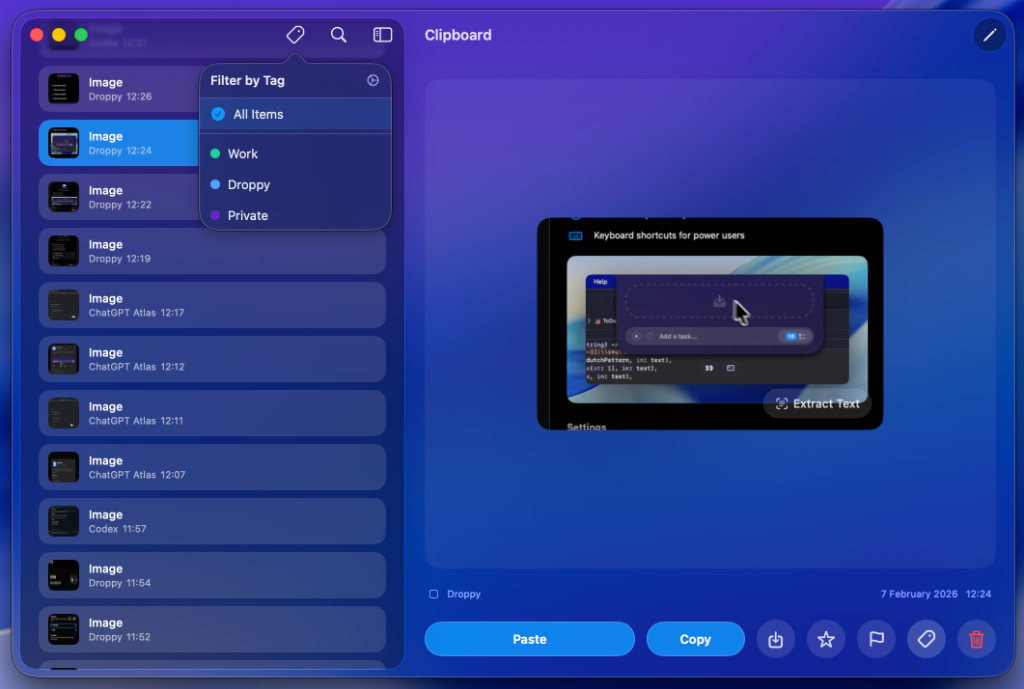
The clipboard manager is integrated directly into the Droppy interface. It supports text, images, and files, allowing you to favorite, edit, and paste items directly from history. By keeping clipboard history inside the same interface as the file shelf, Droppy creates a continuous workspace rather than forcing you to switch between disparate tools.
System HUD Replacements
Droppy utilizes the notch area to display system status updates that are usually obtrusive.
- Media Controls: A “Now Playing” widget for Spotify and Apple Music lives in the notch.
- Battery & Peripherals: Connect your charger or AirPods to see sleek status indicators.
- Volume & Brightness: Replaces the standard large overlays with minimal indicators.
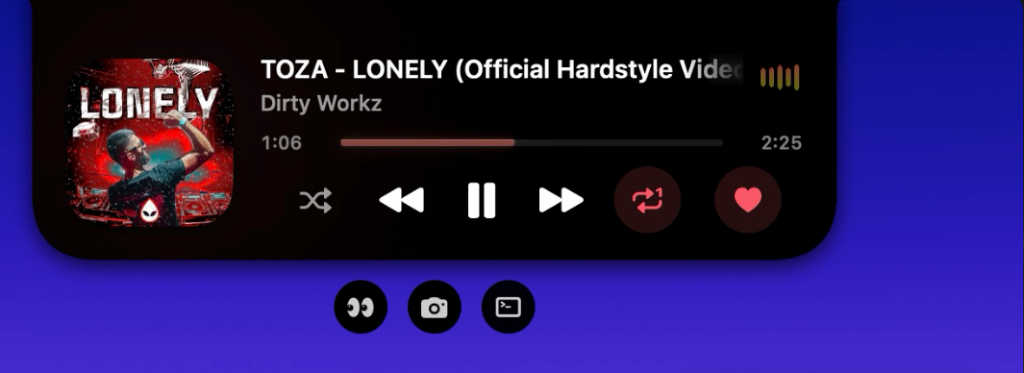
On-Device AI and File Manipulation Tools
Droppy allows you to perform actions on files directly from the shelf without opening third-party applications.
Right-clicking a file reveals a context menu with powerful tools:
- Compression: Zip multiple files or compress images to specific target sizes.
- Conversion: Convert images between PNG, JPEG, HEIC, and WebP.
- AI Background Removal: Use on-device AI to remove backgrounds from images instantly.
Because these AI features run on-device, they are fast and private. You do not need to upload sensitive assets to a web service to perform basic image cleanup.
PRO TIP:
Droppy now supports native integration with Alfred. You can trigger Droppy actions directly from your Alfred command bar, further integrating it into keyboard-centric workflows.
Installation via Homebrew
The recommended method for installing Droppy is via Homebrew, ensuring you get the latest signed and notarized version.
To install, run the following command in your terminal:
brew install --cask droppyAlternatively, you can download the application directly from the official site at getdroppy.app or visit the GitHub repository.
Upon installation, you must grant standard macOS permissions (Accessibility and Screen Recording) to allow the app to track drags, monitor the clipboard, and display the HUD.
Open Source and Community Trust
Droppy is released under the MIT license, guaranteeing transparency and community-driven development.
For power users, this offers critical peace of mind. You can audit the source code at github.com/iordv/Droppy to verify there are no hidden analytics or data exfiltration. The project is actively maintained, with hundreds of commits and rapid iterations based on feedback.
Developers can also contribute to the project. Whether you want to add new shelf actions, refine animations, or improve memory usage, the project welcomes Pull Requests from the Swift community.
FAQ
Q: Is Droppy completely free?
A: Yes, Droppy is 100% free and open-source software (FOSS) released under the MIT license. There are no subscriptions or paid tiers.
Q: What are the minimum system requirements?
A: Droppy requires macOS 14 Sonoma or later. It utilizes modern APIs that are not available in older versions of macOS.
Q: Does Droppy work on external monitors?
A: Yes. While it is optimized for the MacBook notch, the file shelf and HUDs function on any screen edge, making it fully compatible with external displays and desktop Macs.
Q: Is it safe to use for sensitive work?
A: Because it is open source, the code is available for audit. All processing, including AI background removal, happens locally on your device. It does not send your clipboard history or files to the cloud.