You’re deep in the zone. Code flows from your fingertips as your AI pair programmer suggests elegant solutions, catches bugs before they compile, and generates tests that actually cover edge cases. Then it happens-Rate Limit Exceeded. Your Claude Code session grinds to a halt. You frantically check your Anthropic dashboard: 95% quota used. You switch to Gemini, but now you need to reconfigure your entire toolchain. By the time you’re back online, the flow state is gone, replaced by browser tab chaos and configuration file hell.
This is the daily reality for developers juggling multiple AI subscriptions. Each provider-Claude, Gemini, OpenAI, Qwen, Antigravity-has its own dashboard, its own rate limits, its own billing surprises. You buy credits for one, hit a limit, switch to another, forget to monitor usage, and get hit with unexpected charges or downtime at the worst possible moment.
The cognitive overhead of managing this API jungle destroys productivity. You didn’t sign up to become a quota accountant. You signed up to build software.
The solution: Quotio, your AI command center
Quotio is a native macOS menu bar application that transforms API chaos into streamlined productivity. Developed by nguyenphutrong and available as free open-source software, Quotio sits between your coding tools and AI providers, acting as a smart proxy that aggregates quotas, prevents downtime, and saves money through intelligent routing.
Unlike web-based dashboards or complex proxy configurations, Quotio lives in your menu bar-always accessible, never intrusive. Built with SwiftUI for macOS 15.0 (Sequoia) and later, it feels genuinely native, supporting both light and dark themes with bilingual English/Vietnamese interfaces.
What makes Quotio different
- Unified command center: Connect 9+ AI providers via OAuth or API keys in one interface. No more hunting through browser tabs or memorizing which account has remaining quota.
- Smart auto-failover: When one provider hits its limit, Quotio automatically routes requests to your next available account. Your coding session continues uninterrupted while Quotio handles the complexity.
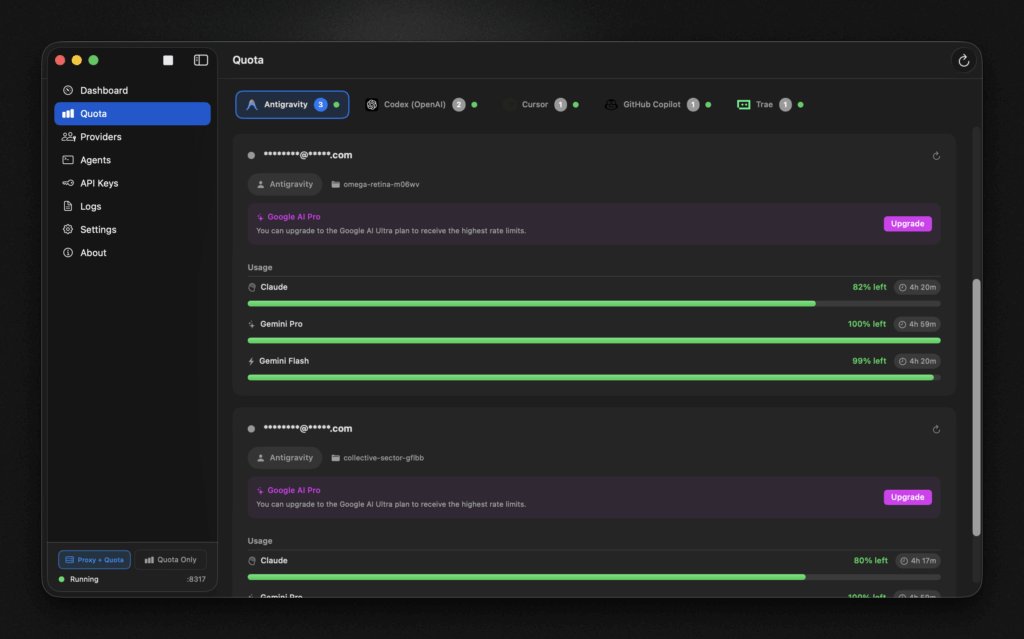
- Real-time visibility: Live quota tracking, token usage monitoring, and request traffic analysis displayed directly in your menu bar. See everything at a glance without breaking your workflow.
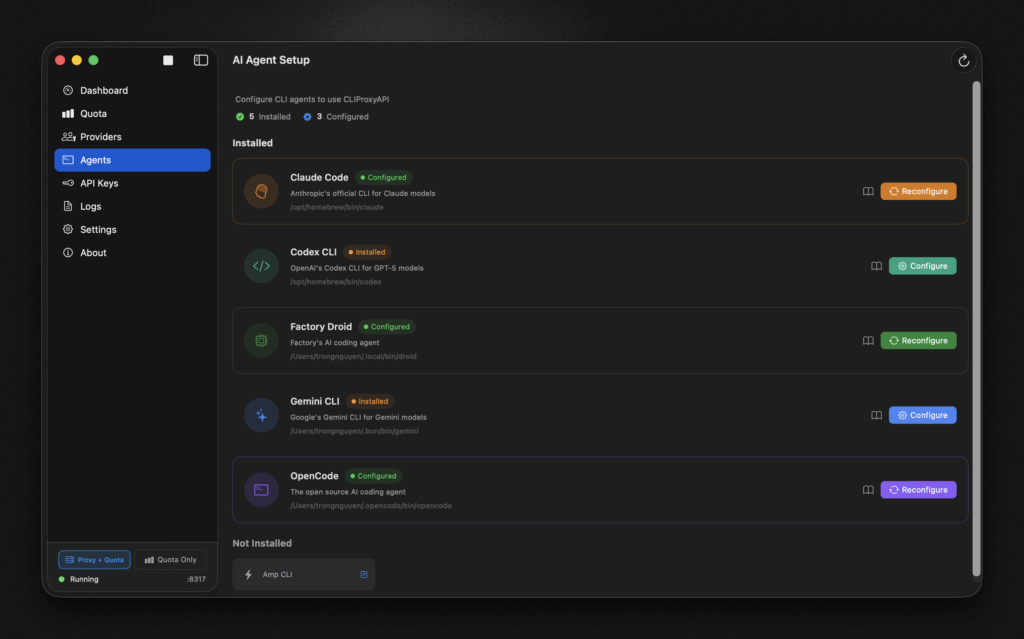
- One-click configuration: Auto-detect and configure AI coding tools like Claude Code, Codex CLI, Gemini CLI, OpenCode, and Factory Droid. What used to take 30 minutes of manual configuration now happens in seconds.
Core features deep dive
Multi-provider support: All your AI accounts in one place
Quotio supports a comprehensive roster of AI providers, each integrated through secure OAuth or API key authentication:
- Anthropic Claude: OAuth authentication with automatic token refresh
- Google Gemini: OAuth flow with support for multiple Google accounts
- OpenAI Codex: API key management with usage tracking
- Qwen: Alibaba’s model family integration
- Antigravity: Specialized coding assistant platform
- Vertex AI: Service account JSON import for enterprise users
- iFlow, Kiro: Additional provider ecosystem support
- GitHub Copilot: Account connection for quota monitoring
- Cursor, Trae: IDE quota tracking (monitor-only mode)
The provider connection process is streamlined: click a provider, authenticate via OAuth or paste API keys, and Quotio immediately begins tracking usage. Credentials are stored securely in your macOS keychain, never in plain text.
Native macOS integration: Lightweight and always accessible
Quotio is engineered specifically for macOS, not ported from other platforms. This native approach delivers several advantages:
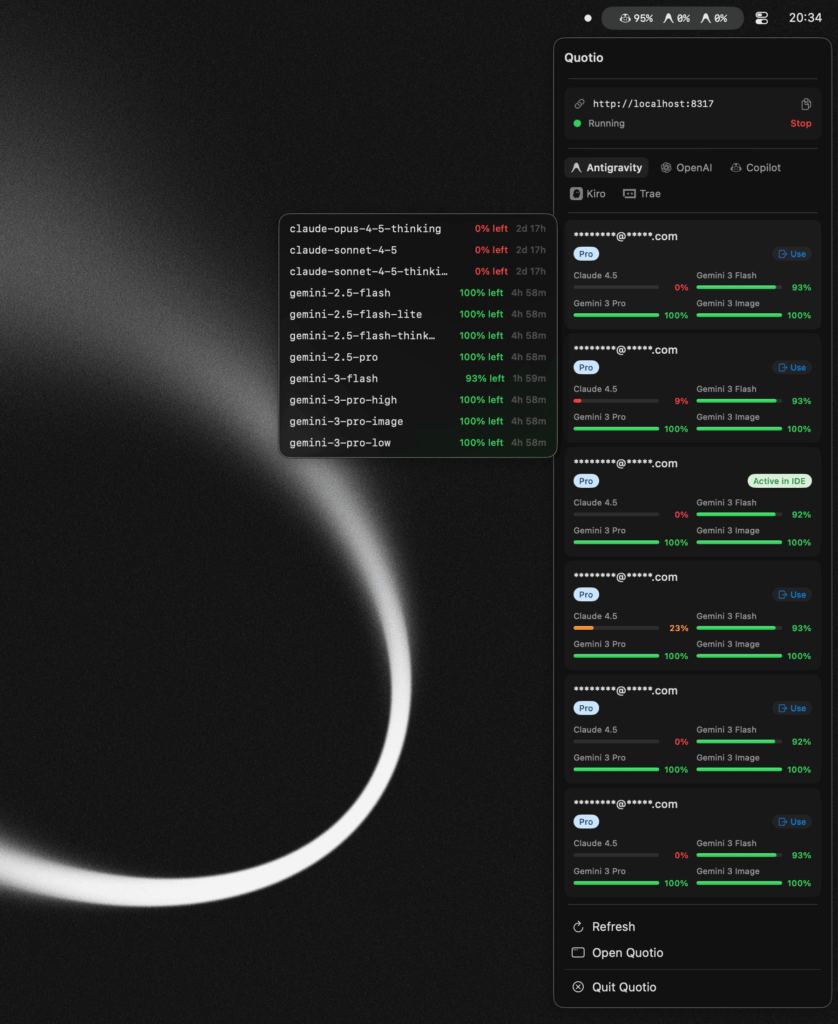
- Menu bar presence: The app icon displays real-time quota status using custom provider icons. A green dot means healthy quotas; yellow indicates approaching limits; red signals exhausted credits. Click the icon for instant access to server controls, quota overview, and quick actions.
- Minimal resource footprint: Built with SwiftUI, Quotio remains responsive with negligible CPU and memory usage. It won’t slow down your development environment or compete with resource-intensive IDEs.
- System theme support: Automatic light/dark mode switching that respects your system preferences. The interface feels like a natural extension of macOS, not a foreign web app crammed into a desktop window.
- Auto-update functionality: Built-in Sparkle updater ensures you’re always running the latest version with new features and provider support, eliminating manual update checks.
Smart auto-failover: The magic that keeps you coding
The standout feature-Smart Auto-failover-transforms quota management from reactive firefighting to proactive automation.
How it works
When you send a request through Quotio’s proxy, the system:
- Routes to primary provider: Sends your request to the configured AI provider (e.g., Claude)
- Monitors response codes: Watches for 429 (rate limit), 401 (authentication), or 503 (service unavailable) errors
- Instantly fails over: On quota exhaustion, automatically retries with your next configured provider (e.g., Gemini) using the same request parameters
- Updates menu bar: Changes the icon indicator to reflect which provider is currently active
- Logs the switch: Records the failover event for your review, maintaining full transparency
This happens in milliseconds-fast enough that your AI coding agent doesn’t notice the switch. Your coding session continues as if nothing happened, while Quotio handles the provider juggling behind the scenes.
Failover strategies
Quotio supports two intelligent routing strategies:
- Round Robin: Distributes requests evenly across all available providers. Ideal for load balancing and preventing any single account from hitting limits prematurely.
- Fill First: Exhausts one provider’s quota completely before moving to the next. Perfect for managing paid credits-use up what you’ve paid for before switching to backup accounts.
You can configure different strategies per project or globally, giving you granular control over quota consumption patterns.
Real-time dashboard: Visibility when you need it
The dashboard provides comprehensive monitoring capabilities that replace provider-specific consoles:
- Request traffic monitoring: Live view of requests per second, success rates, and error distributions across all providers
- Token usage tracking: Real-time token consumption with per-provider breakdowns, helping you understand which models consume the most resources
- Quota visualization: Visual progress bars showing remaining quota for each provider, with color-coded warnings as you approach limits
- Performance metrics: Response time tracking, latency analysis, and provider reliability scores
- Historical data: Usage trends over time, helping you optimize subscription plans and identify peak usage patterns
The dashboard updates in real-time without requiring manual refreshes, giving you immediate feedback on your AI resource consumption.
One-click agent configuration: From zero to hero in seconds
Configuring AI coding agents to work with multiple providers traditionally involves editing JSON files, managing environment variables, and wrestling with different authentication methods for each tool. Quotio eliminates this friction entirely.
Supported agents
Quotio auto-detects and configures:
- Claude Code: Updates
~/.claude/settings.jsonwith proxy endpoint - Codex CLI: Modifies OpenAI configuration to route through Quotio
- Gemini CLI: Configures Google AI SDK to use the proxy
- Amp CLI: Sets up the Amp agent with unified provider access
- OpenCode: Routes requests through the centralized proxy
- Factory Droid: Configures the Droid agent for seamless provider switching
Configuration process
- Auto-detection: Quotio scans your system for installed AI coding tools
- One-click setup: Click “Configure” next to any detected agent
- Automatic routing: Quotio modifies the agent’s configuration files to use
http://localhost:8080as the API endpoint - Provider abstraction: The agent thinks it’s talking to a single provider; Quotio handles the complexity of routing to actual AI services
This process takes approximately 10 seconds per agent, compared to 15-30 minutes of manual configuration.
Standalone quota mode: Monitoring without proxy
Not everyone wants to route requests through a proxy. Some developers prefer to keep their existing CLI configurations but still want unified quota visibility. Quotio’s Standalone Quota Mode addresses this use case.
In this mode:
- Quotio reads authentication files from installed providers (e.g.,
~/.claude/settings.json, OpenAI config files) - Displays aggregated quota usage in the menu bar and dashboard
- Does not intercept or route any requests
- Provides monitoring without disruption to existing workflows
This mode is perfect for:
- Teams with strict security requirements that prohibit proxy usage
- Developers who want to evaluate usage patterns before committing to full proxy routing
- Quick quota checks without launching the full application
Use cases: How developers use Quotio
The freelance developer: Maximizing limited budgets
- Scenario: You juggle multiple client projects, each with different AI provider preferences. One client uses Claude, another requires Gemini, and you personally prefer OpenAI for side projects.
- Quotio solution: Connect all three accounts. Use Fill First strategy to exhaust client-provided credits before using personal accounts. Monitor all quotas from one menu bar icon, ensuring you never accidentally burn through your personal API budget on client work.
The startup engineer: Ensuring 24/7 CI/CD operations
- Scenario: Your team’s automated testing pipeline uses AI for code review and test generation. When Claude hits rate limits during peak hours, deployments stall, blocking the entire engineering team.
- Quotio solution: Configure Round Robin failover across multiple Claude accounts plus Gemini backup. When primary accounts hit limits, Quotio automatically fails over to backups. CI/CD pipelines continue running, and your team stays productive. The dashboard alerts you when you’re consistently hitting limits, signaling it’s time to upgrade plans.
The AI power user: Optimizing for cost and performance
- Scenario: You use Claude Code for complex reasoning tasks, Gemini for fast autocomplete, and OpenAI for specific model features. Manually switching configurations based on task type is tedious and error-prone.
- Quotio solution: Set up model-specific routing rules. Complex queries automatically route to Claude, quick completions to Gemini, and specialized tasks to OpenAI. Monitor which models deliver the best performance per dollar, optimizing your AI spending based on real data.
The enterprise developer: Managing team-wide quotas
- Scenario: Your organization provides AI credits to team members, but tracking usage across dozens of developers is impossible. Some teams run out mid-sprint; others have unused credits.
- Quotio solution: Use the dashboard’s historical data to understand usage patterns by project and team. Implement quota budgets per team using multiple provider accounts. The visual tracking ensures fair distribution and helps forecast AI resource needs for upcoming quarters.
Technical architecture: How Quotio works under the hood
The proxy layer: CLIProxyAPI integration
Quotio is built on CLIProxyAPI, a local proxy server that intercepts AI provider requests. When you configure your coding agents to use http://localhost:8080, all API calls route through this proxy.
The proxy handles:
- Request routing: Directing calls to appropriate providers based on configuration
- Authentication: Managing OAuth tokens and API keys for each provider
- Response handling: Processing provider responses and returning them to your agent
- Error detection: Identifying quota exhaustion and triggering failover logic
Provider abstraction layer
Each AI provider has different API formats, authentication mechanisms, and rate limit headers. Quotio’s provider abstraction layer normalizes these differences, presenting a consistent interface to your coding agents.quotio+1
When you send a request:
- Your agent sends a standard OpenAI-compatible request to the proxy
- Quotio maps this to the target provider’s specific API format
- Authentication is handled automatically (OAuth token refresh, API key injection)
- Provider-specific response is translated back to standard format
- Your agent receives a consistent response regardless of actual provider
Quota tracking mechanism
Quotio tracks quota usage through multiple methods:
- API responses: Most providers return usage data in response headers (e.g.,
x-ratelimit-remaining,x-token-usage) - Provider dashboards: For providers without real-time API usage data, Quotio periodically fetches dashboard information using stored credentials
- Local counting: The proxy counts requests and tokens locally, providing immediate feedback even when provider APIs are slow to update
- Historical aggregation: Usage data is stored locally, enabling trend analysis and forecasting without relying on provider retention policies
Failover implementation
The failover system uses a circuit breaker pattern:
// Pseudo-code representation
func makeRequest(request: AIRequest) -> AIResponse {
    for provider in configuredProviders {
        if provider.isHealthy && provider.hasQuota {
            do {
                let response = try provider.send(request)
                return response
            } catch let error as RateLimitError {
                provider.markQuotaExhausted()
                continue // Try next provider
            } catch {
                provider.markUnhealthy()
                continue // Try next provider
            }
        }
    }
    throw AllProvidersExhaustedError()
}
This ensures requests always attempt the best available provider while maintaining fast failover when issues occur.
Installation guide: Getting started in under a minute
Prerequisites
- macOS 15.0 (Sequoia) or later (required for SwiftUI features)
- At least 100MB free disk space
- One or more AI provider accounts (Claude, Gemini, OpenAI, etc.)
Step 1: Download Quotio
Download the latest release from the GitHub releases page:
# Using Homebrew (if available)
brew install --cask quotio

# Or download manually from:
# https://github.com/nguyenphutrong/quotio/releases
Step 2: Install the application
- Open the downloaded
.dmgfile - Drag the Quotio icon to your Applications folder
- Eject the disk image
Step 3: Bypass Gatekeeper (first launch only)
Since Quotio isn’t signed with an Apple Developer certificate (it’s open source), macOS will block the initial launch. Run this command in Terminal:
xattr -cr /Applications/Quotio.appThis clears the quarantine attribute, allowing Quotio to run.newreleases+1
Step 4: Launch and choose your mode
Open Quotio from Applications or Spotlight. The onboarding wizard appears:
- Welcome screen: Introduction to Quotio’s capabilities
- Mode selection: Choose between:
- Full Mode: Runs proxy server and configures CLI tools (recommended)
- Quota-Only Mode: Tracks quota without intercepting requests
- Provider setup: Connect your AI accounts via OAuth or API keys
- Agent configuration: Auto-detect and configure installed coding tools
- Completion: Start using Quotio immediately
Step 5: Connect your first provider
Click the Providers tab and select a provider:
- OAuth providers (Claude, Gemini): Click “Connect” and complete the OAuth flow
- API key providers (OpenAI): Paste your API key in the configuration field
- Service accounts (Vertex AI): Import your JSON service account file
Quotio immediately begins tracking quota usage after connection.
Step 6: Configure your coding agents
Navigate to the Agents tab:
- Quotio auto-detects installed tools (Claude Code, Codex CLI, etc.)
- Click Configure next to each detected agent
- Choose Automatic mode (recommended) or Manual for custom setup
- Quotio modifies configuration files to route through
http://localhost:8080
Your agents now use Quotio’s proxy automatically.
Configuration and customization
Setting up failover strategies
Access Settings to configure routing behavior:
# Round Robin - Distribute evenly
Settings → Failover → Strategy → Round Robin

# Fill First - Exhaust one provider before switching
Settings → Failover → Strategy → Fill First
You can also set custom thresholds for low-quota notifications.
Custom provider icons
Personalize your menu bar:
- Settings → Appearance → Provider Icons
- Upload custom icons for each provider
- Icons appear in menu bar for at-a-glance identification
Notification preferences
Configure alerts for:
- Low quota warnings: Trigger at 25%, 50%, or 75% usage
- Account cooling periods: Notify when accounts enter cooldown
- Service issues: Alert on provider outages or errors
- Failover events: Track when Quotio switches providers
Keyboard shortcuts
Speed up your workflow:
⌘R: Refresh quota data manually⌘O: Open main app window⌘Q: Quit application