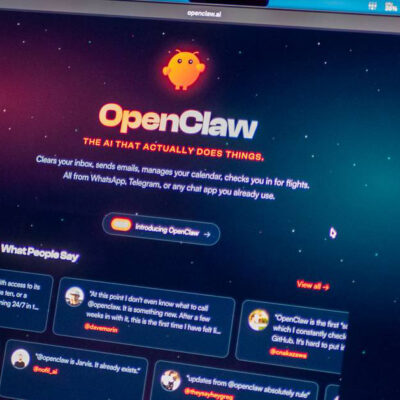
OpenClaw (Clawdbot) is an open‑source, personal AI assistant that runs on your own devices using a local‑first Gateway. Instead of relying solely on cloud dashboards, you control the gateway that connects AI models to the apps you already use.
It acts like a Jarvis‑style AI butler that understands your context, remembers your preferences, and can call tools on your machines to automate work. The key difference: you own the infrastructure and control where your data lives.
You can talk to OpenClaw through multiple messaging surfaces—WhatsApp, Telegram, Discord, Slack, Signal, iMessage (on macOS), and a built‑in WebChat UI—using a single unified assistant.
Core Features
- Local‑First Gateway: A single control plane for sessions, providers, tools, and events across all surfaces.
- Multi‑Surface Messaging: WhatsApp, Telegram, Slack, Discord, Signal, iMessage, and WebChat in one assistant.
- Persistent Memory: Remembers sessions and can maintain long‑term context tailored to you.
- Browser Control: Web browsing, form filling, and data extraction via a dedicated browser tool.
- System Access: Read/write files, run shell commands, and execute scripts—optionally in sandboxed containers.
- Voice Capabilities: Voice and “talk mode” on macOS, iOS, and Android via companion apps and TTS providers like ElevenLabs.
- Extensible Skills: Built‑in and community skills, plus the ability to write your own with TypeScript/JavaScript.
- Live Canvas: Visual workspace/Canvas in the Gateway UI for rich, agent‑driven output and interaction.
- Cross‑Platform: CLI and gateway for Windows (via Node/WSL), macOS, and Linux; optional macOS/iOS/Android companions.
Why Choose OpenClaw?
- Privacy and Ownership: OpenClaw is designed as local‑first: the Gateway runs on hardware you control, and by default binds to loopback (localhost). This means your conversations, credentials, and tools stay under your control unless you explicitly expose the Gateway.
- Deep Customization: You can adjust OpenClaw’s behavior at multiple levels: model choice, prompts and workspace files, tool permissions, provider policies, and even the Gateway’s source code if you build from the repo.
- Seamless Integration: Through skills and providers, OpenClaw can connect to many services you already use—email, project trackers, infrastructure APIs, and smart home gateways—so you orchestrate everything via conversation instead of juggling dashboards.
- Cost Efficiency: You reuse existing AI subscriptions or API keys (Anthropic Claude, OpenAI, etc.) instead of paying for yet another SaaS UI. The Gateway coordinates how often and when models are called so you stay in control of usage.
- Automation‑First Design: OpenClaw emphasizes tool use and skills: instead of being just a chat box, it is built to call scripts, HTTP APIs, browser controllers, and system tools in a structured way. That makes it suitable for inbox triage, DevOps, content workflows, and more.
- Developer‑Friendly
- TypeScript/Node.js stack
- CLI‑driven onboarding (
openclaw onboard) - Clear docs for CLI, Gateway, and providers
- Fits local dev environments, servers, and containers.
System Requirements
| Requirement | Minimum | Recommended |
|---|---|---|
| Runtime | Node.js 22+ | Latest Node.js 22 LTS |
| RAM | 4 GB | 8 GB+ |
| Disk Space | ~2 GB | 5–10 GB (for caches, browser) |
| Network | Stable internet | Low latency for AI API calls |
| AI Provider | Any valid API key | Anthropic Claude / OpenAI APIs |
Supported Operating Systems
- Windows 10/11 (Node.js + CLI; WSL2 strongly recommended in official docs).
- macOS 11+ (Intel & Apple Silicon; mac app available via docs).
- Linux (Ubuntu/Debian and similar distros).
- Docker / containers (for advanced/remote/self‑hosting scenarios).
Recommended Installation (CLI + Wizard)
The recommended way to set up OpenClaw is:
- Install Node.js 22+
- Install the OpenClaw CLI from npm
- Run the onboarding wizard from the CLI.
1. Install Node.js and Git
See platform guides at nodejs.org and git-scm.com.
Example (macOS with Homebrew):
brew install node git
node --version
npm --version
2. Install OpenClaw CLI
Global install (simplest):
npm install -g openclaw
# or
pnpm add -g openclaw
# or
bun add -g openclaw
Check:
openclaw --help3. Run the Onboarding Wizard
Run the wizard once to configure everything:
openclaw onboardThe CLI wizard (documented in Wizard - OpenClaw) will:
- Configure local or remote Gateway (port, bind, auth, Tailscale, etc.)
- Set up model/auth (Anthropic API key is recommended; OpenAI also supported).
- Choose and bootstrap a workspace directory (default
~/clawd). - Enable providers (Telegram, WhatsApp, Discord, Signal, etc.).
- Optionally install a daemon (LaunchAgent/systemd) so Gateway runs in the background.
- Suggest recommended skills and run health checks.
You can later re‑run:
openclaw configureto tweak config.
Optional: Install from Source (Developers)
If you want to read or modify the source:
git clone https://github.com/openclaw/openclaw.git
cd openclaw
Install dependencies:
npm install
# or
pnpm install
# or
bun install
Build the core and UI:
npm run build
npm run ui:build
Then either:
- Use
npx openclaw onboard, or - Install the npm package globally and use
openclaw ...as above.
Starting the Gateway
Once onboarding is complete, you can start the Gateway with:
openclaw gateway --port 18789By default it binds to 127.0.0.1, exposing:
- Gateway WebSocket on
ws://127.0.0.1:18789 - Control UI / Canvas on
http://127.0.0.1:18789/ui - WebChat UI on
http://127.0.0.1:18789/chat.
You can also install a daemon (via wizard or docs) to keep it running in the background.
Connecting Messaging Providers (Multi‑Surface)
Official docs provide a WhatsApp provider using a web session (Baileys).
Typical flow:
- Ensure WhatsApp provider is enabled in config (wizard can do this).
- Log in:
openclaw providers login- Scan the QR code with your WhatsApp app (Linked Devices).
- Optionally, restrict who can DM the bot in
~/.openclaw/openclaw.json:
{
  "whatsapp": {
    "dmPolicy": "allowlist",
    "allowFrom": ["+1234567890"]
  }
}
Telegram
- Create a bot via @BotFather and copy the token.
- Add token in config or environment, e.g.:
{
  "telegram": {
    "enabled": true,
    "botToken": "123456:ABCDEF..."
  }
}- Start the Gateway:
openclaw gateway --port 18789- Message your bot on Telegram.
Discord / Slack / Others
Providers such as Discord and Slack are configured in the same style:
- Set tokens via env or config (
DISCORD_BOT_TOKEN,SLACK_BOT_TOKEN, etc.). - Ensure provider sections exist in
openclaw.jsonper docs. - Invite/install the bot into your workspace/server.
WebChat
Once the Gateway is running, open:
http://127.0.0.1:18789/chatfor a browser‑based chat interface with file uploads and Canvas rendering.
Connecting to AI Models
Anthropic (Claude) – Recommended
- Get an API key or subscription at Anthropic’s console.
- Set:
export ANTHROPIC_API_KEY="sk-ant-..."- Choose a model such as
claude-3.5-sonnetor a newer Opus variant in the wizard or config.
Example config snippet:
{
  "agent": {
    "model": "anthropic/claude-3.5-sonnet"
  },
  "providers": {
    "anthropic": {
      "apiKey": "sk-ant-..."
    }
  }
}
OpenAI (ChatGPT)
- Get API key from OpenAI.
- Set:
export OPENAI_API_KEY="sk-..."- Pick a model like
openai/gpt-4oin wizard or config.
Local Models (Advanced)
OpenClaw’s core docs focus on cloud providers, but you can route requests to local LLM runtimes such as Ollama using custom skills or tools. This usually involves:
- Running a local LLM server (e.g., Ollama on
http://127.0.0.1:11434). - Writing a skill/tool that calls that endpoint.
Because this is an advanced/custom setup, refer to skill and tools docs instead of assuming a built‑in local/llama2 model string in config.
Example Uses
Once configured, you can:
- Chat from WhatsApp: “Summarize my last 10 important emails and create a to‑do list.”
- Use Telegram to manage infra: “Check the health of my servers and restart the staging API if it’s down.”
- From WebChat: “Research competitive pricing and draft a proposal.”
- From Discord: “Generate a weekly status report from these GitHub issues and send it to this channel.”
These kinds of workflows are typically implemented via skills that call Gmail, GitHub, infrastructure APIs, or the browser tool, based on your configuration.
Essential CLI Commands (Typical Patterns)
Actual command names/flags evolve, but common patterns from the current CLI docs include:
openclaw onboard– Run the onboarding wizard.openclawconfigureopenclawgateway --port 18789openclawstatusopenclawdoctor
Use openclaw --helpdocs.clawd.bot/cli for updated subcommands and options.
Troubleshooting Highlights
Typical issues and checks:
- Port already in use:
- Change port via
openclawgateway --port 18790 - Providers not responding:
- Verify tokens and
enabledflags inopenclaw.json - Check provider‑specific docs (e.g., WhatsApp provider doc for QR login).
- High latency / timeouts:
- Check network connectivity and API rate limits.
- Try a faster model (e.g., Claude Sonnet vs. Opus) for interactive tasks.
- Skills not loading:
- Ensure skill folder layout matches examples in docs and that dependencies are installed.
Official Resources
For the latest and most accurate information, always cross‑check with:
- Website:
https://openclaw.ai - Docs index:
https://docs.openclaw.ai - GitHub repo:
https://github.com/openclaw/openclaw