Cua is an open-source framework for building AI agents that see screens, click buttons, and complete tasks autonomously across macOS, Linux, and Windows. This guide covers everything from a one-line quick start to building custom agents with the Python SDK.
What is Cua and why does it matter?
There is a category of work that no API can touch.
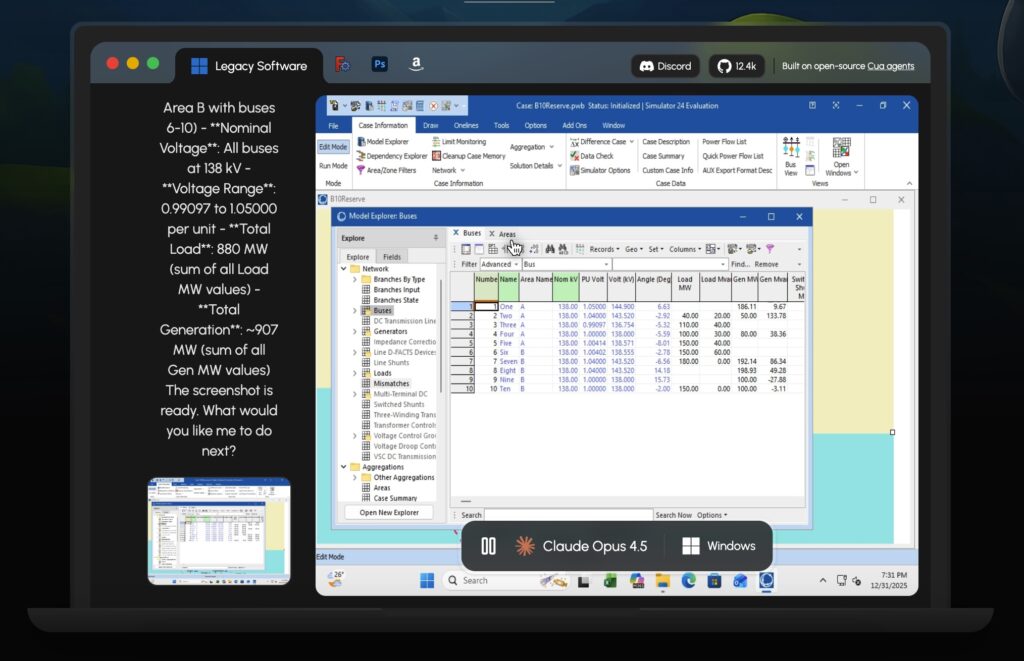
Legacy accounting software on Windows with no REST endpoint. An internal HR portal that only works in Internet Explorer. A CAD application where the only way to export a file is to click through six menus. A government form that must be filled out inside a specific desktop application.
Until recently, automating these workflows meant one of two things: either you wrote brittle scripts that broke whenever a button moved three pixels to the right, or you hired someone to sit in front of a screen and do it manually.
Cua changes that equation. It is an open-source platform – MIT-licensed, 12,400 stars on GitHub, nearly 2,900 commits as of February 2026 – that lets you build AI agents capable of operating any computer the way a human does. The agent takes a screenshot, a vision-language model interprets what is on screen, and the agent framework translates that understanding into mouse clicks, keyboard input, and shell commands. All of this happens inside an isolated sandbox so the agent never touches your real machine.
The name stands for Computer Use Agent. The repo lives at github.com/trycua/cua.
How Cua compares to existing automation tools
If you have used Selenium, Playwright, or Puppeteer, you already understand browser automation. Those tools are excellent at what they do – but they only work with web browsers, and they require you to write selectors that target specific DOM elements.
Cua operates at a fundamentally different level. It does not need access to the DOM, an accessibility tree, or any application internals. It works with pixels. The agent sees the screen as an image, identifies interactive elements using a vision model, and acts on them. This means it can automate anything with a graphical interface: desktop applications, legacy software, remote desktops, even mobile operating systems.
| Capability | Selenium/Playwright | RPA tools | Cua |
|---|---|---|---|
| Web browser automation | Yes | Yes | Yes |
| Desktop application automation | No | Partial | Yes |
| Legacy Windows software | No | Partial | Yes |
| macOS applications | No | No | Yes |
| Mobile (Android) | Appium required | Varies | Built-in |
| Requires application-specific selectors | Yes | Yes | No |
| Open source | Yes | Rarely | Yes (MIT) |
| Sandboxed execution | No | No | Yes |
Architecture: three layers, each usable independently
Cua is structured as a monorepo with three distinct layers. You can use them together or pick only the parts you need.
Layer 1: Desktop sandboxes
Every agent needs a place to run. Cua provides isolated virtual environments across multiple platforms:
- Cloud sandboxes – managed Linux, Windows, and macOS environments hosted by Cua. Create one from the dashboard or CLI. No local setup required.
- Docker containers – lightweight Linux desktops (XFCE or full Ubuntu) running locally. Pull an image and you are ready.
- QEMU virtual machines – full Linux, Windows 11, or Android 11 environments running inside Docker with hardware virtualization.
- Lume – macOS and Linux VMs with near-native performance on Apple Silicon, using Apple’s Virtualization Framework.
- Windows Sandbox – native Windows sandboxing on Windows 10 Pro/Enterprise and Windows 11.
The sandbox is disposable by design. Break something? Delete the container and start fresh.
Layer 2: Computer SDK
A unified Python and TypeScript SDK for interacting with any sandbox:
- Capture screenshots and observe the current screen state
- Simulate mouse clicks, movements, drags, and scrolling
- Type text and press keyboard shortcuts
- Execute shell commands and run code
- Identical API regardless of whether the sandbox is a Docker container, a cloud instance, or a local VM
Layer 3: Agent framework
The intelligence layer. It connects vision-language models to the Computer SDK:
- 100+ model options – Claude, GPT-4, Gemini, open-source models through Cua’s VLM Router or direct provider access
- Pre-built agent loops – optimized specifically for computer-use tasks with screenshot-action cycles
- Composable architecture – combine separate models for grounding (identifying UI elements) and planning (deciding what to do)
- Built-in telemetry – monitor and debug agent performance across runs
Quick start: running your first agent in under five minutes
The fastest way to try Cua is through CuaBot, a CLI that wraps everything into a single command.
Prerequisites
- Node.js version 18 or later
- Docker Desktop
- Xpra client (download here)
Installation and first run
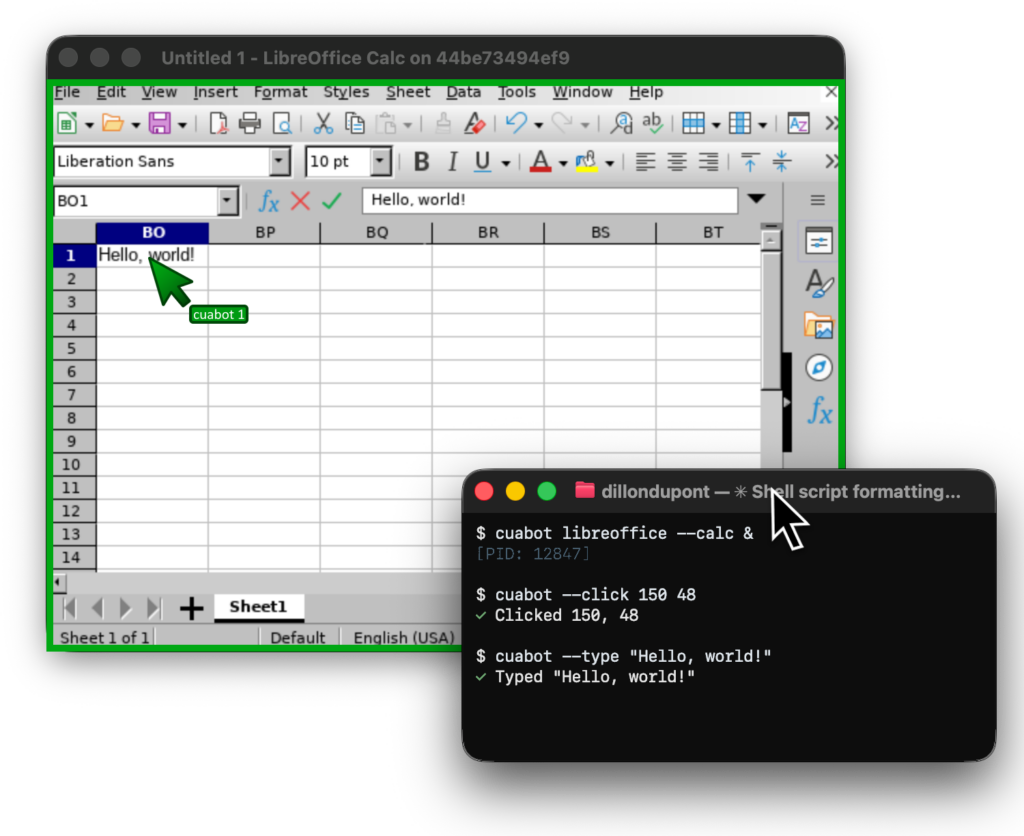
npx cuabotThat is it. On first run, CuaBot walks you through configuration. It pulls a Docker image containing a full Ubuntu 22.04 environment with pre-installed browsers, development tools, Node.js, and Python. Application windows from inside the container are streamed to your desktop through Xpra – they look and feel native, but they are completely isolated from your host system.
Running agents inside the sandbox
cuabot claude      # Claude Code by Anthropic
cuabot gemini      # Gemini CLI by Google
cuabot codex       # Codex CLI by OpenAI
cuabot openclaw    # OpenClaw
cuabot aider       # Aider
cuabot vibe        # Vibe by Mistral
Agents are lazily installed on first use. No advance preparation needed.
Running GUI applications in the sandbox
cuabot chromium    # Open a sandboxed Chromium browser
cuabot xterm       # Open a terminal window
Running multiple isolated sessions simultaneously
cuabot -n work claude       # Claude in a session called "work"
cuabot -n personal gemini   # Gemini in a separate session called "personal"
Each named session gets its own container, its own port, and its own window border color for easy identification.
Building a custom agent with the Python SDK
CuaBot is convenient for interactive use. For programmatic automation – processing hundreds of forms, running nightly UI tests, or building a product on top of computer-use – you need the Python SDK.
Step 1: Install the packages
Cua requires Python 3.12 or 3.13:
pip install cua-computer cua-agentStep 2: Set up a local sandbox
Pull a lightweight Linux desktop image:
docker pull --platform=linux/amd64 trycua/cua-xfce:latestStep 3: Write your first agent
from computer import Computer
from agent import ComputerAgent

computer = Computer(os_type="linux", provider_type="docker")

agent = ComputerAgent(
    model="anthropic/claude-sonnet-4-5-20250929",
    computer=computer
)

async for result in agent.run([
    {"role": "user", "content": "Open Firefox and search for 'Cua AI'"}
]):
    print(result)
What happens under the hood: the agent starts the Docker sandbox, takes a screenshot, sends it to Claude Sonnet 4.5, receives instructions to click the Firefox icon, executes the click, takes another screenshot, identifies the address bar, types the search query, presses Enter – and continues this screenshot-action loop until the task is complete.
Step 4 (alternative): Use a cloud sandbox
If you prefer not to run Docker locally:
- Create an account at cua.ai/signin.
- Generate an API key in the dashboard.
- Create a sandbox:
curl -LsSf https://cua.ai/cli/install.sh | sh
cua auth login
cua sb create --os linux --size small --region north-america- Change one line in your code:
computer = Computer(os_type="linux", provider_type="cloud")Everything else stays the same.
Setting up QEMU virtual machines for Windows and Android
Docker containers give you Linux. For Windows and Android automation, Cua uses QEMU virtualization inside Docker.
Windows 11
docker pull trycua/cua-qemu-windows:latestDownload the Windows 11 Enterprise Evaluation ISO (90-day trial, approximately 6 GB), then create the golden image:
docker run -it --rm \
    --device=/dev/kvm \
    --cap-add NET_ADMIN \
    --mount type=bind,source=/path/to/windows-11.iso,target=/custom.iso \
    -v ~/cua-storage/windows:/storage \
    -p 8006:8006 -p 5000:5000 \
    -e RAM_SIZE=8G -e CPU_CORES=4 -e DISK_SIZE=64G \
    trycua/cua-qemu-windows:latest
The container installs Windows from the ISO and shuts down when complete. Monitor progress at http://localhost:8006.
Android 11
docker pull trycua/cua-qemu-android:latestNo golden image preparation needed – the Android emulator starts directly.
Lume: macOS virtual machines on Apple Silicon
Lume is Cua’s dedicated tool for running macOS and Linux VMs with near-native performance on Apple Silicon Macs. It uses Apple’s Virtualization Framework directly, which means significantly better performance than traditional emulation.
Requirements
- Apple Silicon Mac (M1, M2, M3, or M4)
- macOS 13.0 or later
- 8 GB RAM minimum (16 GB recommended)
- 30 GB free disk space
Installation
/bin/bash -c "$(curl -fsSL https://raw.githubusercontent.com/trycua/cua/main/libs/lume/scripts/install.sh)"If ~/.local/bin is not in your PATH (common on fresh macOS installations):
echo 'export PATH="$PATH:$HOME/.local/bin"' >> ~/.zshrc
source ~/.zshrc
Running a macOS VM
lume run macos-sequoia-vanilla:latestManaging the background service
Lume installs a background service that starts on login and an auto-updater that checks for new versions every 24 hours. Both can be disabled:
# Install without background service
/bin/bash -c "$(curl -fsSL https://raw.githubusercontent.com/trycua/cua/main/libs/lume/scripts/install.sh)" -- --no-background-service

# Install without auto-updater
/bin/bash -c "$(curl -fsSL https://raw.githubusercontent.com/trycua/cua/main/libs/lume/scripts/install.sh)" -- --no-auto-updater
Without the background service, run lume serve manually when using tools that depend on the Lume API.[^5]
Cua-Bench: benchmarking your agents
Building agents is one thing. Knowing whether they actually work reliably is another. Cua-Bench provides standardized evaluation across established benchmarks: OSWorld, ScreenSpot, Windows Arena, and custom task sets.
cd cua-bench
uv tool install -e .

# Create a base image
cb image create linux-docker

# Run a benchmark suite
cb run dataset datasets/cua-bench-basic --agent cua-agent --max-parallel 4
Results can be exported as trajectories for reinforcement learning and model fine-tuning.
Package reference
| Package | Description |
|---|---|
| cuabot | Multi-agent computer-use sandbox CLI |
| cua-agent | AI agent framework for computer-use tasks |
| cua-computer | SDK for controlling desktop environments |
| cua-computer-server | Driver for UI interactions and code execution |
| cua-bench | Benchmarks and RL environments |
| lume | macOS/Linux VM management on Apple Silicon |
| lumier | Docker-compatible interface for Lume VMs |
Frequently asked questions
What models does Cua support?
Cua works with over 100 vision-language models through its VLM Router, including Claude (Anthropic), GPT-4o and GPT-4 Turbo (OpenAI), Gemini (Google), and open-source models. You can also connect to any model accessible through an OpenAI-compatible API.
Is Cua free to use?
The core platform is open source under the MIT license. Cloud sandboxes have a free tier with paid plans for higher usage. Running everything locally (Docker, Lume, QEMU) costs nothing beyond your own compute.
Can Cua automate mobile apps?
Yes. Cua supports Android 11 through QEMU virtualization, and CuaBot has built-in support for agent-device which covers both iOS and Android.
How is this different from Anthropic’s computer use feature?
Anthropic provides the vision-language model that can understand screenshots and generate actions. Cua provides the infrastructure around it: the sandboxes where agents run safely, the SDK that translates model outputs into actual mouse clicks and keystrokes, the benchmarking tools, and support for models beyond Claude.
Does the agent run on my actual machine?
No. All agent activity happens inside a sandbox – a Docker container, a QEMU VM, a Lume virtual machine, or a cloud instance. Your host system is never modified.
What about API key security?
Store keys in a .env file or environment variables. Never hardcode them in your source code, especially if your repository is public.
Who should use Cua?
Software engineers who want isolated sandbox environments for AI coding assistants. Let Claude Code, Codex, or OpenCode run shell commands and modify files without risking your development machine.
QA and testing teams who need to automate end-to-end tests against real graphical interfaces – not just browsers, but desktop applications, legacy software, and cross-platform workflows.
AI researchers building or evaluating computer-use models. Cua-Bench provides reproducible environments and standardized metrics. Export trajectories for training.
Enterprise teams automating business processes that involve legacy software with no API – the kind of application where the only interface is a GUI running on Windows.
Getting started today
The simplest path from zero to a working agent:
npx cuabotOne command. One sandbox. One agent. Go from there.
For deeper integration, install the Python SDK, set up a local Docker sandbox, and start building agents that can operate any computer – any operating system, any application, any interface – autonomously and safely.
The documentation is at cua.ai/docs. The community is on Discord. The code is on GitHub.