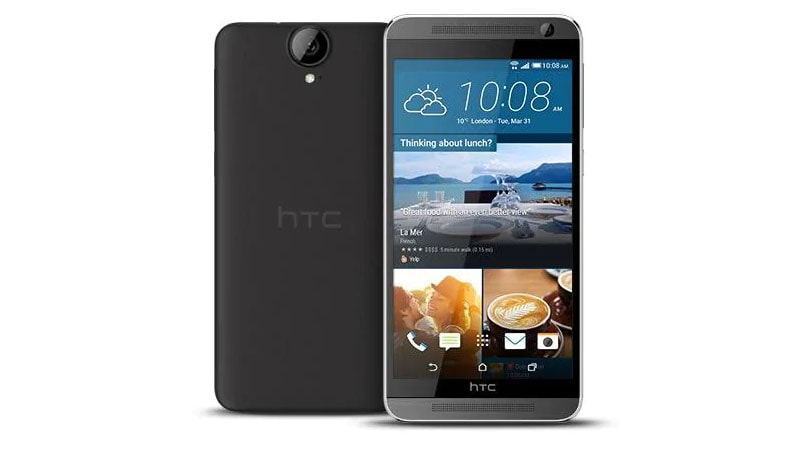
Here you can download the latest official Stock ROM (Firmware) files for the Stock rom RUU zip for HTC E9+ A55ML. These files are essential for repairing software issues, fixing bootloops, upgrading/downgrading the OS, or restoring your device to its factory state.
Prerequisites & Preparation
- Backup Data: Flashing will completely wipe all data on your device. Back up important files and settings before proceeding.
- Battery Level: Ensure your device has at least 50% battery to prevent shutdown during the flashing process.
- USB Driver & Tools: Install the correct USB drivers for your brand and prepare the flashing tool (Odin for Samsung, SP Flash Tool/QPST for Qualcomm/MTK, etc.).
CAUTION: Flashing official firmware carries a risk of bricking your device. Proceed with caution and at your own risk. addROM is not responsible for any damage caused to your device.
Download Stock ROM & Firmware
Global / General
| File Type | Firmware / Build | Region / Model | OS Version | Download Link |
|---|---|---|---|---|
| Stock ROM | V1.3 | Global / General | – | Download |
| Stock ROM | 4.2.0.001 | Global / General | – | MediaFire |
| Stock ROM | 1.11.708.2 | Global / General | Android 2 | Google Drive | Download | OneDrive | MaxSpeed |
| Stock ROM | 1.21.708.5 | Global / General | Android 2 | Google Drive | Download | OneDrive | MaxSpeed |
| Stock ROM | 1.45.708.5 | Global / General | Android 2 | Google Drive | Download | OneDrive | MaxSpeed |
| Stock ROM | 1.09.709.3 | Global / General | Android 2 | Google Drive | Download | OneDrive | MaxSpeed |
| Stock ROM | 1.41.709.6 | Global / General | Android 2 | Google Drive | Download | OneDrive | MaxSpeed |
| Stock ROM | 1.46.709.5 | Global / General | Android 2 | Google Drive | Download | OneDrive | MaxSpeed |
| Stock ROM | 1.38.707.5 | Global / General | Android 2 | Google Drive | Download | OneDrive | MaxSpeed |
| Stock ROM | 1.45.707.2 | Global / General | Android 2 | Google Drive | Download | OneDrive | MaxSpeed |
| Stock ROM | 1.45.707.5 | Global / General | Android 2 | Google Drive | Download | OneDrive | MaxSpeed |
| Stock ROM | 1.30.401.6 | Global / General | Android 2 | Google Drive | Download | OneDrive | MaxSpeed |
| Stock ROM | 1.38.401.5 | Global / General | Android 2 | Google Drive | Download | OneDrive | MaxSpeed |
| Stock ROM | 1.41.401.13 | Global / General | Android 2 | Google Drive | Download | OneDrive | MaxSpeed |
| Stock ROM | 1.45.401.2 | Global / General | Android 2 | Google Drive | Download | OneDrive | MaxSpeed |
| Stock ROM | 1.09.1405.2 | Global / General | Android 2 | Google Drive | Download | OneDrive | MaxSpeed |
| Stock ROM | 1.21.1405.5 | Global / General | Android 2 | Google Drive | Download | OneDrive | MaxSpeed |
| Stock ROM | 1.30.1405.1 | Global / General | Android 2 | Google Drive | Download | OneDrive | MaxSpeed |
| Stock ROM | 1.15.1403.1 | Global / General | Android 2 | Google Drive | Download | OneDrive | MaxSpeed |
| Stock ROM | 1.80.1405.1 | Global / General | Android 2 | Google Drive | Download | OneDrive | MaxSpeed |
| Stock ROM | 1.80.1403.1 | Global / General | Android 2 | Google Drive | Download | OneDrive | MaxSpeed |
How to Flash HTC Stock ROM via RUU Zip (SD Card / Fastboot)
To flash the stock RUU zip firmware on your HTC device, you can use either the MicroSD Card method or the Fastboot command method. Follow the detailed steps below:
Method 1: Flashing via MicroSD Card (Easiest)
- Prepare a MicroSD card formatted to the FAT32 file system.
- Download the HTC RUU zip file and copy it directly to the root directory of your MicroSD card.
- Rename the zip file to the specific model identifier zip name (e.g.
2PQ9IMG.zip,0P3ZIMG.zip,0P9CIMG.zip, etc.) based on your device model ID. (The zip filename must match your device model’s code name to be recognized). - Insert the MicroSD card into your HTC phone.
- Power off your device completely.
- Press and hold the Volume Down and Power buttons simultaneously to boot the device into Download Mode / Bootloader Mode.
- The phone will automatically scan the SD card, detect the renamed RUU zip file, and prompt you to start the update.
- Press the Volume Up button to confirm and begin the flashing process.
- Wait for the flashing process to complete, then press the Power button to reboot your device.
Method 2: Flashing via HTC Fastboot Tool
- Download and install the HTC USB Drivers on your PC.
- Download and set up ADB and Fastboot Tools (or the HTC Fastboot utility).
- Power off your HTC phone, then press and hold Volume Down + Power to enter Download Mode / Bootloader. Connect the phone to your PC via USB.
- Open the command prompt in your Fastboot directory.
- Run the following command to boot the phone into RUU flashing mode:
fastboot oem rebootRUU(orhtc_fastboot oem rebootRUU) - Flash the RUU zip package by running:
fastboot flash zip <filename>.zip(orhtc_fastboot flash zip <filename>.zip) - If the tool shows an error like flush image again or asks to pre-flash, immediately run the same flash command a second time.
- Once flashing is completed (shows success/okay), reboot your phone by running:
fastboot reboot