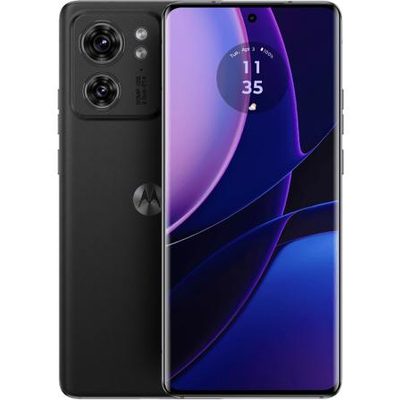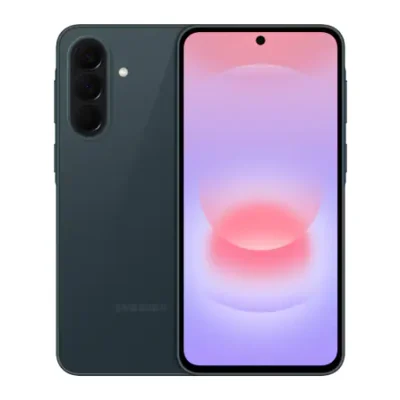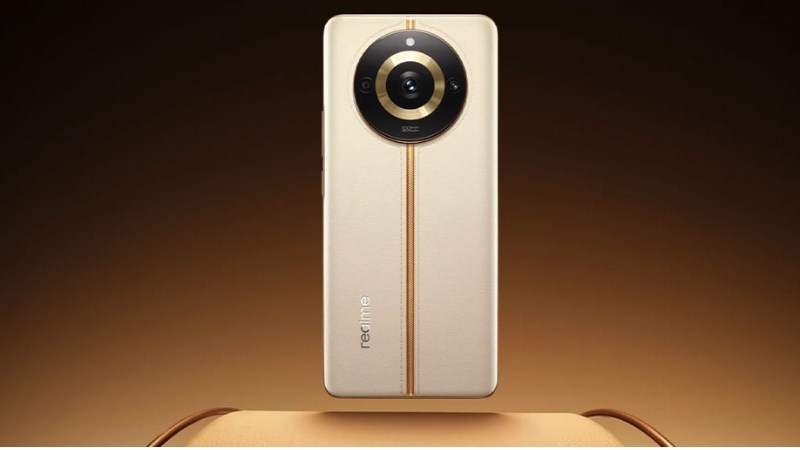
The Realme 11 Pro comes with 6.7 inches AMOLED display and it is powered by the Mediatek Dimensity 7050 chipset. The smartphone is packed with 8 GB, 12 GB RAM and 256 GB, 512 GB internal storage while it is fueled with 5,000 mAh battery + 67W wired charging.
The device runs on Android 13 + Realme UI 4.0 operating system. Considering the rear camera, it comes with a 100 MP + 2 MP dual-camera system. The smartphone supports GPS, GALILEO, GLONASS, BDS, QZSS, USB Type-C 2.0 and Bluetooth 5.2.
The sensors include under display, optical fingerprint, accelerometer, gyro, proximity, and compass. It is availabe in colors like Black, Green, and Gold.
It is powered by Mediatek Dimensity 7050 Octa-core processor while the GPU is Mali-G68. The dimension of the device is 161.7 x 73.9 x 8.2 mm and it weighs 183 grams.
Prerequisites & Preparation
- Backup Data: Flashing will completely wipe all data on your device. Back up important files and settings before proceeding.
- Battery Level: Ensure your device has at least 50% battery to prevent shutdown during the flashing process.
- USB Driver & Tools: Install the correct USB drivers for your brand and prepare the flashing tool (Odin for Samsung, SP Flash Tool/QPST for Qualcomm/MTK, etc.).
CAUTION: Flashing official firmware carries a risk of bricking your device. Proceed with caution and at your own risk. addROM is not responsible for any damage caused to your device.
Download Stock ROM & Firmware
RMX3820
| File Type | Firmware / Build | Region / Model | OS Version | Download Link |
|---|---|---|---|---|
| Stock ROM | MT6877 | RMX3820 | Android 11 | Google Drive |
RMX3823
| File Type | Firmware / Build | Region / Model | OS Version | Download Link |
|---|---|---|---|---|
| Stock ROM | MT6877 | RMX3823 | Android 11 | Google Drive |
How to Flash Firmware / Stock ROM
To flash the stock firmware on your Realme device using SP Flash Tool, follow these steps:
- Download and install the MTK USB Drivers on your computer.
- Download and extract the SP Flash Tool.
- Launch
Flash_tool.exeas administrator. - Click on the Scatter-loading button and select the Android scatter file (
.txt) from the extracted firmware folder. - Click the Download button.
- Power off your device completely, hold the Volume Down or Volume Up button, and connect it to the computer via USB cable.
- The flashing process will start automatically. Wait for the green “Download OK” checkmark to appear.