Key Takeaways: Recordly is a free, open‑source desktop app that turns raw screen captures into polished demo‑ready videos and GIFs in minutes, without needing a heavyweight editor.
What is Recordly?
Recordly is an open‑source desktop screen recorder and editor designed for people who care about presentation quality: product founders, tutorial creators, SaaS teams, and developers who publish polished screencasts. Instead of giving you a raw capture and sending you into a complex NLE, Recordly bakes in the “polish stack” you usually pay for—auto‑zoom, smooth cursors, styled frames, and quick exports—to make recordings look refined by default.
At its core, Recordly focuses on three things:
- Capture: High‑quality screen recording with system audio and mic input on macOS, Windows, and Linux.
- Polish: Automatic zoom suggestions, cursor smoothing and motion blur, dynamic webcam bubbles, captions, and background styling.
- Export: One workflow to go from recording to MP4 or GIF, with timeline trims, speed changes, annotations, and layout tweaks built in.
You can explore Recordly here:
- Homepage: https://recordly.dev
- GitHub repo: https://github.com/webadderallorg/Recordly
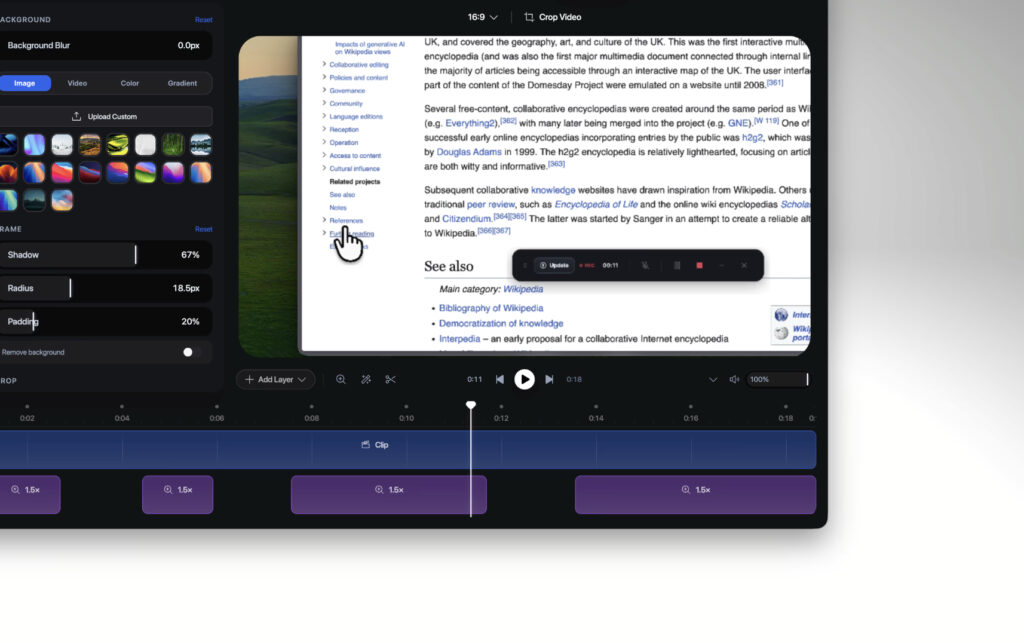
For quick visual context, here are some illustrative images of timeline‑based editing and cursor effects similar to what you’ll work with in Recordly:
Why Recordly Stands Out
Recordly is designed for “demo‑first” builders: people who regularly ship product walkthroughs, onboarding clips, and UI explainers.
Some reasons it stands out:
- Looks edited by default: Auto‑zoom follows your cursor and key interactions, while motion‑blur cursors and click bounce effects guide viewer attention and remove the “nervous mouse” feeling.
- Built‑in framing and branding: You can drop your capture into styled frames with gradients, blurred backgrounds, padding, shadows, and custom aspect ratios, so the final video looks more like a polished marketing asset than a raw screen dump.
- Integrated editor, not an afterthought: There’s a drag‑and‑drop timeline for trims, zoom regions, speed changes, annotations, audio tracks, and layout settings. You can save work as
.recordlyprojects and reopen them later to refine demos over multiple sessions. - Open‑source and free: Recordly is fully free to use, with no paywalls, export limits, or watermarks. The AGPL‑3.0 license means you get transparency and community‑driven improvements.
For creators who already have a stack of tools, Recordly is small enough to fit right in, but powerful enough to replace a large chunk of the “make this look presentable” work.
Platform Support and Tech Under the Hood
Recordly runs natively on:
- macOS – uses ScreenCaptureKit and other system APIs for smooth captures and reliable audio.
- Windows – uses Windows Graphics Capture (WGC) and WASAPI where available, giving you performant desktop recording with system sound.
- Linux – uses Electron capture backends; on Linux, cursor hiding and some UI details are slightly different, but the core experience remains intact.
For rendering, Recordly uses web tech (PixiJS for scene rendering) inside an Electron‑based shell, with platform‑specific capture pipelines per OS. This gives you hardware‑accelerated visuals, modern UI, and cross‑platform parity while keeping recording performance competitive.
Installing Recordly
You can install Recordly either via prebuilt releases (recommended for most users) or by building from source if you want maximum control.
Option 1: Install from Prebuilt Releases
The easiest route:
- Visit the homepage: https://recordly.dev.
- Click Download and choose your platform (macOS, Windows, Linux).
- Alternatively, go straight to GitHub releases: https://github.com/webadderallorg/Recordly/releases.
- Download the latest stable installer or archive for your OS.
Platform specifics:
- macOS:
- Download the
.dmgor.zip. - Drag the app into your Applications folder.
- On first launch, macOS may prompt you to allow screen recording and microphone access—approve these in System Settings when asked.
- Windows:
- Download the
.exeinstaller. - Run it and follow the setup wizard to install Recordly.
- Grant screen capture and audio permissions when prompted.
- Linux:
- Download the
.AppImageor distribution‑specific package if available (e.g., AUR entry on Arch). - For
.AppImage, make it executable (chmod +x) and run it. - Ensure you’ve allowed screen capture and audio recording in your desktop environment.
Once installed, launch Recordly from your OS’s app launcher. It opens into a minimal main window that focuses on recording and editing, not on busy menus.
Option 2: Build from Source (Developer Workflow)
If you want to hack on Recordly or integrate it into a custom setup:
- Clone the repo:
git clone https://github.com/webadderallorg/Recordly.git
cd Recordly- Install dependencies (Node + npm required):
npm install- Run in dev mode:
npm run dev- Build for your platform:
npm run buildThis produces platform‑specific binaries and installers using Electron’s build pipeline. You can then install and run those builds just like the official releases.
Understanding the Recordly Interface
Recordly’s UI is intentionally minimal, with just enough structure to make editing intuitive.
Main Recording View
When you open Recordly, you’ll see:
- A central preview area showing your capture frame.
- A simple control bar for Record, Stop, and quick settings (screen selection, audio sources, webcam).
- Options to choose which display or window to capture, whether to include webcam overlay, and which audio inputs to record.
You click Record, choose your screen/window, and Recordly starts capturing with cursor tracking and auto‑zoom ready to kick in.
Timeline Editor
After you stop recording, Recordly drops you into its timeline editor:
- The timeline at the bottom with segments for the main video, zoom regions, captions, annotations, and audio.
- A preview canvas for your composed frame (screen, background, webcam bubble, overlays).
- Side panels for cursor effects, zoom settings, background/frame styling, and export options.
This timeline is where the “polished without a big editor” magic happens.
Core Features You’ll Use Every Day
Recordly is all about getting from raw capture to share‑worthy assets quickly.
Auto‑Zoom and Cursor Polish
You can:
- Enable auto‑zoom, which adds zoom points around key interactions (clicks, hovers, focus changes) to guide attention.
- Adjust zoom levels, duration, and easing curves for each zoom segment.
- Apply cursor effects like smoothing, motion blur, click bounce, sway, and highlight rings so the pointer feels intentional and easy to follow.
These features are particularly powerful for UI demos, coding tutorials, and walkthroughs where micro‑interactions matter.
Webcam Bubbles and Framing
Recordly treats your face as a compositional element, not an overlay afterthought:
- Webcam bubbles can expand and shrink contextually, giving emphasis to your commentary without permanently blocking the UI.
- You can place the bubble in different corners, adjust size, add border radius/shadow, and sync its motion with key points in the timeline.
- Background tools let you blur the desktop, add images or gradient wallpapers, and frame your capture with padding and drop shadows.
This is where product launch clips and onboarding videos start to look “expensive” without extra tools.
Timeline Editing and Annotations
Timeline tools include:
- Trim and clip length controls for cutting out dead time.
- Speed regions to slow down or speed up specific parts of the recording.
- Annotations with text, arrows, boxes, and highlights tied to exact timestamps.
- Audio controls to adjust volume, mute sections, or integrate separate narration.
The drag‑and‑drop interface makes it easy to rearrange segments, fine‑tune zooms, and align annotations with spoken explanations.
Captions and Projects
Recordly supports:
- Auto‑generated captions from your narration, with language selection and timeline editing for corrections.
- Saving work as
.recordlyproject files, so you can reopen demos later, tweak details, or generate new exports (e.g., shorter clips or GIF variants).
This is essential when iterating on product walkthroughs over weeks or months.
Exporting Videos and GIFs
Once your recording looks the way you want:
- Open the Export panel.
- Choose output format: MP4 or GIF.
- Adjust resolution, quality, frame rate, and (for GIF) loop behavior and file size constraints.
- Optionally, crop or change aspect ratio for social platforms (YouTube, X/Twitter, TikTok‑like verticals).
- Click Export and wait for Recordly to render your final asset.
Because Recordly is designed for demos and tutorials, it focuses on clean exports rather than huge codec settings menus. You get enough control to target platforms and performance, not an overwhelming wall of options.
Extensions and Marketplace
Recordly includes an extensions system and marketplace where you can add extra features on top of the core engine, such as:
- Custom cursor styles and sound effects.
- Device frames (browser mockups, app shells, mobile frames).
- Background packs and branding overlays.
You install extensions from within the app, and they become available as options in your composition and timeline tools. This keeps the base app lean while giving power users room to grow.
Practical Workflow Ideas for Creators and Builders
Recordly fits nicely into a modern demo‑heavy, automation‑friendly workflow:
- Product demo pipelines: Capture feature tours, apply consistent zoom/cursor styles, export MP4 for YouTube and GIF for X/Twitter, then script uploads via your existing tools.
- Tutorial series: Use
.recordlyprojects to maintain consistent framing and annotation styles across episodes, making your series feel cohesive. - AI agent showcases: Record coding agents, dashboards, or automation flows, and use zoom + cursor polish to make agent behavior easy to follow.
- Support and onboarding: Maintain a library of reusable demos; when UI changes, reopen the project, update a few segments, and re‑export instead of starting from scratch.
Because Recordly is open‑source and runs locally, you can trust it in privacy‑sensitive environments and integrate it into self‑hosted infrastructure (e.g., triggering exports, organizing assets on your own storage).
For more details, installers, and feature updates:
- Official site: https://recordly.dev
- GitHub repository: https://github.com/webadderallorg/Recordly