You plug in an external drive to your Mac, and nothing happens. There’s no desktop icon or “Finder” sidebar entry. Or it appears in Disk Utility but stays greyed out, shows a “disk not readable” message, or opens in read-only mode.
An external hard drive not showing up on a Mac can be caused by a loose connection, Finder settings, a Windows-formatted drive, file system corruption, or insufficient power. It can also happen if the disk is failing. Each cause needs a different fix, and some put your data at risk.
If the drive holds files you care about, do not initialize, erase, or reformat it. These steps can turn a fixable problem into data loss. We’ll teach you, step by step in this guide, how to start with the safest checks and try recovery before making changes to the drive.
Part 1: Identify the External Drive Problem
Spend two minutes figuring out what kind of failure is behind the external hard drive not showing up on Mac before you try fixes. Open “Disk Utility,” choose “View,” then tap “Show All Devices.” See how the drive appears. That one observation narrows the cause quickly:
| Symptom | Likely Cause | First Check |
|---|---|---|
| Missing from Finder only | Finder display settings | Enable External disks |
| Visible but greyed out in Disk Utility | Volume is unmounted | Click Mount |
| Readable but not writable | Format or permission issue | Check Get Info |
| Missing from Disk Utility | Cable, port, power, or hardware failure | Test another connection |
| “Disk not readable” warning | Corrupted or unsupported file system | Recover data before formatting |
A second checkpoint separates a hardware problem from a software one. Here’s how:
- Hold “Option,” open the “Apple” menu, and select “System Information.”
- Check “USB” or “Thunderbolt.” If the drive appears there but not in “Disk Utility,” the issue is likely software-related. But if it appears in neither, check the connection, power, or hardware.
Part 2: Try Basic Connection Fixes
Start here. These basic connection checks cost nothing and don’t change the drive. Here are five fixes to try:
Fix 1: Disconnect Safely and Reconnect
Eject the drive if mounted, unplug it, wait ten seconds, and reconnect it. If it won’t eject, quit apps that may be using it first. Don’t yank it out, as improper removal can corrupt the file system.
Fix 2: Try a Different Port
Connect the drive to another USB, USB-C, or Thunderbolt port. If it functions, test the original port with another device to see whether the port is faulty.
Fix 3: Replace the Cable or Adapter, and Skip the Hub
A faulty cable can supply enough power to light up the drive but fail to transfer data. Try another cable, preferably the original, and remove any adapters for testing. Connect the drive directly to your Mac instead of through a hub or dock. If you must use a hub, make sure its power adapter is connected.
Fix 4: Confirm the Drive Has Enough Power
Portable drives draw power from the Mac, while desktop drives need their own power adapter. Check that it’s plugged in and switched on. Clicking, repeated spin-ups, or a drive that never settles may indicate a power issue.
Fix 5: Test the Drive on Another Mac or PC
If the drive functions on another computer, the problem likely lies with your Mac’s ports, settings, or software. But if it fails everywhere, the drive or its file system may be at fault. A Windows PC might also recognize a drive that macOS cannot read because of its format.
In case the drive still doesn’t appear in “System Information” or “Disk Utility,” it may be a hardware problem. Clicking, grinding, or repeated spin-up noises mean you should power it down and stop testing. A drive in that condition needs professional recovery, not more attempts from your Mac.
Part 3: Make the Drive Appear in Finder
When “Disk Utility” shows the drive mounted but “Finder” doesn’t, the issue may be visibility settings. So, here’s what to do:
- Open “Finder.” Choose “Settings” or “Preferences” on macOS Monterey and earlier.
- Beneath “General,” tick “External disks” to show drives on the desktop.
- Beneath “Sidebar,” tick “External disks” under “Locations.” If the sidebar is missing, choose “View.” Tap “Show Sidebar.”
These settings fix visibility only. They won’t help if macOS can’t detect or mount the drive. If the boxes are already ticked, move on.
Part 4: Mount and Inspect the Drive in Disk Utility
The default view hides physical devices, making it easier to miss a drive in “Disk Utility” whose volume hasn’t appeared. So, here’s how to inspect and mount the drive:
- Open “Disk Utility” and choose “View.” Tap “Show All Devices.”
- If the volume is greyed out, select it and click “Mount.” This often makes the files accessible immediately.
- Click “Info” to check the drive’s capacity, format, partition map, and S.M.A.R.T. status, if available. These details help identify the problem:
- Capacity is zero or incorrect: This may indicate hardware failure.
- Format is NTFS: macOS can read NTFS drives but doesn’t natively support writing to them. If the drive was last used on Windows, this likely explains the read-only access.
- S.M.A.R.T. says “Not Supported”: Many USB enclosures don’t report this data, so the status alone tells you little. A failing status is more serious. Copy your data off immediately if possible.
Note: For formatting choices, “APFS” suits Mac-only storage, while “exFAT” is a popular choice for drives shared between Mac and Windows. Keep this in mind for Part 7.
Part 5: Recover Important Files Before Repairing the Drive
This step comes before “First Aid” or formatting. If the drive appears in “Disk Utility” but its files are missing or inaccessible, try external hard drive recovery first. “First Aid” can modify damaged file system structures, potentially making some files harder to recover.
Recovery software tries to retrieve files before you change the drive. To recover files from an external hard drive on Mac, try 4DDiG Mac Data Recovery. It supports external drives and file systems, including APFS, HFS+, FAT32, and exFAT.
Benefits of 4DDiG Mac Data Recovery:
- Recovers files from corrupted, formatted, or unrecognized external hard drives.
- Restores deleted and formatted files.
- Scans missing or inaccessible partitions for lost files.
- Deep-scans drives for files not visible in “Finder.”
- Recovers 2,000+ file types, including photos, videos, documents, audio, and archives.
- Previews and selectively recovers files.
- Filters and searches files by name, type, size, or modification date.
- Offers free scanning and file previews before recovery.
Note: If the drive is unstable or failing, 4DDiG’s “Data Backup” feature can create a disk image so you can scan the copy instead of stressing the original.
Recover External Drive With 4DDiG Data Recovery:
Here’s how to recover files from external hard drive on a Mac with 4DDiG Mac Data Recovery:
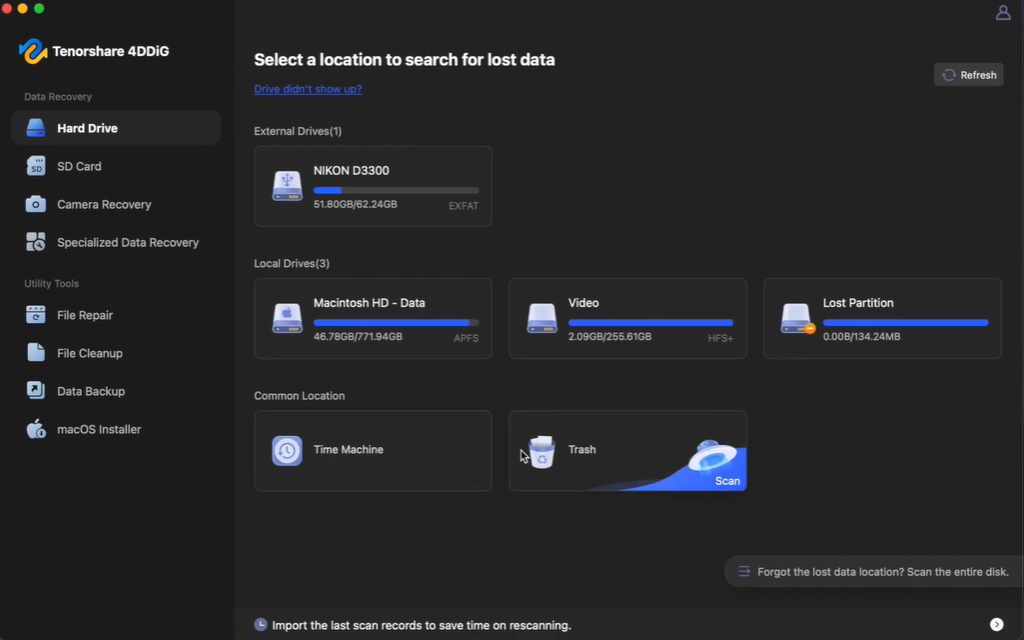
Step 1: Select the drive:
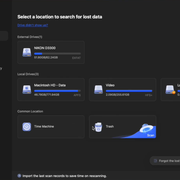
Launch 4DDiG Mac Data Recovery on your Mac. Then, connect the external drive first so the software can see it. Select the affected external drive from the list of locations.
Step 2: Scan for deleted or inaccessible files:
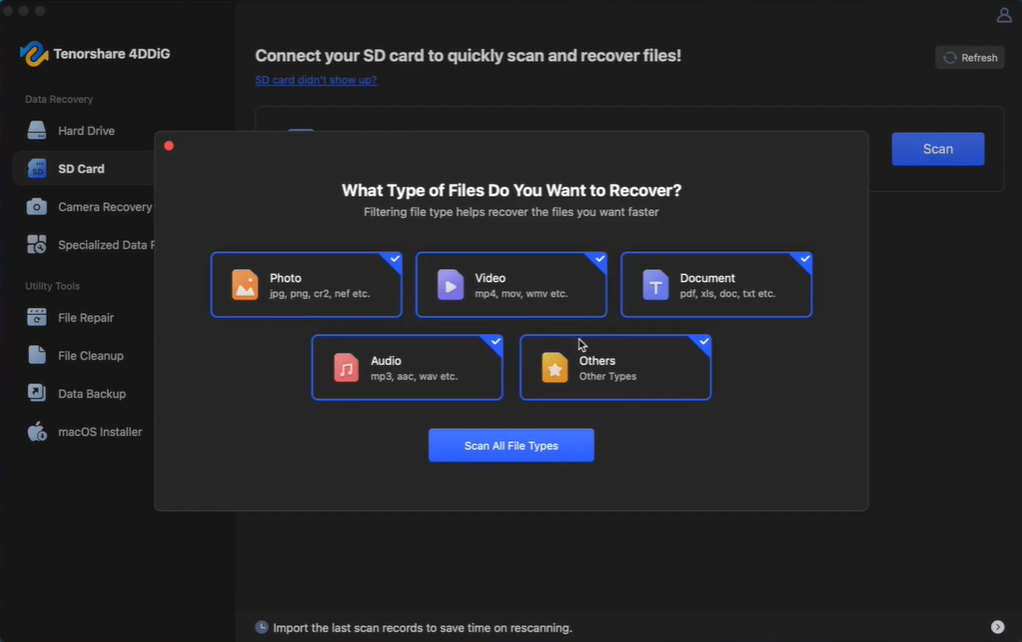
Pick the file types and start scanning. You can pause and resume the scan anytime as soon as you find your required files.
Step 3: Filter and preview files:
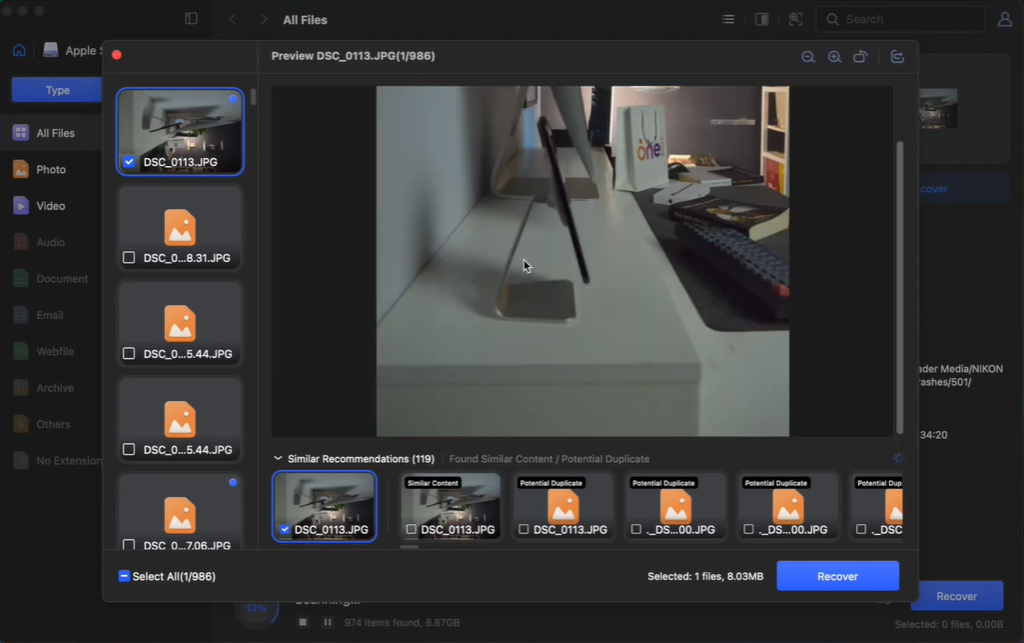
Narrow the results by file type, size, name, or modified time, and open the preview to confirm a file is intact before you restore it. Previewing is free, so you can check what’s recoverable before deciding to buy.
Step 4: Save the recoverable files:
Recover files to a different, healthy drive or cloud. Never save them back to the drive you’re recovering from.
Important: Recovery depends on whether the Mac can detect the drive, how badly the file system is damaged, and whether data has been overwritten. A healthy disk with file system corruption is a better candidate than a physically failing or repeatedly overwritten drive. Start with a free scan and preview to assess what’s recoverable.
Part 6: Run Disk Utility First Aid
Once your important files are safe, run “First Aid.” It can check and repair errors in a drive’s formatting and directory structure. In “Disk Utility,” enable “Show All Devices” and follow this order:
- Select each volume, click “First Aid,” then tap “Run.” Repeat for each container.
- Select the physical device at the top and run “First Aid.”
Running “First Aid” only on the physical disk skips checks on individual volumes and containers. It can’t fix every problem. If it fails repeatedly, back up what you can and consider reformatting. But if “Disk Utility” warns that the drive is about to fail, back up your data and replace it.
Part 7: Format the External Drive as a Last Resort
Format when the file system can’t be repaired, and you’ve recovered or backed up everything you need. Erasing a drive deletes its data. When you’re ready:
- Open “Disk Utility.” Then, select “View.” Tap “Show All Devices.”
- Select the physical device at the top. Click “Erase.”
- Set “Scheme” to “GUID Partition Map.” If the option is missing, you’ve selected a volume instead.
- Pick a format based on how you’ll use the drive:
- APFS: Best for external storage used only with modern Macs.
- exFAT: Ideal for sharing files between Mac and Windows. Eject properly to reduce corruption risk. It doesn’t support “Time Machine” backups.
- Mac OS Extended (Journaled): An older Mac format suited to legacy compatibility.
- Name the drive, and click “Erase.”
If “Disk Utility” reports that the drive is failing, formatting won’t fix the hardware. Replace the drive rather than trusting it with important files.
Final Words
When an external hard drive is not working on Mac, check the cable, port, and power, and test the drive on another computer first. Then, check “Finder” settings and try mounting it in “Disk Utility.” If files are missing or inaccessible, recover them with 4DDiG Mac Data Recovery before you repair it.
Next, run “First Aid” on each volume, container, and device. Format only as a last resort, after backing up your files. Many drives aren’t dead. They may be hidden, unmounted, or connected with a faulty cable. The biggest mistake is clicking “Erase” too soon.
FAQs
- Why is my external hard drive not showing up on Mac? The drive may be hidden in “Finder,” unmounted, underpowered, improperly connected, corrupted, or physically damaged. Check “Finder” and “Disk Utility” to determine whether macOS detects it.
- How do I mount an external hard drive manually? Here’s how:
- Open “Disk Utility.” Choose “View.” Then, tap “Show All Devices.”
- Select the greyed-out volume, and click “Mount.” If mounting fails, recover the data before running repairs.
- Will Disk Utility First Aid delete my files? “First Aid” can check and repair file-system errors, not erase files. However, failing or severely corrupted drives can behave unpredictably, so recover valuable data first.
- Can 4DDiG recover files from an external drive that will not mount? 4DDiG Data Recovery can scan the drive if macOS can still detect the physical device. But software recovery is unlikely if the drive has severe mechanical or electronic damage.
- Should I erase an external drive that Mac cannot read? Only after recovering or backing up important files. Erasing can create a compatible file system, but it removes existing data and will not repair physical hardware failure.