Omarchy: Install and Use the Opinionated Arch Linux Desktop

Key Takeaways: Omarchy transforms Arch Linux into a polished, keyboard-driven desktop with Hyprland, preconfigured tools, instant theme switching, and built-in AI agent integration.
What Is Omarchy?
Omarchy is an Arch-based Linux distribution designed to deliver a complete, opinionated desktop experience without the usual configuration overhead. It combines Arch Linux, the Hyprland tiling Wayland compositor, and Quickshell for the status bar, launcher, notifications, and other desktop components.
The project is created and maintained by David Heinemeier Hansson, known for Ruby on Rails and Basecamp. Instead of starting from a minimal Arch installation and spending hours configuring dotfiles, Omarchy provides a preassembled system with sensible defaults, keyboard-driven workflows, and a curated selection of applications.
Omarchy ships with development and productivity tools such as Neovim, Chromium, LibreOffice, Obsidian, Spotify, and more. It includes full-disk encryption by default, Btrfs with Snapper snapshots, UFW firewall, and a collection of synchronized themes that can be switched instantly.
Visit the Omarchy GitHub repository for the latest code, releases, and documentation. The Omarchy Manual provides detailed guidance on configuration, themes, keybindings, and advanced usage.
Core Philosophy and Design
Omarchy is built around a few clear principles. It embraces Arch Linux as the foundation, which means you get access to the full Arch ecosystem, the AUR, and rolling updates. At the same time, it removes the friction of manual setup by providing a ready-to-use desktop.
The desktop experience centers on keyboard-driven workflows. The Super key acts as the command center, with shortcuts for launching applications, managing windows, switching workspaces, and accessing system menus. Mouse usage is optional for many tasks, although it remains fully supported.
Hyprland provides automatic tiling, animations, and a modern Wayland-based compositor. Quickshell ties together the status bar, theme switcher, notifications, and other interface elements into a cohesive layer. This design enables instant theme switching, where a single action reconfigures the terminal, bar, wallpaper, and color palette together.
System Requirements
Omarchy targets x86_64 hardware and expects a relatively modern system. The minimum requirements are modest, but a more capable machine provides a smoother experience, especially with animations, multiple applications, and AI features.
Minimum requirements:
- 64-bit Intel or AMD processor (dual-core)
- 4 GB of RAM
- 10 GB of free disk space
- SSD recommended for responsiveness
Recommended for comfortable daily use:
- Quad-core CPU (Intel Core i5, i7, or AMD Ryzen 5 and above)
- 8 GB of RAM or more
- 20 GB or more of free SSD storage
- Modern GPU with up-to-date drivers
Omarchy includes automated detection and installation of graphics drivers, including NVIDIA support optimized for Hyprland. AMD graphics are generally preferred for Wayland, but recent NVIDIA drivers work well on supported hardware. Very old NVIDIA cards may require manual driver selection or may not be fully supported.
Installation Options
Omarchy offers two primary installation paths. The recommended approach for most users is the official ISO. Existing Arch users can also transform their system with the installation script.
Install from the Official ISO
Download the latest Omarchy ISO from the official site. Create a bootable USB drive using a tool such as balenaEtcher or dd. Disable Secure Boot and TPM in your BIOS if necessary, then boot from the USB.
The graphical installer guides you through partitioning, full-disk LUKS encryption setup, user creation, and package installation. The process typically completes within a few minutes on modern hardware. After installation, reboot into the preconfigured Hyprland desktop.
Install on Existing Arch Linux
If you already run a clean Arch Linux installation, you can apply Omarchy on top of it. The installer expects a vanilla Arch system with no conflicting desktop environments such as GNOME or KDE.
Run the installation script:
curl -fsSL https://omarchy.org/install | bashThe script performs preflight checks, installs required packages, configures Hyprland, sets up Quickshell, applies themes, and enables system services. Do not run the installer as root. It must be executed by a regular user on a supported Arch system.
First Boot and Initial Setup
After installation, Omarchy boots directly into the Hyprland session. The first thing to notice is the emphasis on keyboard shortcuts. The Super key opens menus, launches applications, and controls window management.
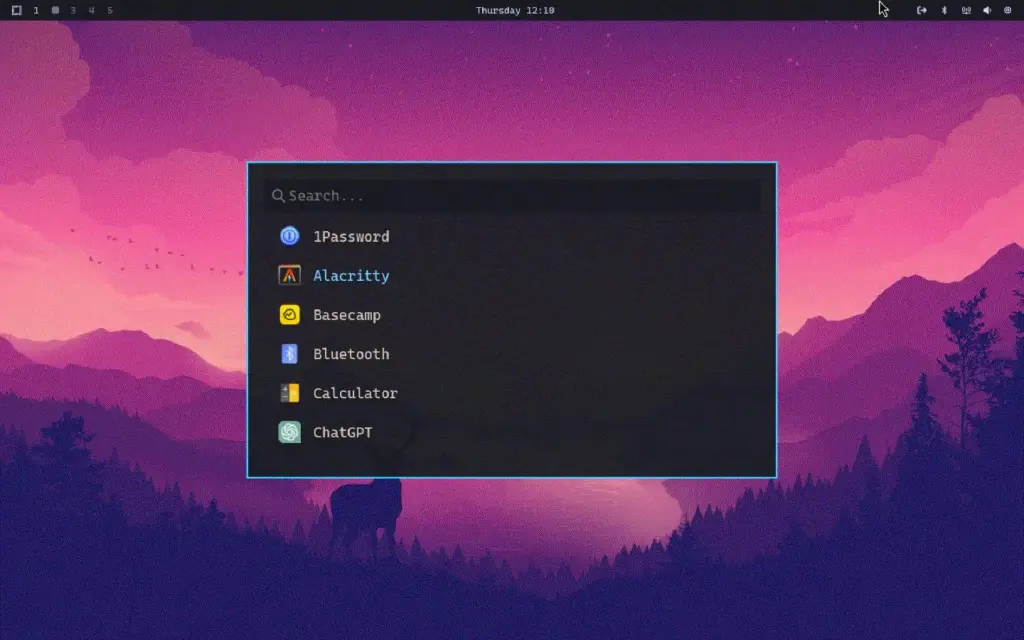
Press Super plus Space to open the app launcher. Use it to search for applications, settings, and system tools. Press Super plus K to view the keybindings reference, which lists available shortcuts and their actions.
Omarchy enables full-disk encryption by default. The disk passphrase entered at boot authenticates the user for auto-login. Configure additional user accounts, SSH keys, and backup strategies according to your security requirements.
Essential Keyboard Shortcuts
Learning a small set of shortcuts makes Omarchy immediately usable. The Super key is the primary modifier, typically the Windows key or Command key on a Mac layout.
Application launching:
- Super plus T: Open the terminal (Ghostty)
- Super plus B: Open the browser
- Super plus Space: Open the app launcher
- Super plus Shift plus F: Open the file manager
- Super plus Shift plus M: Launch or focus Spotify
- Super plus Shift plus N: Launch the editor
Window management:
- Super plus H, J, K, L: Move focus between windows (Vim-style)
- Super plus Shift plus H, J, K, L: Move the active window
- Super plus Q: Close the active window
- Super plus F: Toggle fullscreen
- Super plus G: Toggle floating mode
- Super plus 1 through 9: Switch workspaces
System and interface:
- Super plus P: Cycle through built-in themes
- Super plus Shift plus W: Change wallpaper
- Super plus X: Open the power menu (lock, logout, suspend, shutdown)
- Super plus Shift plus C: Reload Hyprland configuration
- Super plus Escape: System menu
- Super plus Alt plus Space: Omarchy menu
Theme Switching and Visual Customization
Omarchy includes multiple synchronized themes such as Tokyo Night, Osaka Jade, Solitude, and others. Each theme coordinates the terminal, status bar, wallpaper, and color palette.
Switch themes instantly with Super plus P, or open the theme menu with Super plus Ctrl plus Shift plus Space. The changes apply immediately without requiring a session restart. This makes it easy to experiment with different visual styles throughout the day.
Wallpapers can be changed independently with Super plus Shift plus W. Backgrounds are managed as part of the theme system, but you can select alternative images while keeping the current color scheme.
Built-in AI Agent Integration
Recent versions of Omarchy integrate AI coding agents directly into the desktop. Major CLI agents such as Claude, Codex, ChatGPT, and Gemini are pre-wired as lazy-loaded launchers. You select a default agent, and it becomes the system’s AI assistant.
The AI agent can help diagnose application crashes, generate custom themes, explain configuration options, and assist with development tasks. Nothing is downloaded until you first run an agent, and usage is tracked through your existing subscriptions.
This integration is optional. You can use Omarchy without enabling any AI features, or you can configure a preferred agent and rely on it for routine troubleshooting and customization.
Preinstalled Applications and Tools
Omarchy ships with a curated set of applications aimed at developers and power users. The selection reflects common workflows while avoiding unnecessary bloat.
Included applications typically include:
- Neovim for terminal-based editing
- Chromium as the default web browser
- LibreOffice for office productivity
- Obsidian for note-taking and knowledge management
- Spotify for music streaming
- Typora or similar tools for Markdown writing
- Kdenlive and OBS Studio for video editing and screen recording
Additional software can be installed from the Arch repositories or the AUR using pacman, yay, or other preferred tools. Omarchy maintains its own package repository for distribution-specific packages and configurations.
Daily Usage and Workflow
Once configured, Omarchy supports a keyboard-centric workflow. Use the app launcher to open applications, manage windows with tiling shortcuts, and switch workspaces without reaching for the mouse.
For multitasking, assign different projects to separate workspaces. Use floating mode for dialogs and applications that do not fit the tiling model. Reload the Hyprland configuration after editing files to apply changes immediately.
Regularly update the system to receive the latest packages, security patches, and Omarchy improvements. Use the built-in update tool from the Omarchy menu or run standard Arch update commands in the terminal.
Troubleshooting Common Issues
If keybindings do not work, ensure you are running the latest version. Press Super plus Alt plus Space, select Update, and allow the system to check and install available updates. Then test the shortcuts again.
On NVIDIA hardware, older GPUs may not be fully supported by the latest drivers. If you encounter blank screens or OpenGL errors, consult the Omarchy documentation for guidance on manual driver selection or fallback configurations.
For Hyprland configuration issues, use Super plus Shift plus C to reload the configuration. Check the keybindings viewer with Super plus K to confirm that shortcuts are defined as expected.
If you need to boot to a text console instead of the graphical session, set the system to multi-user target, reboot, and launch Hyprland manually from the terminal. This can help isolate display manager or session startup problems.
Who Should Use Omarchy?
Omarchy is well suited for developers, system administrators, and Linux enthusiasts who want an Arch-based system without the initial configuration burden. It is especially attractive to users who prefer keyboard-driven workflows and tiling window management.
It is less appropriate for users who require a traditional floating window manager, heavy GNOME or KDE integration, or long-term stability over rolling updates. As with any Arch-based distribution, staying current with updates and understanding the system is important.
For the latest installation instructions, theme details, and configuration options, refer to the Omarchy GitHub repository and the Omarchy Manual.