GenOffice: The Complete Guide to the Open-Source AI-Native Office Suite

Key Takeaways:
GenOffice is a free, open-source, and local-first office suite that embeds autonomous AI agents directly into document editing across Word, Excel, PowerPoint, PDF, and Markdown workflows without compromising formatting or data privacy.
What Is GenOffice: The Architecture of an AI-Native Office Suite
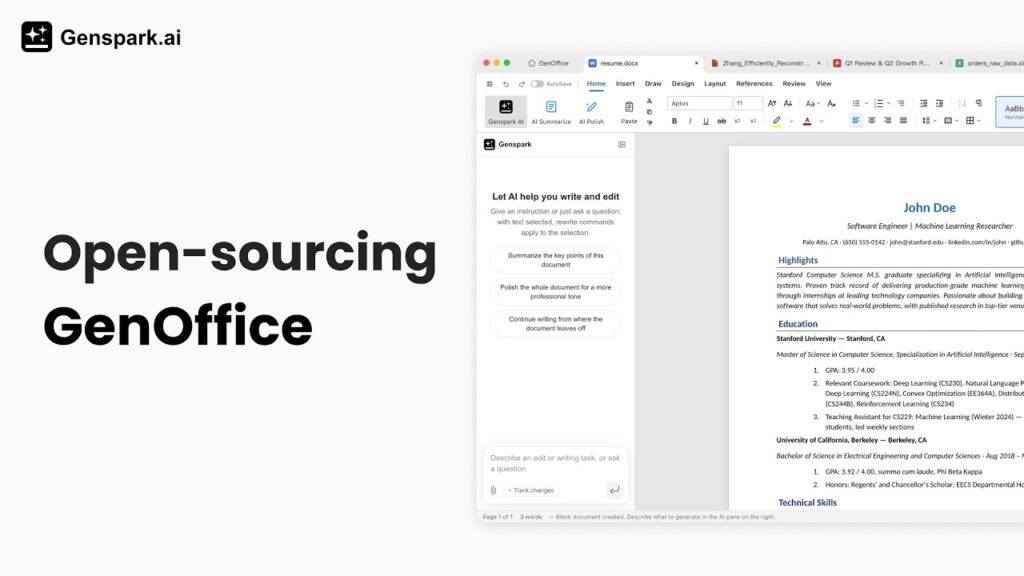
GenOffice represents a fundamental shift in desktop productivity software. Developed by the team at GenOffice, this project delivers a free, Apache-2.0 licensed alternative to proprietary suites like Microsoft 365 and Google Workspace. Rather than treating artificial intelligence as a disconnected conversational sidebar, GenOffice integrates autonomous agentic capabilities directly into the core document runtime.
The suite is engineered as a unified desktop platform built on Electron, housing dedicated applications for processing documents, spreadsheets, presentations, PDFs, and Markdown files. Each application shares an underlying engine layer designed for high fidelity and extreme responsiveness. While legacy open-source tools such as LibreOffice or Apache OpenOffice frequently struggle with proprietary formatting quirks, GenOffice features native Office Open XML (OOXML) handling.
Under the hood, GenOffice blends modern web technologies with systems-level performance. The spreadsheet component pairs an interactive frontend with an in-house Rust sidecar, ensuring rapid calculation cycles, complex formula evaluations, and memory-efficient data processing. This architectural decision enables users to analyze large datasets locally while retaining full compatibility with standard .xlsx formats.
Key Capabilities Across Document Formats
GenOffice eliminates the traditional friction points associated with open-source office suites by maintaining strict fidelity to Microsoft file specifications.
Byte-Preserving Word (.docx) Processing and Pagination
A common issue when editing Microsoft Word documents in non-Microsoft tools is XML schema corruption and layout drifting. GenOffice employs a byte-preserving .docx engine. When an author or an AI agent modifies a paragraph, table, or heading, the application updates only the specific targeted blocks. Non-edited structures, styles, macros, and metadata remain untouched, ensuring that Microsoft Word detects no arbitrary alterations. Furthermore, the rendering engine reproduces Word-faithful pagination, guaranteeing that page breaks, widow controls, and line wraps match external office software precisely.
High-Performance Spreadsheets (.xlsx) with Rust Engine
The spreadsheet application within GenOffice handles full-scale financial and operational workbooks. Powered by a dedicated Rust execution sidecar, the engine natively parses complex formula graphs, pivot tables, and dynamic slicers. Charts render with hardware acceleration, allowing users to manipulate hundreds of thousands of cells without interface latency.
Presentation Design (.pptx) with Master Layouts
Creating slide decks often requires balance between structured layout rules and visual agility. The presentation module provides an in-house .pptx canvas supporting master slides, reusable theme templates, smart snapping guides, and non-destructive image cropping. Presentations created or adjusted within GenOffice export seamlessly to Microsoft PowerPoint without shifted text frames or lost transitions.
Local PDF Editing and Multi-Format Conversion
Unlike conventional PDF readers that merely allow annotation overlays, GenOffice features genuine in-place PDF editing. Users can directly retype text, alter fonts, reposition vector elements, and replace imagery inside existing PDF documents while preserving original typography.
Additionally, the suite executes local conversions from PDF to editable Word, Excel, and PowerPoint files directly on your workstation. On macOS and Windows environments, the application links to native system optical character recognition (OCR) engines, converting scanned documents and flattened images into clean, editable text without transmitting raw files to cloud servers.
Native Markdown Workspace
Technical authors, researchers, and developers benefit from a built-in Markdown editor powered by Tiptap. The Markdown engine allows side-by-side editing, syntax highlighting, and live rendering. Because it connects to the shared OOXML translation core, users can export complex Markdown structures into publication-ready Word documents without installing third-party utilities such as Pandoc.
Deep-Dive: Built-In AI Agents and Bring-Your-Own-Key (BYOK)
The defining characteristic of GenOffice is its proactive agent architecture. Traditional productivity plugins function merely as passive text predictors or chatbots requiring manual copy-pasting. GenOffice agents operate directly on the document abstract syntax tree.
Agents can parse surrounding context, execute multi-step research, propose structural changes, generate synthetic illustrations, and execute block-level insertions. To prevent unintended modifications, every agent interaction generates diffs and version snapshots, allowing users to accept, adjust, or discard individual changes granularly.
Data governance and privacy are central to the software design. GenOffice supports a strict Bring-Your-Own-Key (BYOK) paradigm. Users maintain complete custody over their credentials and model selection, connecting directly to providers such as:
- Anthropic Claude
- OpenAI GPT models
- Google Gemini
- DeepSeek
- Mistral AI
- Grok
- Kimi, GLM, Qwen, Doubao, and MiniMax
- OpenRouter and any custom OpenAI-compatible endpoint
Users who prefer convenience over API key management can alternatively authenticate through their Genspark account. The built-in agent toolkit also includes capabilities for autonomous web search, visual media inspection, and image generation, making the platform a self-contained research and writing environment.
Comprehensive Installation and Setup Guide
GenOffice is distributed as a cross-platform desktop binary. Users can obtain installers and source packages through the GenOffice GitHub Repository.
System Requirements
- macOS: macOS 11 (Big Sur) or higher, available for both Apple Silicon (arm64) and Intel (x64) hardware architectures.
- Windows: Windows 10 or Windows 11 (64-bit).
- Linux: Distributions equipped with glibc 2.34 or higher, including Ubuntu 22.04+, Debian 12+, Fedora 35+, RHEL 9+, and openSUSE Leap 15.6+.
Installing on macOS and Windows
For macOS, download the appropriate .dmg package matching your processor architecture, mount the disk image, and drag GenOffice into your Applications folder. Precompiled binaries are digitally signed to pass Gatekeeper checks.
For Windows, download the official .exe setup package, execute the installer, and follow the setup wizard to complete the desktop deployment.
Installing on Linux Distributions
Linux users can select between native package formats and standalone portable images:
To install on Debian or Ubuntu systems using the official package:
sudo apt update
sudo apt install ./genoffice_<version>_amd64.deb
To install on Fedora, Red Hat Enterprise Linux, or CentOS:
sudo dnf install ./genoffice-<version>.x86_64.rpmTo run on openSUSE:
sudo zypper install ./genoffice-<version>.x86_64.rpmTo execute the universal AppImage without system-wide modifications:
sudo apt install libfuse2
chmod +x GenOffice-<version>.AppImage
./GenOffice-<version>.AppImage
Note that on modern systems such as Ubuntu 24.04, the package name for the FUSE compatibility library is libfuse2t64.
Building from Source
Developers wishing to inspect or customize the source code can build GenOffice locally:
- Ensure your environment has Node.js (version 20 or higher), npm (version 10 or higher), and the standard Rust toolchain installed.
- Clone the repository and install all dependencies:
git clone https://github.com/genspark-ai/genoffice.git
cd genoffice
npm install- Build the underlying Rust spreadsheet sidecar and compile the Electron shell:
npm run build:sidecar
npm run build
npm start
Running and Deploying: Clarifying Local-First vs Containerized Environments
It is important to emphasize that GenOffice is designed as a local-first client application, not a headless web server. While users often look for Docker containers or self-hosted web instances for cloud collaboration, GenOffice focuses on client-side security and desktop execution. All document parsing, OCR tasks, and spreadsheet calculations take place on local device hardware. The only outbound network traffic occurs when calling chosen LLM endpoints or utilizing integrated web search capabilities.
Step-by-Step Usage Guide: Mastering AI Workflows
Once installed, setting up your productivity pipeline requires minimal configuration.
Configuring Model Providers and API Credentials
- Launch GenOffice and navigate to the application Settings panel via the gear icon.
- Select the Models or AI Configuration tab.
- Choose your preferred AI backend. You can either sign in with your Genspark credentials or choose Custom Provider / BYOK.
- If choosing BYOK, input your API key and designate your preferred model identifiers (for example, Claude 3.5 Sonnet, GPT-4o, or Gemini 1.5 Pro).
- Specify any custom base URLs if routing queries through a local Ollama instance, vLLM server, or enterprise gateway.
Executing Block-Level Text Edits in Docs
- Open an existing
.docxdocument or create a new file. - Highlight a paragraph or section that requires adjustment, or position the cursor where new content belongs.
- Invoke the inline agent shortcut or command palette.
- Input natural language instructions, such as: “Summarize this background context into three bullet points adhering to corporate style guidelines.”
- Review the proposed modifications shown in the interactive diff viewer. You can accept specific sentences, reject proposals, or request alternative revisions before saving.
Automating Calculations and Data Structuring in Sheets
- Open any
.xlsxworkbook or import tabular CSV data. - Select the target range or active table.
- Instruct the agent: “Generate a formula calculating compound annual growth rates across columns B through F, flagging negative values in bold red.”
- The Rust calculation sidecar evaluates the syntax and inserts the mathematical formulas directly into the sheet.
Generating Decks and Editing Scanned PDFs
- In the Slides application, enter a topic outline to automatically generate slide arrangements with matching layout masters and smart image placement.
- In the PDF tool, open any vector or scanned PDF. Click directly on text blocks to edit them inline, or click Convert to DOCX to generate an editable Word document with localized OCR processing.
Technical Evaluation: GenOffice vs. Traditional Suites
| Feature | GenOffice | Microsoft 365 Copilot | LibreOffice |
|---|---|---|---|
| Licensing | Open-source (Apache-2.0) | Proprietary Commercial | Open-source (MPL-2.0) |
| AI Integration | Native block-level agents | Proprietary cloud Copilot | None (external extensions only) |
| Model Freedom (BYOK) | Any model, local or cloud | Locked to Microsoft Azure | Not applicable |
| Document Privacy | Files remain on local disk | Synced with Microsoft 365 | Files remain on local disk |
| PDF Editing | Real in-page font and text editing | Read/convert only | Impress/Draw imported blocks |
| Markdown to Word | Built-in, local OOXML engine | Requires add-ins or conversion | Requires third-party tools |
Frequently Asked Questions
Is GenOffice completely free to use?
Yes. GenOffice is licensed under the permissive Apache-2.0 license. The desktop software, local conversion tools, and editing engines are free. Costs only occur if you use paid commercial API keys (such as OpenAI or Anthropic) for AI queries.
Does GenOffice upload private document contents to the cloud?
No. Document rendering, formatting, and file conversions happen entirely on your workstation. When invoking an AI agent, only the active text context required to fulfill the prompt is submitted to your designated API endpoint.
Can GenOffice operate in an air-gapped or offline environment?
All core editing functionality across Word, Excel, PowerPoint, and PDF files works offline without internet connectivity. If connected to a local LLM server running through Ollama or LM Studio, AI agent capabilities can also function completely offline.