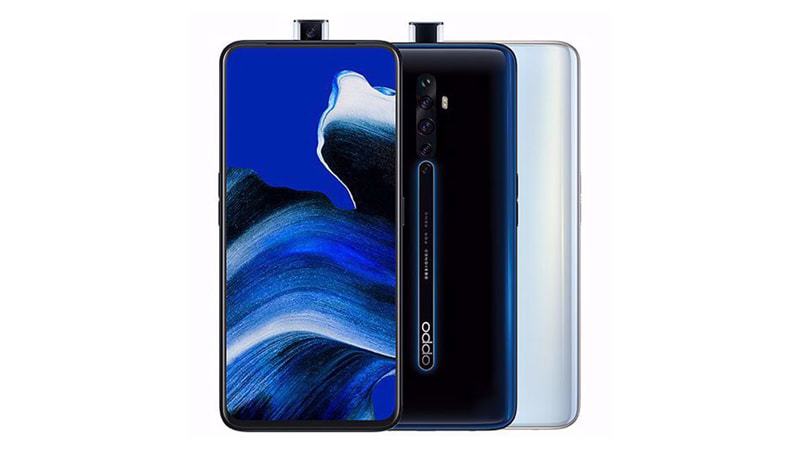
Here you can download the latest official Stock ROM (Firmware) files for the OPPO Reno2 Z CPH1945 / CPH1951 / PCKM80. These files are essential for repairing software issues, fixing bootloops, upgrading/downgrading the OS, or restoring your device to its factory state.
Prerequisites & Preparation
- Backup Data: Flashing will completely wipe all data on your device. Back up important files and settings before proceeding.
- Battery Level: Ensure your device has at least 50% battery to prevent shutdown during the flashing process.
- USB Driver & Tools: Install the correct USB drivers for your brand and prepare the flashing tool (Odin for Samsung, SP Flash Tool/QPST for Qualcomm/MTK, etc.).
CAUTION: Flashing official firmware carries a risk of bricking your device. Proceed with caution and at your own risk. addROM is not responsible for any damage caused to your device.
Download Stock ROM & Firmware
CPH1945
| File Type | Firmware / Build | Region / Model | OS Version | Download Link |
|---|---|---|---|---|
| Stock ROM | CPH1945 | CPH1945 | Android 11 | Google Drive | OneDrive |
| Stock ROM | CPH1945 | CPH1945 | Android 11 | Google Drive | OneDrive |
| Stock ROM | CPH1945 | CPH1945 | Android 11 | Google Drive | OneDrive |
| Stock ROM | CPH1945 | CPH1945 | Android 11 | Google Drive | OneDrive |
| Stock ROM | CPH1945 | CPH1945 | Android 11 | Google Drive | OneDrive |
| Stock ROM | CPH1945 | CPH1945 | Android 11 | Google Drive | OneDrive |
| Stock ROM | 01674a0a | CPH1945 | Android 11 | Google Drive | OneDrive |
| Stock ROM | 7d675b37 | CPH1945 | Android 11 | Google Drive | OneDrive |
| Stock ROM | 98d1bc6e | CPH1945 | Android 11 | Google Drive | OneDrive |
OTA
| File Type | Firmware / Build | Region / Model | OS Version | Download Link |
|---|---|---|---|---|
| Stock ROM | CPH1945PUEX_11_OTA_1370_all_nAUcfHqH3XLd.ozip | OTA | Android 11 | Google Drive | OneDrive |
| Stock ROM | CPH1945PUEX_11_OTA_1350_all_R2DkVfABat4K.ozip | OTA | Android 11 | Google Drive | OneDrive |
| Stock ROM | CPH1945PUEX_11_OTA_0250_all_bC7sINyKuP2y.ozip | OTA | Android 11 | Google Drive | OneDrive |
| Stock ROM | CPH1945PUEX_11_OTA_0230_all_I05QxFV3Nyag.ozip | OTA | Android 11 | Google Drive | OneDrive |
| Stock ROM | CPH1945EX_11_OTA_0140_all_HIeJmgWKh6EK.ozip | OTA | Android 11 | Google Drive | OneDrive |
| Stock ROM | CPH1945EX_11_OTA_0120_all_OXyTVZZu8pJA.ozip | OTA | Android 11 | Google Drive | OneDrive |
| Stock ROM | CPH1945EX_11_OTA_0090_all_Luy34TCxFlJx.ozip | OTA | Android 11 | Google Drive | OneDrive |
CPH1951
| File Type | Firmware / Build | Region / Model | OS Version | Download Link |
|---|---|---|---|---|
| Stock ROM | CPH1951 | CPH1951 | Android 11 | Google Drive | OneDrive |
| Stock ROM | CPH1951 | CPH1951 | Android 11 | Google Drive | OneDrive |
| Stock ROM | CPH1951 | CPH1951 | Android 11 | Google Drive | OneDrive |
| Stock ROM | CPH1951export | CPH1951 | Android 11 | Google Drive | OneDrive |
OTA
| File Type | Firmware / Build | Region / Model | OS Version | Download Link |
|---|---|---|---|---|
| Stock ROM | CPH1951PUEX_11_OTA_1490_all_XCogT0biH1LR.ozip | OTA | Android 11 | Google Drive | OneDrive |
| Stock ROM | CPH1951PUEX_11_OTA_1470_all_0g12WIbBQ53k.ozip | OTA | Android 11 | Google Drive | OneDrive |
| Stock ROM | CPH1951PUEX_11_OTA_1410_all_fbVB8V3pjpKs.ozip | OTA | Android 11 | Google Drive | OneDrive |
| Stock ROM | CPH1951PUEX_11_OTA_1390_all_VV8hZ9iminPv.ozip | OTA | Android 11 | Google Drive | OneDrive |
PCKM80
| File Type | Firmware / Build | Region / Model | OS Version | Download Link |
|---|---|---|---|---|
| Stock ROM | PCKM80_11_OTA_1250_all_ei3x7uLBWdK4.ozip | PCKM80 | Android 11 | Google Drive | OneDrive |
| Stock ROM | PCKM80_11_OTA_1240_all_lXezFGvJoRdX.ozip | PCKM80 | Android 11 | Google Drive | OneDrive |
| Stock ROM | PCKM80_11_OTA_1220_all_uI0dB5rkXpgt.ozip | PCKM80 | Android 11 | Google Drive | OneDrive |
| Stock ROM | PCKM80_11_OTA_1210_all_MCwNgtcqBpeu.ozip | PCKM80 | Android 11 | Google Drive | OneDrive |
| Stock ROM | PCKM80_11_OTA_1200_all_DaVVKsyC1Zv5.ozip | PCKM80 | Android 11 | Google Drive | OneDrive |
| Stock ROM | PCKM80_11_OTA_1190_all_FUpvLuAJG5ef.ozip | PCKM80 | Android 11 | Google Drive | OneDrive |
| Stock ROM | PCKM80_11_OTA_0060_all_4lijXDxxNEr5.ozip | PCKM80 | Android 11 | Google Drive | OneDrive |
| Stock ROM | PCKM80_11_OTA_0050_all_cv5FoTayjxpj.ozip | PCKM80 | Android 11 | Google Drive | OneDrive |
How to Flash Firmware / Stock ROM
To flash the stock firmware on your OPPO device using MSMDownloadTool (DownloadTool), follow these steps:
- Download and install the OPPO / Realme USB Drivers on your computer.
- Download and extract the firmware package (which includes the
MsmDownloadTool.exeorDownloadTool.exe). - Launch
MsmDownloadTool.exeas administrator. If prompted, log in with authorized credentials or use an activation tool/bypass. - Power off your device completely.
- Hold the Volume Up and Volume Down buttons, then connect the device to the computer via USB cable.
- The tool should detect your device. Click the Start button to begin the flashing process.
- Wait until the progress bar reaches 100% and shows a green “Download Complete” or “Success” status.