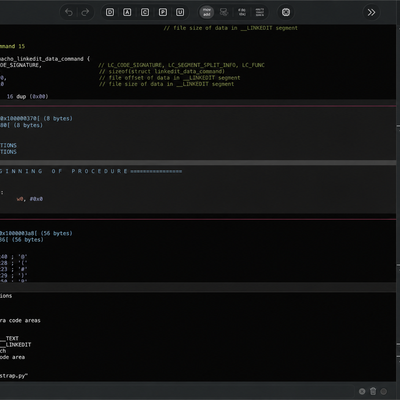
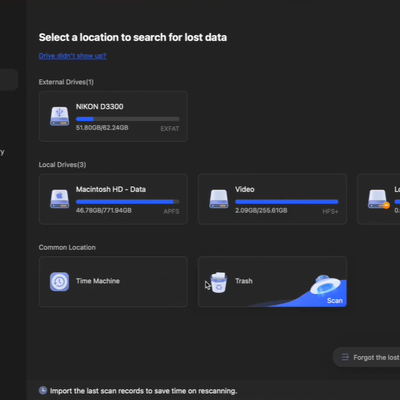
Peekaboo bridges the gap between AI reasoning and macOS visual state by providing a native MCP server that delivers pixel-accurate screenshots and instant VQA responses directly to Claude Desktop and other Model Context Protocol hosts.
Peekaboo is a lightweight macOS command-line interface and optional Model Context Protocol server developed by steipete. Released under the MIT license and currently at version 3.0.0-beta4, it equips AI agents with the ability to “see” the macOS desktop exactly as a human would.
Unlike brittle accessibility-only tools or external screen-sharing hacks, Peekaboo uses the native ScreenCaptureKit framework combined with the macOS Accessibility API to produce high-fidelity captures of individual windows, full screens, menu bars, or status items. It then routes those images—optionally annotated with element IDs—straight into vision-capable models.
For AI developers building “Computer Use” agents inside Claude Desktop, Cursor, or any MCP-compatible host, this changes the game. Agents no longer rely solely on simulated clicks or DOM inspection; they can now reason over the actual rendered interface, read text, interpret icons, and decide next actions in natural language. The result is more robust, multi-screen automation that works with any macOS application, even those without public APIs.

Technical Architecture
Peekaboo’s design deliberately separates concerns while maintaining a single source of truth. The core is implemented in Swift 6.2 and runs as a native macOS process (macOS 15 or later). A thin Node.js wrapper (distributed via the npm package @steipete/peekaboo) exposes the same capabilities over the Model Context Protocol for seamless integration with Claude Desktop and similar hosts.
Screen capture is handled by ScreenCaptureKit with a CGWindowList fallback, delivering either 1× logical or 2× Retina-resolution PNGs in 20–100 ms. Element detection correlates Accessibility metadata (AX roles, bounds, labels, descriptions) with the captured pixels, producing a structured snapshot containing unique element IDs (elem_123) and a persisted JSON map.
Visual Question Answering occurs through the Tachikoma model layer, which supports both local Ollama instances (llava, llama3.3, etc.) and remote providers (OpenAI GPT-4o/5.1 family, Anthropic Claude 4.x, xAI Grok 4-fast, Google Gemini 2.5). When an image command includes the –analyze flag or when the MCP agent workflow requests vision context, the snapshot is base64-encoded and sent to the selected model together with the user prompt. The model returns plain text, structured JSON actions, or coordinate suggestions that downstream tools (click, type, scroll) immediately consume.
The same Swift services power both the CLI entry point and the MCP server runtime. Snapshots are cached per session, eliminating redundant captures and enabling reproducible agent loops.
Installation Guide
Installation requires macOS 15 or later and the standard Screen Recording plus Accessibility permissions. Grant them once via System Settings → Privacy & Security.
CLI and macOS App (recommended for local testing)
Open Terminal and run:
brew install steipete/tap/peekabooThe formula installs both the native CLI binary and the optional Peekaboo.app visualizer.
MCP Server (for Claude Desktop integration)
No global Node installation is required. Start the server with:
npx -y @steipete/peekabooThis command launches the MCP service and keeps it running.
Claude Desktop Configuration
In Claude Desktop choose Developer → Edit Config and insert the following block:
{
  "mcpServers": {
    "peekaboo": {
      "command": "npx",
      "args": ["-y", "@steipete/peekaboo"],
      "env": {
        "PEEKABOO_AI_PROVIDERS": "openai/gpt-5.1,anthropic/claude-opus-4,ollama/llava"
      }
    }
  }
}
Replace the providers list with any combination supported by Tachikoma. Save and restart Claude Desktop. The “peekaboo” server will appear in the tools palette.
For local-only setups, add your Ollama endpoint via:
peekaboo config add ollama --url http://localhost:11434API keys for cloud providers are stored securely in ~/.tachikoma/credentials.
Feature Deep Dive
Capturing Specific Windows, Entire Screens, and Menu Bars
The core capture commands are image and see.
peekaboo image --mode screen --retina --path ~/Desktop/full.pngproduces a Retina-scaled full-desktop screenshot.peekaboo image --app Safari --window-title "GitHub"isolates a single window.peekaboo image --app menubarcaptures the menu-bar strip without stealing focus.
The companion command see augments the image with a full UI element map:
peekaboo see --app "Google Chrome" --json --annotate --path /tmp/chrome.pngOutput includes a snapshot_id, ui_elements array with bounds and labels, and an annotated PNG showing element IDs overlaid on the interface. Subsequent automation commands reference these IDs for pixel-perfect clicks and typing.
Visual Question Answering Logic
VQA is triggered in two ways.
First, the low-level route:
peekaboo image --mode screen --analyze "Describe the current state of the Terminal window and list any error messages"The captured image travels to the configured vision model; the response appears inline in JSON format containing provider, model, and text fields.
Second, the higher-level agent route uses the snapshot from see. The MCP agent automatically injects the latest snapshot plus the natural-language task into the model, receives an action suggestion, then executes the matching tool (click –on “Submit”, type –text “hello”, etc.). This closed loop turns a single VQA call into multi-step automation without manual orchestration.
Usage Scenarios
AI developers building Computer Use agents will find Peekaboo indispensable in several real-world workflows.
Debugging a UI Layout
An agent tasked with verifying a new Electron app layout runs:
peekaboo see --app "MyApp" --jsonIt then issues a VQA prompt: “Compare the rendered layout against the Figma design spec in the screenshot. List any misaligned elements and suggest coordinate offsets.” The model returns structured JSON that the agent converts into precise move and click commands, closing the feedback loop in seconds.
Monitoring a Background Process
System administrators can attach a persistent agent that periodically captures a background window:
peekaboo image --app "Activity Monitor" --analyze "Is the CPU usage above 90 percent? List the top three processes."The response can trigger notifications or automated press hotkeys to kill rogue processes—all without leaving the MCP host.
Cross-Screen Automation for Multi-Monitor Workflows
With multi-display support built in, an agent can switch Spaces, capture secondary monitors, and ask: “Does the spreadsheet on screen 2 contain the expected total?” The VQA result drives data extraction or copy-paste actions across displays.
These patterns scale from simple one-off scripts to long-running autonomous agents that maintain state across snapshots and respect macOS permissions.
Peekaboo therefore represents the missing visual layer for Model Context Protocol tooling on macOS. By combining native capture speed, structured element metadata, and flexible VQA across local and cloud models, it lets developers move beyond brittle coordinate scripts or web-only automation. The result is agents that truly see the Mac interface and act with human-like understanding.
Install via Homebrew today, connect it to Claude Desktop, and start building the next generation of vision-native macOS agents. The repository at https://github.com/steipete/Peekaboo contains the full command reference and architecture diagrams for deeper exploration.