 By
Pinky: The Ultimate Open-Source AI Agent Gateway for Mobile Devices
Key Takeaways: Pinky is a lightweight, open-source gateway that securely empowers AI agents to operate your iOS or Android smartphone while keeping you strictly in control through mandatory manual approvals.
The rapid evolution of artificial intelligence has introduced a new era of AI agents capable of reasoning, planning, and executing complex tasks. While desktop environments have seen a surge of agentic automation tools, mobile devices have remained largely closed off due to stringent security sandboxes and fragmented operating systems. This is where Pinky steps in to revolutionize mobile automation.
Pinky is an innovative, open-source tool designed to let any AI agent operate your iPhone or Android phone. Developed by the GitHub user DIYgod, Pinky acts as a secure, local bridge between sophisticated desktop AI models and your mobile device. By leveraging the Model Context Protocol, Pinky allows agents from macOS, Windows, or Linux to execute tasks on your phone, right before your eyes. You can find the source code and support the project on the official Pinky GitHub repository.
What is Pinky?
Pinky is not just another AI model; it is a powerful communication gateway. It does not ship with a built-in proprietary large language model out of the box. Instead, it provides the secure hands and eyes for the AI models you already use and trust.
Bridging the Gap Between AI Agents and Mobile Devices
Historically, automating a smartphone required fragile scripts, complex device farming platforms, or invasive system modifications like rooting and jailbreaking. Pinky bypasses these hurdles by utilizing native developer protocols and accessibility trees. It mirrors your smartphone screen to a desktop console, translating the AI agent’s intent into actual taps, swipes, and text inputs on the physical device.
Whether you prefer using Claude Code, Cursor, Codex, or a custom local script, Pinky provides a standardized API for these agents to interact with your phone. The agent sees the screen structure, understands the context, and sends command requests back to Pinky.
Why Human-in-the-Loop Matters
The most significant distinction between Pinky and traditional automation scripts is its uncompromising approach to security through a “human-in-the-loop” architecture. AI agents are incredibly capable, but they are also prone to hallucinations or misinterpreting interface elements. Allowing an autonomous agent unchecked access to a personal smartphone poses a severe security risk.
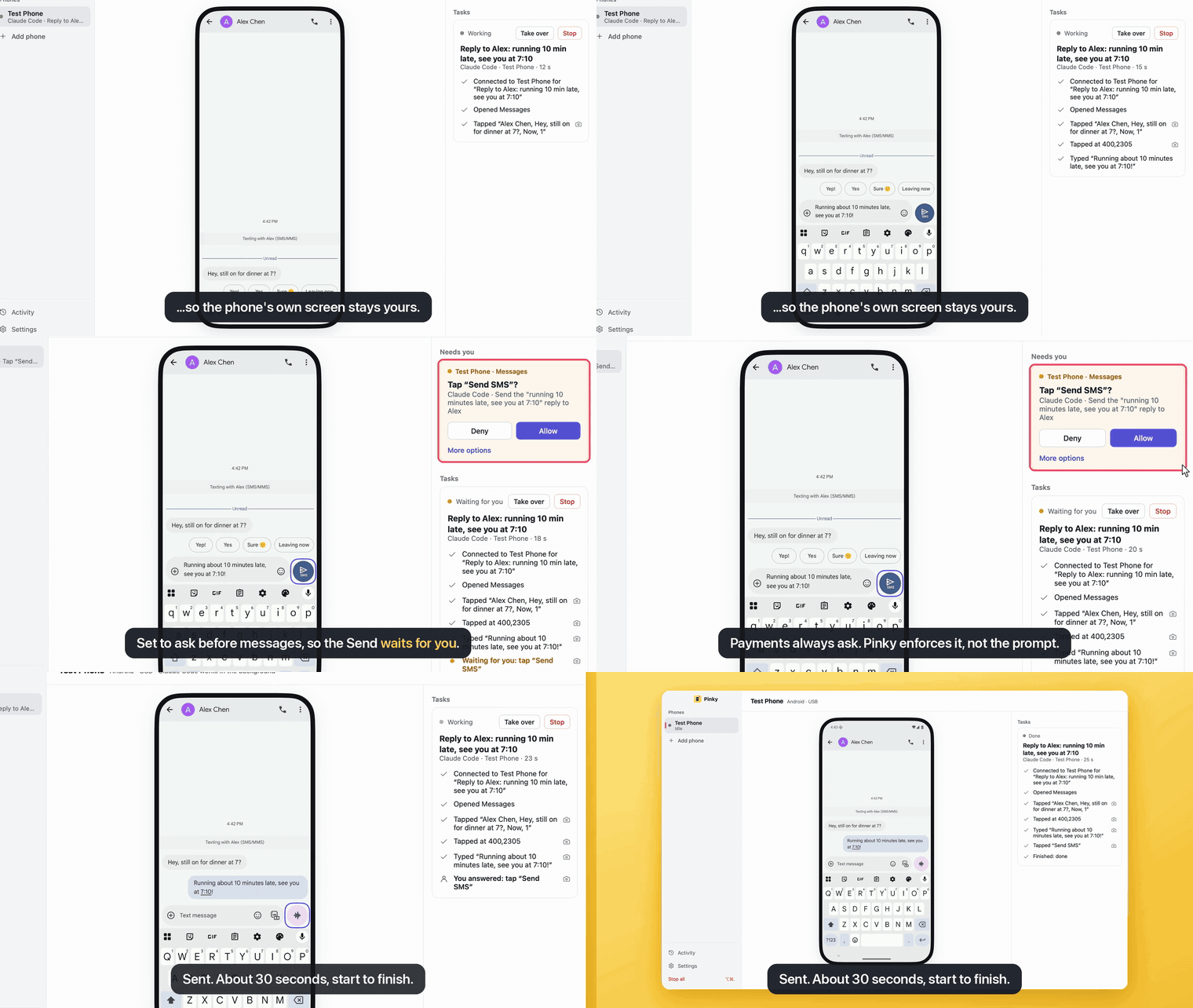
Pinky solves this by strictly enforcing approvals at the gateway level. The AI agent can suggest actions and navigate menus, but critical steps such as sending a message, confirming a payment, or deleting a file are intercepted by Pinky. The action is placed on hold until you, the human operator, manually approve it on your desktop console. This ensures that a careless or prompt-injected agent can never cause irreversible damage, as the rules are enforced outside the agent’s reach.
Key Features of Pinky
Pinky is packed with features designed for developers, automation enthusiasts, and power users who want maximum control over their digital workflows.
Cross-Platform Compatibility
The desktop client is written in Go and utilizes the MyGo native UI framework, meaning there is no heavy Electron framework or webview running in the background. This ensures that the application is incredibly lightweight. It runs natively on macOS (supporting both Apple Silicon and Intel), Windows, and Linux. On the mobile side, it supports a vast range of devices, driving Android phones running Android 10 through 17, and iPhones running iOS 17.4 or later.
Model Context Protocol (MCP) Integration
Pinky adopts the Model Context Protocol, an emerging standard that allows AI models to securely connect to external tools and data sources. Through MCP, Pinky exposes the smartphone’s interface as a set of actionable tools. Agents connect over this protocol to read screen states, analyze accessibility trees, and issue touch commands, making it universally compatible with any MCP-enabled AI client.
Lightweight and Local-First Architecture
Privacy is a foundational pillar of Pinky. Video streams, screenshots, and task histories stay entirely on your local machine by default. The desktop application is a tiny download, typically around 16 to 22 megabytes. On a Mac, it idles at nearly zero percent CPU usage and consumes only about 70 megabytes of memory. Because the connection is direct between your computer and your phone, your personal data is never routed through third-party cloud servers without your explicit configuration.
No Rooting or Jailbreaking Required
Pinky operates within the bounds of official operating system capabilities. For Android, it leverages ADB and scrcpy alongside a lightweight companion app to parse the accessibility tree. For iOS, it utilizes the CoreDevice protocol behind Xcode’s Device Hub, streaming the screen and executing touches without requiring any third-party app installation on devices running iOS 27 and later. This means you do not have to compromise your device’s warranty or security model to enjoy advanced AI automation. Furthermore, the entire project is free and open-source under the Apache-2.0 license.
How Pinky Keeps You Secure
Security in Pinky goes far beyond a simple confirmation dialog. The system is designed with a zero-trust mindset regarding the AI agent.
Mandatory Human Approvals
As previously mentioned, approvals in Pinky are enforced by the core gateway layer. You cannot simply prompt the agent to ignore the approval requirement. If an action triggers a restricted policy, the gateway halts the command packet before it ever reaches the phone. You review the intended action on your monitor, verify its safety, and only then does the command pass through to the device.
Encrypted Connections and Local Storage
When pairing with an iOS device, Pinky utilizes secure protocols to protect the CoreDevice tunnel, ensuring that no other device on your local network can hijack the screen stream. For Android, standard ADB encryption applies. Furthermore, if you lock your phone, Pinky agents cannot bypass the lock screen autonomously. You must save the PIN within the desktop client and authorize unlocks using secure biometric methods like Touch ID, Windows Hello, or your system keyring. The agent never sees your actual device PIN.
Step-by-Step Installation Guide
Installing Pinky is a straightforward process, thanks to its single-binary architecture. Here is how to get started on your preferred operating system.
Installing Pinky on macOS
For Mac users, Pinky offers seamless support for both modern Apple Silicon and legacy Intel processors.
- Navigate to the latest release page on the official Pinky GitHub repository.
- Download the appropriate disk image file. Choose
pinky--arm64.dmgfor Macs with Apple silicon (M1 or later) orpinky--amd64.dmgfor an Intel Mac. - Open the downloaded DMG file and drag the Pinky application icon into your Applications folder.
- Alternatively, if you prefer package managers, you can install Pinky via Homebrew by running the command:
brew install --cask diygod/tap/pinky.
Installing Pinky on Windows
Windows installation is equally simple and does not require administrator privileges, making it ideal for restricted corporate environments.
- Download the
pinky-setup--amd64.exeinstaller from the releases page. - Run the executable file. Because the installer might not be signed yet, Windows SmartScreen may display a protection warning. Simply click on “More info” and select “Run anyway”.
- Follow the on-screen prompts to complete the installation.
- For a portable setup without installing, you can download the
pinky--windows-amd64.ziparchive, extract its contents to a folder, and runPinky.exedirectly.
Installing Pinky on Linux
Linux users have access to pre-compiled packages for Debian-based systems and generic tarballs for other distributions.
- For Debian and Ubuntu, download the
pinky__amd64.debfile. - Open your terminal and install the package using the command:
sudo apt install ./pinky__amd64.deb. - For Arch, Fedora, or other distributions, download the
pinky--linux-amd64.tar.gzfile, extract it to a dedicated folder, and execute thepinkybinary from your terminal. Pinky is capable of automatically looking for and installing new versions natively.
Setting Up and Using Pinky
Once installed, connecting your phone and your AI agent is an intuitive process.
Connecting Your Smartphone
Pinky supports both wired and wireless connections. For Android devices, ensure that Developer Options and USB Debugging are enabled in your system settings. The desktop app will help guide you through securing the connection. For iOS devices, the process requires an initial pairing step from a Mac that the phone already trusts. Once paired, Pinky utilizes the local network to establish a secure tunnel to your phone without having to install software directly onto the iPhone itself.
Configuring Your First AI Agent
Pinky acts as a server waiting for an AI client to connect.
- Open the Pinky desktop application and navigate to Settings, then Agents.
- Choose your preferred agent platform. Pinky seamlessly connects to Claude Code, Claude Desktop, Codex, Cursor, and more.
- Follow the provided integration steps, which configure the agent to recognize Pinky’s MCP server either locally or over HTTP.
- Once connected, open your AI agent and type a prompt. You will see the agent take control, interact with the screen, and report back, all while waiting for your approval on sensitive tasks.
Running Phone-Only Mode Without a Computer
In an impressive technical feat, Pinky also offers a standalone mobile mode. By utilizing the Pinky app directly on your Android or iPhone, you can bypass the desktop computer entirely.
You can configure the mobile app to use a model of your choosing, such as DeepSeek, Qwen, Kimi, GLM, Claude, GPT, Gemini, or even a locally hosted model via Ollama or LM Studio. Once configured, you can type or speak tasks directly into the app. For Android users, you can even ask about what the screen currently shows via a floating button, allowing Pinky to work on a hidden background screen while you continue using your phone uninterrupted. You can also schedule tasks to run at set times or when specific conditions are met.
Practical Use Cases for Pinky
The ability to control a smartphone through an AI interface unlocks incredible potential for productivity and accessibility.
Automating Repetitive Mobile Tasks
Many mobile applications lack robust web interfaces. If you need to export data from a mobile-only fitness tracker, manage direct messages on specific social media platforms, or organize thousands of photos, you can simply instruct your AI agent to do it. The agent will methodically click through the interface, extracting the necessary text or performing the repetitive actions while you focus on more important work.
Software Testing and Quality Assurance
For mobile developers, Pinky is a paradigm shift. Instead of writing brittle automated tests that break every time a button moves a few pixels, developers can instruct an AI agent to navigate to a checkout screen and attempt to purchase an item. The agent uses visual comprehension to find the correct fields, adapting to minor UI changes automatically, and generates a comprehensive test report.
Accessibility and Voice-Driven Operations
Pinky holds immense promise for users looking for deeper accessibility features. By combining voice recognition with advanced agentic reasoning, users can command their phones to perform complex operations that would normally require precise motor control.
Final Thoughts on the Future of Mobile Automation
Pinky represents a critical step forward in human-computer interaction. By bridging the gap between advanced AI reasoning and the locked-down ecosystems of modern mobile devices, it brings the power of agentic automation into the palm of your hand. More importantly, its strict adherence to local-first processing and human-in-the-loop approvals proves that powerful AI automation does not have to come at the cost of personal security or data privacy.
Whether you are a developer looking to streamline testing, a power user seeking to automate your digital life, or an AI enthusiast eager to explore the Model Context Protocol, Pinky provides the perfect toolkit. It is an exemplary open-source project that respects user autonomy while pushing the boundaries of what AI can achieve in our daily lives.