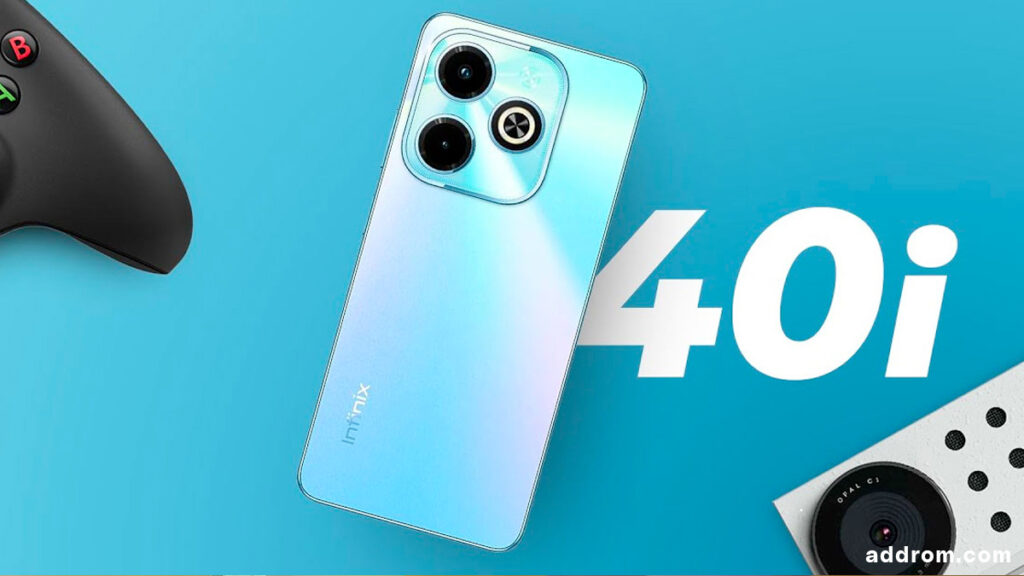
Building on the success of the budget-friendly Hot 30 series, Infinix has launched the all-new Hot 40 series. The Infinix Hot 40i stands out as one of the most stylish devices in this price range, offering significant upgrades at an extremely attractive price.
The visual experience of the Infinix Hot 40i remains excellent for its price. The screen is large enough, with sharp HD+ resolution, and the IPS LCD panel delivers vibrant colors and quality images. The 90Hz refresh rate provides a smooth scrolling experience, making it ideal for browsing Facebook or reading news effortlessly. With a maximum brightness of 480 nits, the display performs well indoors, but visibility may be challenging in outdoor settings.
The Infinix Hot 40i offers one of the best configurations in its price range. Equipped with a Unisoc T606 processor, 4GB of RAM, and 128GB of internal storage, the device ensures smooth performance without lag, handling light gaming with ease.
The device comes pre-installed with Android 13 from the factory, ensuring that you can comfortably use it for at least 2-3 years without worrying about software updates. The XOS interface remains cohesive, intuitive, and easy to use.
Prerequisites & Preparation
- Backup Data: Flashing will completely wipe all data on your device. Back up important files and settings before proceeding.
- Battery Level: Ensure your device has at least 50% battery to prevent shutdown during the flashing process.
- USB Driver & Tools: Install the correct USB drivers for your brand and prepare the flashing tool (Odin for Samsung, SP Flash Tool/QPST for Qualcomm/MTK, etc.).
CAUTION: Flashing official firmware carries a risk of bricking your device. Proceed with caution and at your own risk. addROM is not responsible for any damage caused to your device.
Download Stock ROM & Firmware
Global / General
| File Type | Firmware / Build | Region / Model | OS Version | Download Link |
|---|---|---|---|---|
| Stock ROM | X6528-F069UXBeDoDq-T-IN-240422V171.zip | Global / General | – | Google Drive | OneDrive | Backup |
| Stock ROM | X6528-F069UXBe-T-IN-240313V149.zip | Global / General | – | Google Drive | OneDrive | Backup |
| Stock ROM | X6528-F069UXBe-T-IN-240102V100.zip | Global / General | – | Google Drive | OneDrive | Backup |
| Stock ROM | X6528-F069UXBe-T-IN-231101V66.zip | Global / General | – | Google Drive | OneDrive | Backup |
| Stock ROM | X6528-F069TUVWXYBdBeBfBpCrDmDnDpEaEbEc-T-OP-240724V1775.zip | Global / General | – | Google Drive | OneDrive | Backup |
| Stock ROM | X6528-F069TUVWXYBdBeBfBpCrDmDnDpEaEbEc-T-OP-240604V1711.zip | Global / General | – | Google Drive | OneDrive | Backup |
| Stock ROM | X6528-F069TUVWXYBdBeBfBpCrDmDnDpEaEbEc-T-OP-240419V1662.zip | Global / General | – | Google Drive | OneDrive | Backup |
| Stock ROM | X6528-F069TUVWXYBdBeBfBpCrDmDnDp-T-OP-240313V1556.zip | Global / General | – | Google Drive | OneDrive | Backup |
| Stock ROM | X6528-F069TUVWXYBdBeBfBpCrDmDnDp-T-OP-240201V1398.zip | Global / General | – | Google Drive | OneDrive | Backup |
| Stock ROM | X6528-F069TUVWXYBdBeBfCr-T-OP-231212V1100.zip | Global / General | – | Google Drive | OneDrive | Backup |
| Stock ROM | X6528-F069TUVWXYBdBeBf-T-OP-231108V841.zip | Global / General | – | Google Drive | OneDrive | Backup |
| Stock ROM | X6528-F069TUVWXYBdBeBf-T-OP-231023V731.zip | Global / General | – | Google Drive | OneDrive | Backup |
| Stock ROM | X6528B-F069AbAeBi-T-RU-240816V197.zip | Global / General | – | Google Drive | OneDrive | Backup |
| Stock ROM | X6528B-F069AbAeBi-T-RU-240730V190.zip | Global / General | – | Google Drive | OneDrive | Backup |
| Stock ROM | X6528B-F069AbAeBi-T-RU-240612V182.zip | Global / General | – | Google Drive | OneDrive | Backup |
| Stock ROM | X6528B-F069AbAeBi-T-RU-240419V163.zip | Global / General | – | Google Drive | OneDrive | Backup |
| Stock ROM | X6528B-F069AbAeBi-T-RU-240314V140.zip | Global / General | – | Google Drive | OneDrive | Backup |
| Stock ROM | X6528B-F069AbAeBi-T-RU-240104V104.zip | Global / General | – | Google Drive | OneDrive | Backup |
| Stock ROM | X6528B-F069AbAeBi-T-RU-231202V85.zip | Global / General | – | Google Drive | OneDrive | Backup |
| Stock ROM | X6528B-F069AbAeBi-T-RU-231114V73.zip | Global / General | – | Google Drive | OneDrive | Backup |
| Stock ROM | X6528B-F069AbAeBi-T-RU-231101V66.zip | Global / General | – | Google Drive | OneDrive | Backup |
| Stock ROM | X6528B-F069AbAeBi-T-TR-231120V85.zip | Global / General | – | Google Drive | OneDrive | Backup |
| Stock ROM | X6528B-F069CsCtCu-T-EU-240613V132.zip | Global / General | – | Google Drive | OneDrive | Backup |
| Stock ROM | X6528B-F069CsCtCu-T-EU-231208V93.zip | Global / General | – | Google Drive | OneDrive | Backup |
| Stock ROM | X6528B-F069ZAaAbAcAdAeBgBhBi-T-OP-240717V479.zip | Global / General | – | Google Drive | OneDrive | Backup |
| Stock ROM | X6528B-F069ZAaAbAcAdAeBgBhBi-T-OP-240604V471.zip | Global / General | – | Google Drive | OneDrive | Backup |
| Stock ROM | X6528B-F069ZAaAbAcAdAeBgBhBi-T-OP-240422V450.zip | Global / General | – | Google Drive | OneDrive | Backup |
| Stock ROM | X6528B-F069ZAaAbAcAdAeBgBhBi-T-OP-240330V433.zip | Global / General | – | Google Drive | OneDrive | Backup |
| Stock ROM | X6528B-F069ZAaAbAcAdAeBgBhBi-T-OP-240321V420.zip | Global / General | – | Google Drive | OneDrive | Backup |
| Stock ROM | X6528B-F069ZAaAbAcAdAeBgBhBi-T-OP-240201V383.zip | Global / General | – | Google Drive | OneDrive | Backup |
| Stock ROM | X6528B-F069ZAaAbAcAdAeBgBhBi-T-OP-231108V254.zip | Global / General | – | Google Drive | OneDrive | Backup |
| Stock ROM | X6528B-F069ZAaAbAcAdAeBgBhBi-T-OP-231023V212.zip | Global / General | – | Google Drive | OneDrive | Backup |
How to Flash Firmware / Stock ROM
To flash the stock firmware on your Infinix device using SPD Upgrade Tool, follow these steps:
- Download and install the SPD USB Drivers on your computer.
- Download and extract the SPD Upgrade Tool (ResearchDownload).
- Open the tool and click on the Gear (Load Packet) icon to load the
.pacfirmware file. - Click the Play (Start Downloading) button.
- Power off your device completely, hold the Volume Down (or Volume Up) button, and connect it to the computer via USB cable.
- Wait for the flashing process to complete and show the “Passed” status.