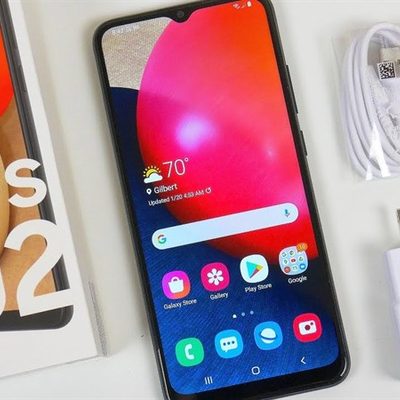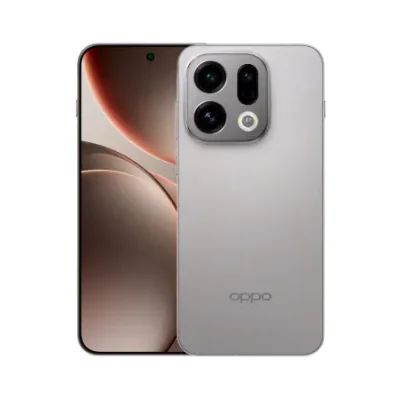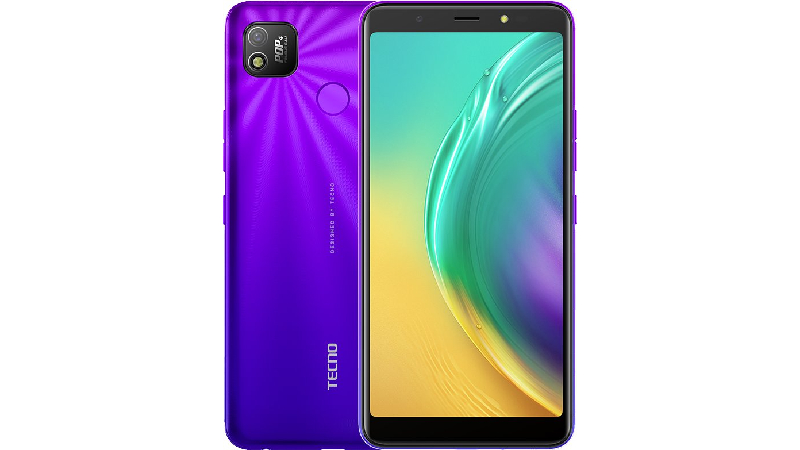
Tecno Pop 4 is powered by a 1.3GHz Quad-core processor so that it can provide multi-tasking to its user with hanging. Tecno’s new addition to the market runs on HIOS based on the Android 10 Go edition. The smartphone has 6.0-inch IPS LCD touchscreen with a 480 x 960 pixels resolution and 179 PPI density. The aspect ratio of the screen is 18:9, and screen to body ratio is 75.1%. It is available in Ice Lake Green and Dawn Blue colors.
The 5000 mAh Non-removable Li-Po battery backs up the phone. The battery is enough to play games and stream movies all day without any worry about the battery fuel running out.
The handset features a single camera lens at the back. The 5 megapixels sensor comes with Dual LED flash and can record videos in 1080p@30fps. The front-facing camera is surprisingly larger than the primary lens. The 8 megapixels selfie shooter is installed at the top of the screen with a LED flash.
The phone gives only a single memory configuration. The 32GB eMMC 5.1 inbuilt storage comes with 2GB RAM. Furthermore, you will also find a rear-mounted fingerprint scanner, Bluetooth 4.2, FM Radio, MicroUSB 2.0, and 3G connectivity. There is no 4G connectivity on this phone. It is made of plastic from both the Back and Front
Prerequisites & Preparation
- Backup Data: Flashing will completely wipe all data on your device. Back up important files and settings before proceeding.
- Battery Level: Ensure your device has at least 50% battery to prevent shutdown during the flashing process.
- USB Driver & Tools: Install the correct USB drivers for your brand and prepare the flashing tool (Odin for Samsung, SP Flash Tool/QPST for Qualcomm/MTK, etc.).
CAUTION: Flashing official firmware carries a risk of bricking your device. Proceed with caution and at your own risk. addROM is not responsible for any damage caused to your device.
Download Stock ROM & Firmware
Global / General
| File Type | Firmware / Build | Region / Model | OS Version | Download Link |
|---|---|---|---|---|
| Stock ROM | Stock ROM | Global / General | – | Google Drive |
| Stock ROM | Stock ROM | Global / General | – | Google Drive |
| Stock ROM | Stock ROM | Global / General | – | Google Drive |
| Stock ROM | Stock ROM | Global / General | – | Google Drive |
| Stock ROM | Stock ROM | Global / General | – | Google Drive |
| Stock ROM | Stock ROM | Global / General | – | Google Drive |
| Stock ROM | Stock ROM | Global / General | – | Google Drive |
| Stock ROM | Stock ROM | Global / General | – | Google Drive |
| Stock ROM | Stock ROM | Global / General | – | Google Drive |
| Stock ROM | Stock ROM | Global / General | – | Google Drive |
| Stock ROM | Stock ROM | Global / General | – | Google Drive |
| Stock ROM | Stock ROM | Global / General | – | Google Drive |
| Stock ROM | Stock ROM | Global / General | – | Google Drive |
| Stock ROM | Stock ROM | Global / General | – | Google Drive |
| Stock ROM | Stock ROM | Global / General | – | Google Drive |
| Stock ROM | Stock ROM | Global / General | – | Google Drive |
| Stock ROM | Stock ROM | Global / General | – | Google Drive |
| Stock ROM | Stock ROM | Global / General | – | Google Drive |
| Stock ROM | Stock ROM | Global / General | – | Google Drive |
| Stock ROM | Stock ROM | Global / General | – | Google Drive |
| Stock ROM | Stock ROM | Global / General | – | Google Drive |
| Stock ROM | Stock ROM | Global / General | – | Google Drive |
How to Flash Firmware / Stock ROM
To flash the stock firmware on your Tecno device using SP Flash Tool, follow these steps:
- Download and install the MTK USB Drivers on your computer.
- Download and extract the SP Flash Tool.
- Launch
Flash_tool.exeas administrator. - Click on the Scatter-loading button and select the Android scatter file (
.txt) from the extracted firmware folder. - Click the Download button.
- Power off your device completely, hold the Volume Down or Volume Up button, and connect it to the computer via USB cable.
- The flashing process will start automatically. Wait for the green “Download OK” checkmark to appear.