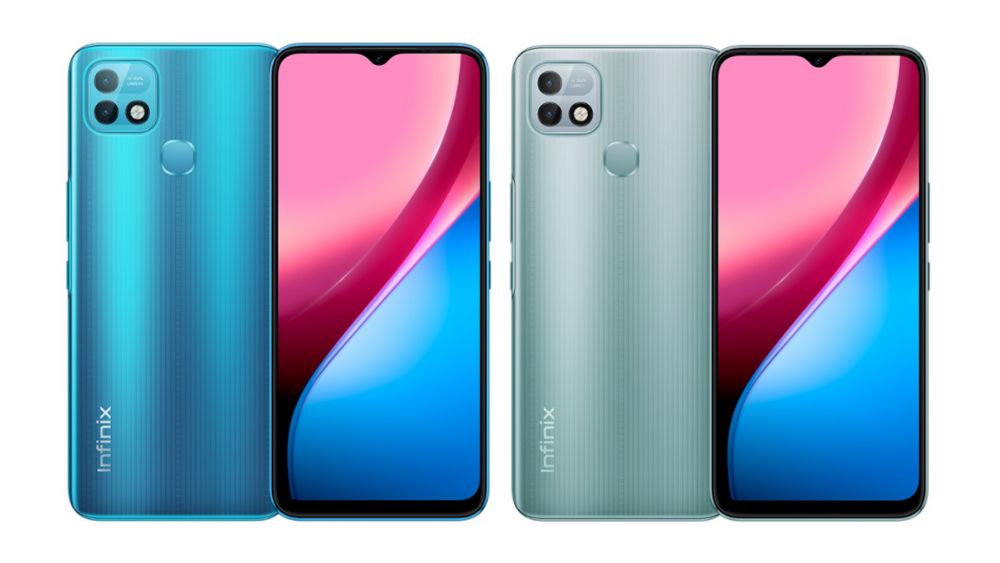
The Hot 10i is another variation of the Hot 10-series from Infinix. This smartphone is available in two versions; the Asian version with MediaTek Helio P65 octa-core CPU, which is a better CPU option than the African version that has UNISOC SC9863A octa-core CPU. RAM and storage options are not the same either; the Asian version has 3/4/6 GB RAM with 32/64/128GB ROM, while the African model has just 2GB RAM with either 32/64GB ROM. All other specs of the phones as the same across both regional models.
As for the display, the Hot 10i sports a compact 6.52-inches screen with 720 x 1600 pixels resolution. The screen is an IPS panel, and it has a notch overhead which is the house for the selfie sensor. The built quality is plastic, hence there is some stripe lining going on on the rear, which is aimed at enhancing grip. The device packs a dual camera setup on the back. These include a 13-megapixel autofocus sensor with f/1.8 aperture, and a 2-megapixel depth sensor, coupled with four LED flashes on the rear. For selfies, you are getting a single 8-megapixel lens kept within the notch upfront.
The device is available in Morandi Green, 7º Purple, 95º Black, and Heart of Ocean colors. It supports FaceID and comes with a rear-placed fingerprint scanner. You are also getting dual Nano-SIMs with a 4G LTE network on both SIMs, a large 6000mAh battery, and the Android 11 with XOS 7.5 out of the box
Prerequisites & Preparation
- Backup Data: Flashing will completely wipe all data on your device. Back up important files and settings before proceeding.
- Battery Level: Ensure your device has at least 50% battery to prevent shutdown during the flashing process.
- USB Driver & Tools: Install the correct USB drivers for your brand and prepare the flashing tool (Odin for Samsung, SP Flash Tool/QPST for Qualcomm/MTK, etc.).
CAUTION: Flashing official firmware carries a risk of bricking your device. Proceed with caution and at your own risk. addROM is not responsible for any damage caused to your device.
Download Stock ROM & Firmware
Global / General
| File Type | Firmware / Build | Region / Model | OS Version | Download Link |
|---|---|---|---|---|
| Stock ROM | Stock ROM | Global / General | – | Google Drive |
| Stock ROM | Stock ROM | Global / General | – | Google Drive |
| Stock ROM | Stock ROM | Global / General | – | Google Drive |
| Stock ROM | Stock ROM | Global / General | – | Google Drive |
| Stock ROM | Stock ROM | Global / General | – | Google Drive |
| Stock ROM | Stock ROM | Global / General | – | Google Drive |
| Stock ROM | Stock ROM | Global / General | – | Google Drive |
| Stock ROM | Stock ROM | Global / General | – | Google Drive |
| Stock ROM | Stock ROM | Global / General | – | Google Drive |
| Stock ROM | Stock ROM | Global / General | – | Google Drive |
| Stock ROM | Stock ROM | Global / General | – | Google Drive |
| Stock ROM | Stock ROM | Global / General | – | Google Drive |
| Stock ROM | Stock ROM | Global / General | – | Google Drive |
| Stock ROM | Stock ROM | Global / General | – | Google Drive |
| Stock ROM | Stock ROM | Global / General | – | Google Drive |
| Stock ROM | Stock ROM | Global / General | – | Google Drive |
| Stock ROM | Stock ROM | Global / General | – | Google Drive |
| Stock ROM | Stock ROM | Global / General | – | Google Drive |
| Stock ROM | Stock ROM | Global / General | – | Google Drive |
| Stock ROM | Stock ROM | Global / General | – | Google Drive |
| Stock ROM | Stock ROM | Global / General | – | Google Drive |
| Stock ROM | Stock ROM | Global / General | – | Google Drive |
| Stock ROM | Stock ROM | Global / General | – | Google Drive |
| Stock ROM | Stock ROM | Global / General | – | Google Drive |
How to Flash Firmware / Stock ROM
To flash the stock firmware on your Infinix device using SP Flash Tool, follow these steps:
- Download and install the MTK USB Drivers on your computer.
- Download and extract the SP Flash Tool.
- Launch
Flash_tool.exeas administrator. - Click on the Scatter-loading button and select the Android scatter file (
.txt) from the extracted firmware folder. - Click the Download button.
- Power off your device completely, hold the Volume Down or Volume Up button, and connect it to the computer via USB cable.
- The flashing process will start automatically. Wait for the green “Download OK” checkmark to appear.