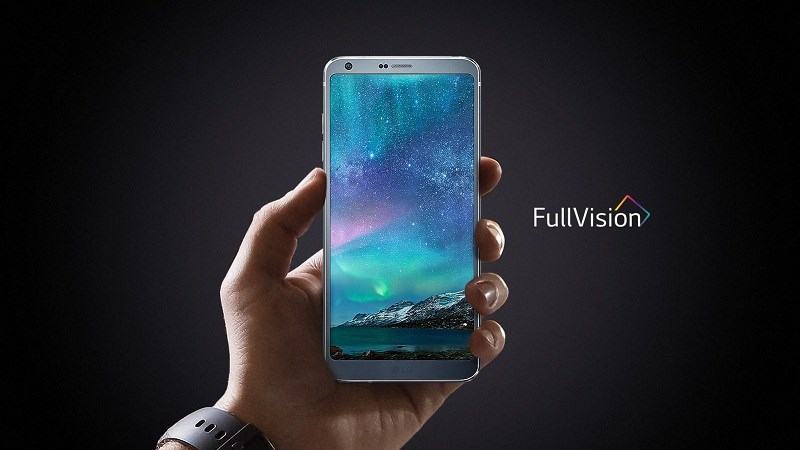
LG G6 smartphone whose 14.47 cm (5.7 inches) QHD+ display would enthuse you with bright and crisp visuals. With a rugged build and an IP68 rating, this phone is designed to handle rough surfaces and thereby, resist minor accidents.
Capture clear audio with the help of the Audio Recorder. You also have the option to record over a separate audio track with features such as Customizable Video Screen Ratio, Subtitles, Video Auto-close. You can even alter the Playback Speed.
Capture those irreplaceable moments with the 13 MP + 13 MP Dual Rear Camera and the 5 Mp Front Camera. Include more people in the same frame thanks to the presence of the 125-degree wide-angle lens. The Square Camera feature lets you take pictures with four creative shot modes for easy uploading on your social-feed.
Get set for an enriching audio experience thanks to the presence of the Quad DAC Playback, which ensures a crisp audio output that is closer to the source.
DOWNLOAD:
H870U:
- H870U30b_00_OPEN_EU_OP_1105.kdz
- H870U30a_00_OPEN_EU_OP_0829.kdz
- H870U20a_00_TCL_MX_OP_0918.kdz
- H870U11k_00_TCL_MX_OP_0220.kdz
H870S:
- H870S30b_00_OPEN_AME_DS_OP_1212.kdz
- H870S20o_00_OPEN_AME_DS_OP_0802.kdz
- H870S20a_00_OPEN_CIS_DS_OP_0717.kdz
- H870K20a_00_TEL_AU_OP_0509.kdz
H870L:
- H870I20b_00_OPEN_SCA_OP_0115.kdz
- H870I20a_01_CLR_BR_OP_0102.kdz
- H870I20a_00_TIM_BR_OP_1122.kdz
- H870I20a_00_OPEN_SCA_OP_0712.kdz
- H870I20a_00_CLR_BR_OP_0703.kdz
Prerequisites & Preparation
- Backup Data: Flashing will completely wipe all data on your device. Back up important files and settings before proceeding.
- Battery Level: Ensure your device has at least 50% battery to prevent shutdown during the flashing process.
- USB Driver & Tools: Install the correct USB drivers for your brand and prepare the flashing tool (Odin for Samsung, SP Flash Tool/QPST for Qualcomm/MTK, etc.).
CAUTION: Flashing official firmware carries a risk of bricking your device. Proceed with caution and at your own risk. addROM is not responsible for any damage caused to your device.
Download Stock ROM & Firmware
H870U
| File Type | Firmware / Build | Region / Model | OS Version | Download Link |
|---|---|---|---|---|
| Stock ROM | H870U30b_00_OPEN_EU_OP_1105.kdz | H870U | Android 00 | Google Drive |
| Stock ROM | H870U30a_00_OPEN_EU_OP_0829.kdz | H870U | Android 00 | Google Drive |
| Stock ROM | H870U20a_00_TCL_MX_OP_0918.kdz | H870U | Android 00 | Google Drive |
| Stock ROM | H870U11k_00_TCL_MX_OP_0220.kdz | H870U | Android 00 | Google Drive |
H870S
| File Type | Firmware / Build | Region / Model | OS Version | Download Link |
|---|---|---|---|---|
| Stock ROM | H870S30b_00_OPEN_AME_DS_OP_1212.kdz | H870S | Android 00 | Google Drive |
| Stock ROM | H870S20o_00_OPEN_AME_DS_OP_0802.kdz | H870S | Android 00 | Google Drive |
| Stock ROM | H870S20a_00_OPEN_CIS_DS_OP_0717.kdz | H870S | Android 00 | Google Drive |
| Stock ROM | H870K20a_00_TEL_AU_OP_0509.kdz | H870S | Android 00 | Google Drive |
H870L
| File Type | Firmware / Build | Region / Model | OS Version | Download Link |
|---|---|---|---|---|
| Stock ROM | H870I20b_00_OPEN_SCA_OP_0115.kdz | H870L | Android 00 | Google Drive |
| Stock ROM | H870I20a_01_CLR_BR_OP_0102.kdz | H870L | Android 01 | Google Drive |
| Stock ROM | H870I20a_00_TIM_BR_OP_1122.kdz | H870L | Android 00 | Google Drive |
| Stock ROM | H870I20a_00_OPEN_SCA_OP_0712.kdz | H870L | Android 00 | Google Drive |
| Stock ROM | H870I20a_00_CLR_BR_OP_0703.kdz | H870L | Android 00 | Google Drive |
How to Flash LG Stock ROM / Firmware (KDZ / TOT)
To flash the stock firmware on your LG device using LGUP Tool (KDZ/TOT file), follow these steps:
Method 1: Using LGUP Tool (Recommended)
- Download and install the LG USB Drivers on your computer (available from LG’s official website).
- Download and install the LGUP Tool on your PC.
- Download the stock firmware in
.kdzor.totformat for your LG device model. - Launch LGUP as administrator.
- Power off your LG device completely. Connect it to the PC via USB cable while holding the Volume Down button to enter Download Mode. The LGUP tool should detect your device.
- In LGUP, click the folder icon next to the file path field and browse to select the downloaded
.kdzor.totfirmware file. - Select Upgrade as the operation mode (or Refurbish for a full wipe + flash).
- Click the Start button to begin the flashing process. Keep the USB connection stable.
- Wait for the process to complete. The device will reboot automatically once flashing is successful.
Method 2: Using LG Bridge (Official Method)
- Download and install LG Bridge from LG’s official website on your computer.
- Connect your LG device to the computer via USB cable.
- Open LG Bridge, select your device, and navigate to the Software Update section.
- Follow the on-screen instructions to download and install the latest available firmware for your device.
- Wait for the update to complete. Your device will reboot automatically.