 By
Pinky: Safe MCP Phone Control With Human Approval Gates
Letting an AI coding assistant tap around on your real Android phone or iPhone sounds convenient until you worry about it hitting a “Pay Now” button or opening your banking app. Pinky solves that by sitting between your AI agent and your phone as a local safety gateway: the agent can inspect screens and suggest taps, while sensitive apps are blocked automatically and payment actions pause for your manual confirmation.
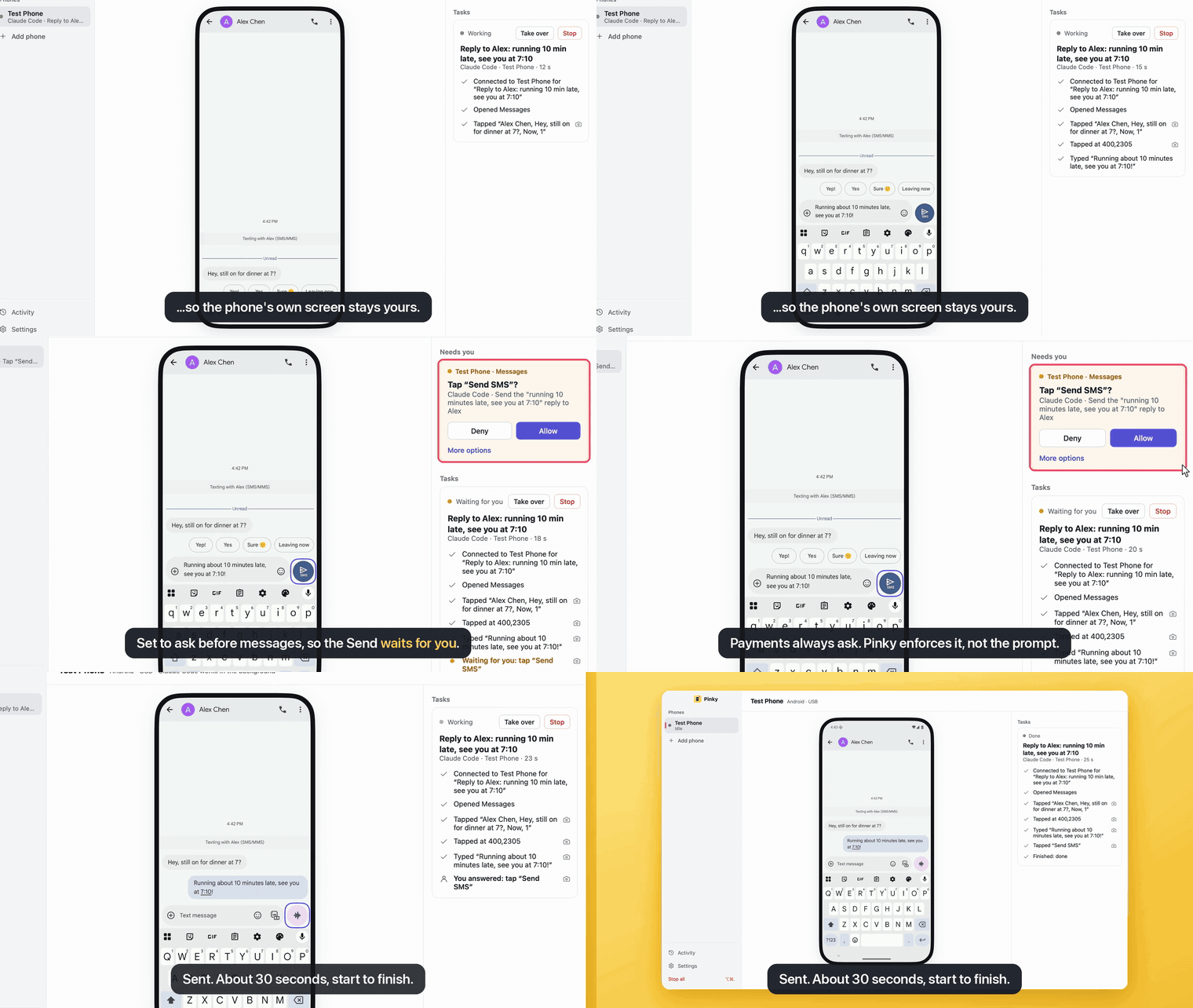
Tracing a Single Tap From Agent to Phone
Suppose you ask Claude Code to test a checkout screen. Instead of sending raw shell commands straight to your phone, every tap moves through four checkpoints:
- Restricted Agent Surface (
pinky mcp): The AI client only sees 27 screen and task tools (such as tap, swipe, type, screenshot, and app launch). There is no MCP tool that lets an agent approve its own requests or disable human oversight. - Screen Inspection and OCR Fallback: The gateway reads the current UI tree. If an app uses custom canvases or unlabeled webviews, Pinky automatically runs targeted text recognition around the tap area so hidden confirmation labels are not missed.
- Policy Evaluation (
rules.yamlandapps.yaml): Out of the box, Pinky runs at preset level 2. It unconditionally blocks banking, payment, password-manager apps, OTP/password fields, and Pinky’s own approval UI. If it detects a payment or commit button (matching verbs across 10 languages), it pauses and asks you to decide. - Desktop Approval Gate: A single-use prompt opens inside the Pinky desktop window, cryptographically bound to that exact device, tool, and arguments. You have 60 seconds to approve or deny before it expires to
Denyautomatically, while each agent call waits up to 45 seconds per poll. Only the trusted desktop UI process can resolve real-device approvals.
Setup and Daily Commands
Pinky is written in Go (targeting Go 1.27.3 in go.mod) under the Apache-2.0 license. You can compile the core Go packages without CGO, or build the full desktop bundle with Android companion support.
1. Build the Core Binary or Full App
For a pure Go build:
git clone https://github.com/diygod/pinky.git
cd pinky
CGO_ENABLED=0 go build ./...
To package the desktop app along with bundled FFmpeg and the Android companion APK (requires Android SDK and JDK):
make app2. Connect Your AI Client
For local desktop use, point your MCP client to:
pinky mcpWhen a graphical session is present, pinky mcp launches the desktop app automatically so you can watch and approve actions. On headless servers without a display, it falls back to background daemon mode.
If you need remote HTTP access (for example over Tailscale), start the HTTP daemon:
pinky daemon --http 127.0.0.1:7465HTTP connections require a 256-bit Bearer token (local Unix sockets also enforce strict owner-only permissions) and tag remote callers with (remote) in their display name so you can scope them separately from local agents. Idle HTTP sessions expire after 1 hour.
Platform Notes and Privacy Defaults
Before relying on Pinky for daily testing, keep these platform and security details in mind:
- Android uses
adb,scrcpy, and an optional companion app. Pinky turns on the Android accessibility service only while an agent is active and turns it off 5 seconds after a task ends (or 60 seconds idle) so banking apps do not complain. On iOS 27 and newer, Pinky talks over CoreDevice without a helper app; iOS 17.4–26 requires WebDriverAgent on ports8100and9100, while iOS below 17.4 is unsupported. Linux iPhone support is marked untested. - Saved device PINs live in your OS keychain and require OS biometric or password confirmation to unlock; agents never receive the raw PIN.
- The traffic inspection tool redacts cookies, tokens, and passwords in headers and skips decryption for banking apps, blocked hosts, and certificate-pinned apps.
- Release builds send daily usage counters and crash reports to a zero-dependency Cloudflare Worker (no IP or headers stored). Set
DO_NOT_TRACK=1or disable usage stats in Settings if you prefer zero outbound telemetry. - As documented in
README.mdand design notes, Pinky does not sandbox an AI agent that already has unrestricted shell access under your same OS user, because that agent could invokeadbdirectly. Run untrusted agents under a separate OS user or container.
Troubleshooting and Handy Commands
| Symptom | Cause | What to Do |
|---|---|---|
| Android banking app blocks sign-in after a run | Some OEM ROMs (such as vivo OriginOS 6) ignore automatic accessibility toggles | Toggle Pinky’s accessibility service off manually in Android Settings |
| GPS location simulation fails on a real Android phone | Location spoofing only works on Android Emulators and supported iPhones | Use an Android Emulator when testing location-based flows |
| Agent times out waiting for approval | Individual calls wait up to 45 seconds while approvals expire at 60 seconds | Approve promptly in the desktop window or let the agent re-query |
Useful commands to keep in your workflow:
pinky devicesto check connected Android and iOS targetspinky taskto inspect active or queued agent taskspinky versionto verify your installed buildmake checkto run build, vet, and test checks locally
Pinky hits a practical sweet spot if you want AI assistants to test mobile flows while keeping payment and credential boundaries under human control. Just pair it with proper OS-user isolation if your AI agent also has local terminal access.