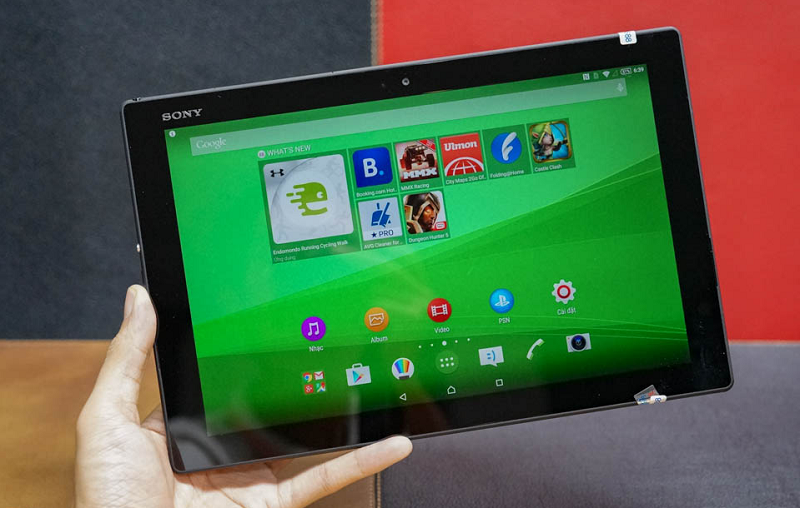
Here you can download the latest official Stock ROM (Firmware) files for the ROM Sony Xperia Z4 Tablet 4G SGP771. These files are essential for repairing software issues, fixing bootloops, upgrading/downgrading the OS, or restoring your device to its factory state.
Prerequisites & Preparation
- Backup Data: Flashing will completely wipe all data on your device. Back up important files and settings before proceeding.
- Battery Level: Ensure your device has at least 50% battery to prevent shutdown during the flashing process.
- USB Driver & Tools: Install the correct USB drivers for your brand and prepare the flashing tool (Odin for Samsung, SP Flash Tool/QPST for Qualcomm/MTK, etc.).
CAUTION: Flashing official firmware carries a risk of bricking your device. Proceed with caution and at your own risk. addROM is not responsible for any damage caused to your device.
Download Stock ROM & Firmware
Global / General
| File Type | Firmware / Build | Region / Model | OS Version | Download Link |
|---|---|---|---|---|
| Stock ROM | SGP771 | Global / General | – | Google Drive | OneDrive | SourceForge | Google Drive |
| Stock ROM | SGP771 | Global / General | – | Google Drive | OneDrive | SourceForge | Google Drive |
| Stock ROM | SGP771 | Global / General | – | Google Drive | OneDrive | SourceForge | Google Drive |
| Stock ROM | SGP771 | Global / General | – | Google Drive | OneDrive | SourceForge | Google Drive |
| Stock ROM | SGP771 | Global / General | – | Google Drive | OneDrive | SourceForge | Google Drive |
| Stock ROM | SGP771 | Global / General | – | Google Drive | OneDrive | SourceForge | Google Drive |
Additional Files & Tools
How to Flash Firmware / Stock ROM
To flash the stock firmware (.ftf) on your Sony device using Flashtool (Androxyde), follow these steps:
- Download and install Flashtool on your computer.
- Download the official stock firmware (FTF file) for your specific device model.
- Copy the downloaded
.ftffile to theC:\Users\<Your_Username>\.flashTool\firmwaresfolder (or~/.flashTool/firmwareson Mac/Linux). - Open Flashtool and click on the Lightning Bolt (Flash device) icon, select Flashmode, and click OK.
- Select the loaded firmware file from the list. In the Wipe section, check USERDATA and APPS_LOG (recommended for clean install).
- Click the Flash button.
- Power off your device completely. Hold the Volume Down button and connect the USB cable to the computer. The LED indicator should turn Green (Flash Mode).
- The flashing process will start automatically. Wait for Flashtool to display “Flashing finished” before disconnecting your device.