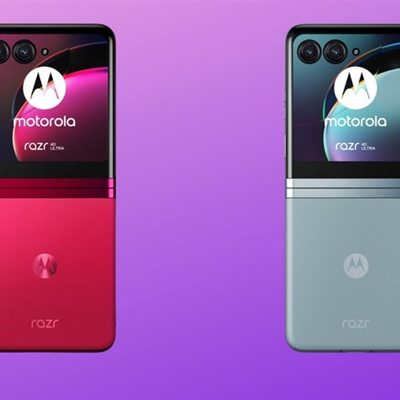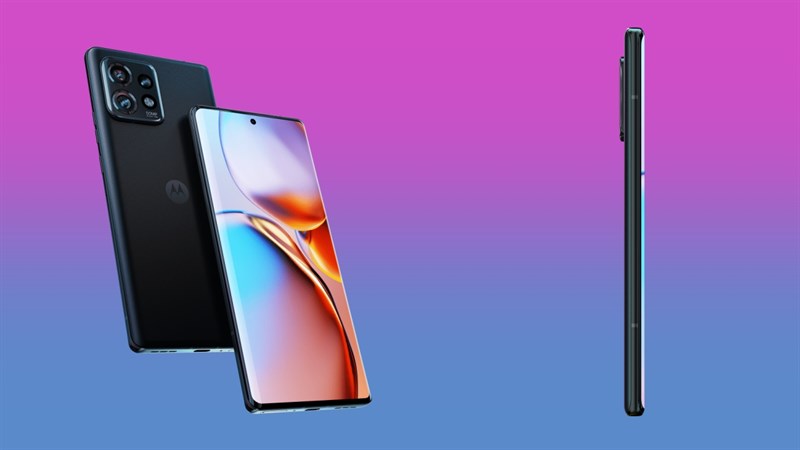
Here you can download the latest official Stock ROM (Firmware) files for the Motorola Razr 40 5G XT2323. These files are essential for repairing software issues, fixing bootloops, upgrading/downgrading the OS, or restoring your device to its factory state.
Prerequisites & Preparation
- Backup Data: Flashing will completely wipe all data on your device. Back up important files and settings before proceeding.
- Battery Level: Ensure your device has at least 50% battery to prevent shutdown during the flashing process.
- USB Driver & Tools: Install the correct USB drivers for your brand and prepare the flashing tool (Odin for Samsung, SP Flash Tool/QPST for Qualcomm/MTK, etc.).
CAUTION: Flashing official firmware carries a risk of bricking your device. Proceed with caution and at your own risk. addROM is not responsible for any damage caused to your device.
Download ROM & Firmware
ATT
| File Type | Firmware / Build | Region / Model | OS Version | Download Link |
|---|---|---|---|---|
| Stock ROM | V1TVS35H.41-24-3-1-5-5 | ATT | Andoid 15 | Google Drive |
| Stock ROM | V1TVS35H.41-24-3-1-5-3 | ATT | Andoid 15 | Google Drive |
| Stock ROM | V1TVS35H.41-24-3-1-5-1 | ATT | Andoid 15 | Google Drive |
| Stock ROM | V1TV35H.41-24-3-1-5 | ATT | Andoid 15 | Google Drive |
| Stock ROM | U3TVS34.1-47-2-10 | ATT | Andoid 14 | Google Drive |
| Stock ROM | T2TVS33.45-149-4 | ATT | Andoid 13 | Google Drive |
RETGB
| File Type | Firmware / Build | Region / Model | OS Version | Download Link |
|---|---|---|---|---|
| Stock ROM | V1TLS35.73-60-3-6 | RETGB | Andoid 15 | Google Drive |
| Stock ROM | V1TLS35.73-60-3-2 | RETGB | Andoid 15 | Google Drive |
| Stock ROM | U1TLS34.115-16-1-7-3 | RETGB | Andoid 14 | Google Drive |
| Stock ROM | T2TLS33.3-62-3-8 | RETGB | Andoid 13 | Google Drive |
OPENMX
| File Type | Firmware / Build | Region / Model | OS Version | Link tải về |
|---|---|---|---|---|
| Stock ROM | V1TLS35.73-60-3-6 | OPENMX | Andoid 15 | Google Drive |
| Stock ROM | V1TLS35.73-60-3-2 | OPENMX | Andoid 15 | Google Drive |
| Stock ROM | U1TLS34.115-16-1-7-3 | OPENMX | Andoid 14 | Google Drive |
| Stock ROM | T2TLS33.3-62-3-8 | OPENMX | Andoid 13 | Google Drive |
OPENLA
| File Type | Firmware / Build | Region / Model | OS Version | Link tải về |
|---|---|---|---|---|
| Stock ROM | V1TLS35.73-60-3-6 | OPENLA | Andoid 15 | Google Drive |
| Stock ROM | V1TLS35.73-60-3-2 | OPENLA | Andoid 15 | Google Drive |
| Stock ROM | U1TLS34.115-16-1-7-3 | OPENLA | Andoid 14 | Google Drive |
| Stock ROM | T2TLS33.3-62-3-8 | OPENLA | Andoid 13 | Google Drive |
ATTMX
| File Type | Firmware / Build | Region / Model | OS Version | Link tải về |
|---|---|---|---|---|
| Stock ROM | U1TLS34.115-16-1-7-2 | ATTMX | Andoid 14 | Google Drive |
| Stock ROM | U1TLS34.115-16-1-7-1 | ATTMX | Andoid 14 | Google Drive |
| Stock ROM | U1TL34.115-16-1-7 | ATTMX | Andoid 14 | Google Drive |
| Stock ROM | T2TLS33.3-62-3-8 | ATTMX | Andoid 13 | Google Drive |
AMXLA
| File Type | Firmware / Build | Region / Model | OS Version | Link tải về |
|---|---|---|---|---|
| Stock ROM | U1TLS34.115-16-1-7-3 | AMXLA | Andoid 14 | Google Drive |
| Stock ROM | U1TLS34.115-16-1-7-2 | AMXLA | Andoid 14 | Google Drive |
| Stock ROM | U1TLS34.115-16-1-7-1 | AMXLA | Andoid 14 | Google Drive |
| Stock ROM | T2TLS33.3-62-3-8 | AMXLA | Andoid 13 | Google Drive |
RETAIL
| File Type | Firmware / Build | Region / Model | OS Version | Link tải về |
|---|---|---|---|---|
| Stock ROM | V1TLS35.73-60-3-6 | RETAIL | Andoid 15 | Google Drive |
| Stock ROM | V1TLS35.73-60-3-2 | RETAIL | Andoid 15 | Google Drive |
| Stock ROM | V1TL35.73-60-3 | RETAIL | Andoid 15 | Google Drive |
| Stock ROM | U1TLS34.115-16-1-7-3 | RETAIL | Andoid 14 | Google Drive |
| Stock ROM | T2TLS33.3-62-3-8 | RETAIL | Andoid 13 | Google Drive |
How to Flash Firmware / Stock ROM
To flash the stock firmware on your Motorola device, you can use the official Rescue and Smart Assistant (RSA) tool or flash manually via Fastboot. Follow the instructions below:
Method 1: Using Rescue and Smart Assistant (RSA) – Recommended
- Download and install the official Rescue and Smart Assistant (RSA) tool on your computer.
- Launch RSA and sign in with your account (Lenovo/Motorola).
- Click on the Rescue tab and select Phone.
- Power off your device completely. Hold the Volume Down button and connect the USB cable to enter Fastboot Mode.
- The tool will automatically detect your device, match the correct firmware, and download it.
- Click Rescue and wait for the process to complete. Your phone will reboot automatically.
Method 2: Manual Flash via Fastboot
- Download and install the Motorola USB Drivers on your PC.
- Download and extract the Minimal ADB and Fastboot Tools.
- Extract the downloaded firmware zip file (which contains
flashfile.xmlorservicefile.xml) directly into the ADB & Fastboot directory. - Power off your device. Press and hold Volume Down + Power buttons to enter Fastboot / Bootloader mode, then connect it to the PC.
- Run the included
flash-all.batbatch script in the firmware folder to execute all flash commands automatically. - If there is no batch file, open command prompt in the folder and flash the files manually by executing the fastboot commands listed inside
flashfile.xml. - Once completed, type
fastboot rebootto restart your device.