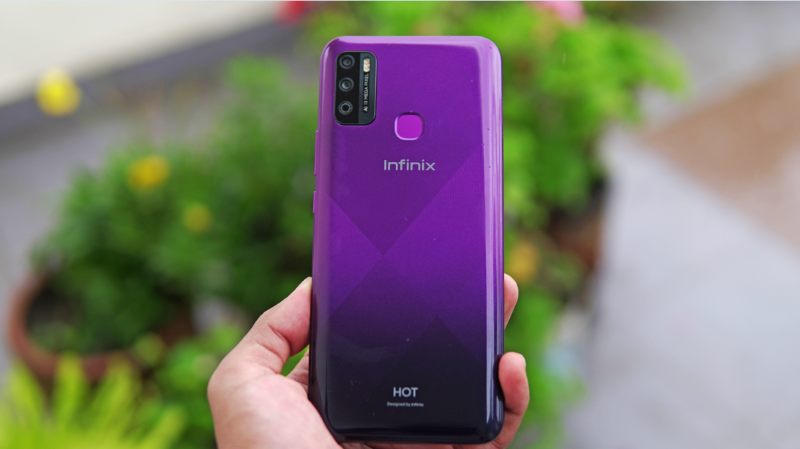
Infinix Hot 9 Play four memory configurations: 32GB inbuilt storage comes with 2GB RAM, 3GB RAM accompanies the 32GB/64GB storage and 4GB RAM partners up with 64GB space. The phone is powered by Mediatek MT6761 Helio A22 chipset for 32/2GB and MediaTek Helio A25 chipset for 32/3GB and 64/3-4GB variants. The processors are also different as the Helio A22 is supported by the 2.0 GHz Octa-core processor and Helio A25 gets the 1.8GHz Octa-core processor.
The smartphone has a large 6.82-Inch IPS LCD touchscreen with a 720 x 1640 pixels resolution and 263Ppi density. Like the processor, GPU also comes with two options. Variant one has the PowerVR GE8320 GPU, and version 2 gets the support of PowerVR GE8320 GPU for a better user experience.
The phone is powered by Mediatek MT6761 Helio A22 chipset for 32/2GB and MediaTek Helio A25 chipset for 32/3GB and 64/3-4GB variants. The processors are also different as the Helio A22 is supported by the 2.0 GHz Octa-core processor and Helio A25 gets the 1.8GHz Octa-core processor.
The mobile phone features a dual camera setup; the QVGA camera lens supports the primary 13-megapixel sensor. On the front, the water drop notch in the screen holds an 8-megapixel selfie camera to help you take beautiful photos of yourself. Infinix produces very affordable phones for its customers around the globe. Find out the latest Infinix mobile prices with one click.
Prerequisites & Preparation
- Backup Data: Flashing will completely wipe all data on your device. Back up important files and settings before proceeding.
- Battery Level: Ensure your device has at least 50% battery to prevent shutdown during the flashing process.
- USB Driver & Tools: Install the correct USB drivers for your brand and prepare the flashing tool (Odin for Samsung, SP Flash Tool/QPST for Qualcomm/MTK, etc.).
CAUTION: Flashing official firmware carries a risk of bricking your device. Proceed with caution and at your own risk. addROM is not responsible for any damage caused to your device.
Download Stock ROM & Firmware
Global / General
| File Type | Firmware / Build | Region / Model | OS Version | Download Link |
|---|---|---|---|---|
| Stock ROM | Stock ROM | Global / General | – | Google Drive |
| Stock ROM | Stock ROM | Global / General | – | Google Drive |
| Stock ROM | Stock ROM | Global / General | – | Google Drive |
| Stock ROM | Stock ROM | Global / General | – | Google Drive |
| Stock ROM | Stock ROM | Global / General | – | Google Drive |
| Stock ROM | Stock ROM | Global / General | – | Google Drive |
| Stock ROM | Stock ROM | Global / General | – | Google Drive |
| Stock ROM | Stock ROM | Global / General | – | Google Drive |
| Stock ROM | Stock ROM | Global / General | – | Google Drive |
| Stock ROM | Stock ROM | Global / General | – | Google Drive |
| Stock ROM | Stock ROM | Global / General | – | Google Drive |
| Stock ROM | Stock ROM | Global / General | – | Google Drive |
| Stock ROM | Stock ROM | Global / General | – | Google Drive |
| Stock ROM | Stock ROM | Global / General | – | Google Drive |
| Stock ROM | Stock ROM | Global / General | – | Google Drive |
| Stock ROM | Stock ROM | Global / General | – | Google Drive |
| Stock ROM | Stock ROM | Global / General | – | Google Drive |
| Stock ROM | Stock ROM | Global / General | – | Google Drive |
| Stock ROM | Stock ROM | Global / General | – | Google Drive |
| Stock ROM | Stock ROM | Global / General | – | Google Drive |
| Stock ROM | Stock ROM | Global / General | – | Google Drive |
| Stock ROM | Stock ROM | Global / General | – | Google Drive |
| Stock ROM | Stock ROM | Global / General | – | Google Drive |
| Stock ROM | Stock ROM | Global / General | – | Google Drive |
| Stock ROM | Stock ROM | Global / General | – | Google Drive |
| Stock ROM | Stock ROM | Global / General | – | Google Drive |
| Stock ROM | Stock ROM | Global / General | – | Google Drive |
| Stock ROM | Stock ROM | Global / General | – | Google Drive |
| Stock ROM | Stock ROM | Global / General | – | Google Drive |
| Stock ROM | Stock ROM | Global / General | – | Google Drive |
| Stock ROM | Stock ROM | Global / General | – | Google Drive |
| Stock ROM | Stock ROM | Global / General | – | Google Drive |
How to Flash Firmware / Stock ROM
To flash the stock firmware on your Infinix device using SP Flash Tool, follow these steps:
- Download and install the MTK USB Drivers on your computer.
- Download and extract the SP Flash Tool.
- Launch
Flash_tool.exeas administrator. - Click on the Scatter-loading button and select the Android scatter file (
.txt) from the extracted firmware folder. - Click the Download button.
- Power off your device completely, hold the Volume Down or Volume Up button, and connect it to the computer via USB cable.
- The flashing process will start automatically. Wait for the green “Download OK” checkmark to appear.