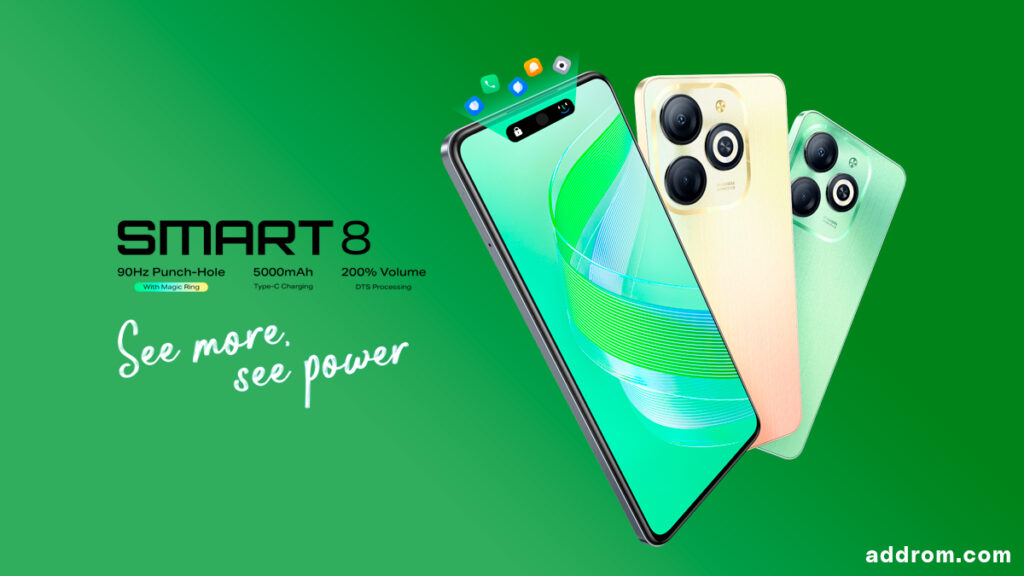
The Smart 8 is equipped with an IPS LCD screen featuring HD+ resolution and a 90Hz refresh rate. This display uses a punch-hole design to house the selfie camera, and users can interact with the screen’s punch-hole to update status and charging information similar to Apple’s Dynamic Island feature.
Inside, the Infinix Smart 8 uses the Unisoc T606 chipset, paired with 3GB of RAM and 64GB of internal storage, expandable via a microSD card slot. The rear of this smartphone houses a 13MP (f/1.8) main camera along with a VGA depth sensor and an LED flash.
Infinix’s new smartphone runs Android 13 with the Infinix XOS 13 user interface and comes with an impressive 5,000 mAh battery that supports 10W charging.
Prerequisites & Preparation
- Backup Data: Flashing will completely wipe all data on your device. Back up important files and settings before proceeding.
- Battery Level: Ensure your device has at least 50% battery to prevent shutdown during the flashing process.
- USB Driver & Tools: Install the correct USB drivers for your brand and prepare the flashing tool (Odin for Samsung, SP Flash Tool/QPST for Qualcomm/MTK, etc.).
CAUTION: Flashing official firmware carries a risk of bricking your device. Proceed with caution and at your own risk. addROM is not responsible for any damage caused to your device.
Download Stock ROM & Firmware
Global / General
| File Type | Firmware / Build | Region / Model | OS Version | Download Link |
|---|---|---|---|---|
| Stock ROM | X6525-F069CFIGcGfGiGo-TGo-OPPJ-PJ-240417V155_PAC.zip | Global / General | – | Google Drive | OneDrive |
| Stock ROM | X6525-F069CaCbCc-TGo-EU-231120V97_PAC.zip | Global / General | – | Google Drive | OneDrive |
| Stock ROM | X6525-F069ABCDEFGHI-TGo-OP-231108V893_PAC.zip | Global / General | – | Google Drive | OneDrive |
How to Flash Firmware / Stock ROM
To flash the stock firmware on your Infinix device using SPD Upgrade Tool, follow these steps:
- Download and install the SPD USB Drivers on your computer.
- Download and extract the SPD Upgrade Tool (ResearchDownload).
- Open the tool and click on the Gear (Load Packet) icon to load the
.pacfirmware file. - Click the Play (Start Downloading) button.
- Power off your device completely, hold the Volume Down (or Volume Up) button, and connect it to the computer via USB cable.
- Wait for the flashing process to complete and show the “Passed” status.