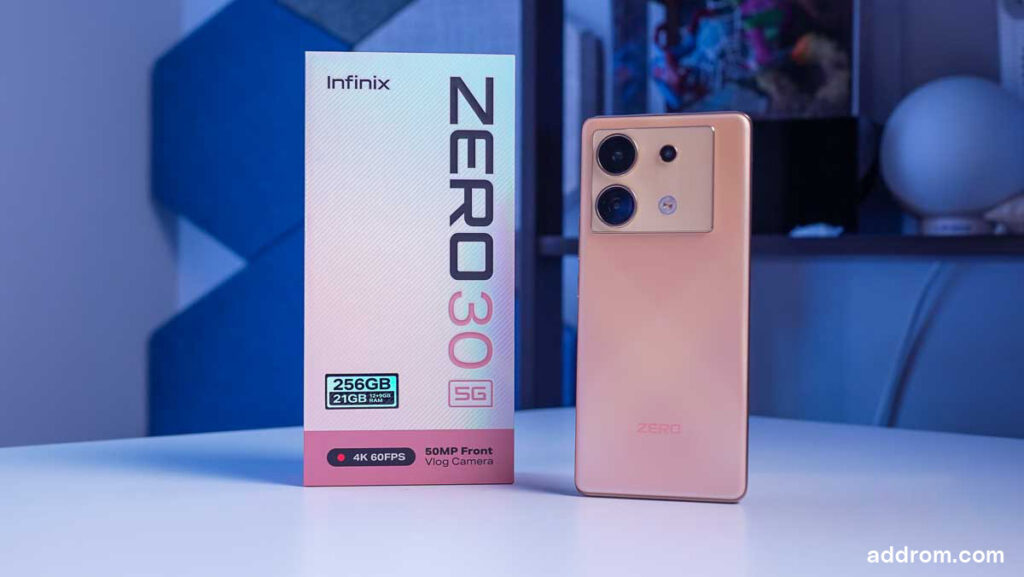
The Infinix Zero 30 5G is a mid-range phone from Infinix but carries the appearance of a flagship. It features a curved display design with a luxurious leather and glass back. Moreover, its display is a standout feature, boasting a refresh rate of up to 144Hz, a high-quality camera system, and various modern features.
The Zero 30’s display is equipped with a 6.78-inch AMOLED panel that supports 1 billion colors, an impressive 144Hz refresh rate, and high brightness. Powered by the MediaTek Dimensity 8020 chip, along with 256GB of ample storage and up to 12GB of RAM, it ensures smooth multitasking.
Both the main and selfie cameras are 50MP and support ultra-sharp 4K video recording. The Zero 30 has a premium design, featuring a sleek punch-hole curved display, combined with a leather and glass back, and a slim 7.9mm profile, adding a touch of elegance to the device.
Prerequisites & Preparation
- Backup Data: Flashing will completely wipe all data on your device. Back up important files and settings before proceeding.
- Battery Level: Ensure your device has at least 50% battery to prevent shutdown during the flashing process.
- USB Driver & Tools: Install the correct USB drivers for your brand and prepare the flashing tool (Odin for Samsung, SP Flash Tool/QPST for Qualcomm/MTK, etc.).
CAUTION: Flashing official firmware carries a risk of bricking your device. Proceed with caution and at your own risk. addROM is not responsible for any damage caused to your device.
Download Stock ROM & Firmware
Global / General
| File Type | Firmware / Build | Region / Model | OS Version | Download Link |
|---|---|---|---|---|
| Stock ROM | X6731-H935AB-U-GL-240829V449.zip | Global / General | – | Google Drive | OneDrive | Backup |
How to Flash Firmware / Stock ROM
To flash the stock firmware on your Infinix device using SP Flash Tool, follow these steps:
- Download and install the MTK USB Drivers on your computer.
- Download and extract the SP Flash Tool.
- Launch
Flash_tool.exeas administrator. - Click on the Scatter-loading button and select the Android scatter file (
.txt) from the extracted firmware folder. - Click the Download button.
- Power off your device completely, hold the Volume Down or Volume Up button, and connect it to the computer via USB cable.
- The flashing process will start automatically. Wait for the green “Download OK” checkmark to appear.