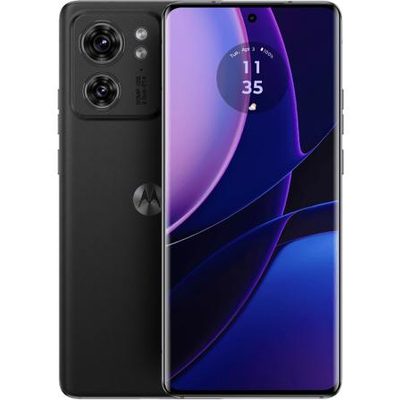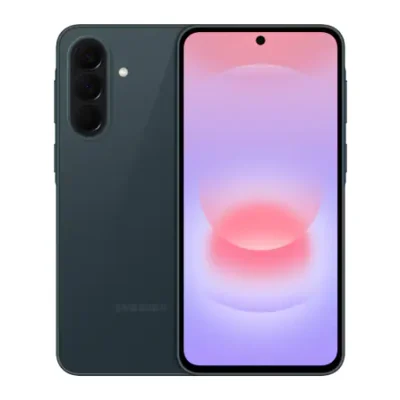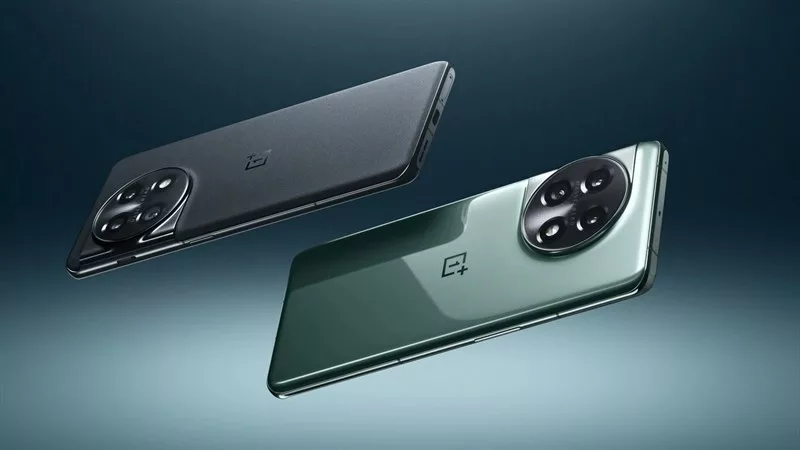
OnePlus 11R 5G features a 6.74-inch curved AMOLED display with a 1.5K resolution, a peak brightness of 1450 nits, support for HDR10+, and 1440Hz PWM dimming. The rear camera setup includes a 50MP main sensor, an 8MP ultra-wide camera, and a 2MP macro camera. The front camera has a resolution of 16MP.
In terms of hardware, OnePlus 11R 5G is powered by the Snapdragon 8+ Gen 1, with options for 12GB or 16GB of RAM and internal storage choices of 128GB or 256GB. The device is equipped with a liquid cooling system to maintain stable temperatures. It will launch with the OxygenOS 13 interface, based on Android 13.
The phone boasts a large 5000mAh battery with support for 100W SuperVOOC fast charging. Notably, the signature alert slider, a fan-favorite feature of OnePlus devices, makes a return on the OnePlus 11R 5G after being absent on the OnePlus 10R.
Prerequisites & Preparation
- Backup Data: Flashing will completely wipe all data on your device. Back up important files and settings before proceeding.
- Battery Level: Ensure your device has at least 50% battery to prevent shutdown during the flashing process.
- USB Driver & Tools: Install the correct USB drivers for your brand and prepare the flashing tool (Odin for Samsung, SP Flash Tool/QPST for Qualcomm/MTK, etc.).
CAUTION: Flashing official firmware carries a risk of bricking your device. Proceed with caution and at your own risk. addROM is not responsible for any damage caused to your device.
Download Stock ROM & Firmware
Global / General
| File Type | Firmware / Build | Region / Model | OS Version | Download Link |
|---|---|---|---|---|
| Stock ROM | CPH2487export | Global / General | Android 11 | Google Drive | OneDrive |
| Stock ROM | CPH2487export | Global / General | Android 11 | Google Drive | OneDrive |
How to Flash Firmware / Stock ROM
To flash the stock firmware on your Oneplus device using MSMDownloadTool (DownloadTool), follow these steps:
- Download and install the OnePlus USB Drivers (or Qualcomm USB Drivers) on your computer.
- Download and extract the firmware package (which includes the
MsmDownloadTool.exeorDownloadTool.exe). - Launch
MsmDownloadTool.exeas administrator. (For OnePlus, select ‘User’ or ‘Others’ type if prompted). If prompted, log in with authorized credentials or use an activation tool/bypass. - Power off your device completely.
- Hold the Volume Up and Volume Down buttons, then connect the device to the computer via USB cable.
- The tool should detect your device. Click the Start button to begin the flashing process.
- Wait until the progress bar reaches 100% and shows a green “Download Complete” or “Success” status.