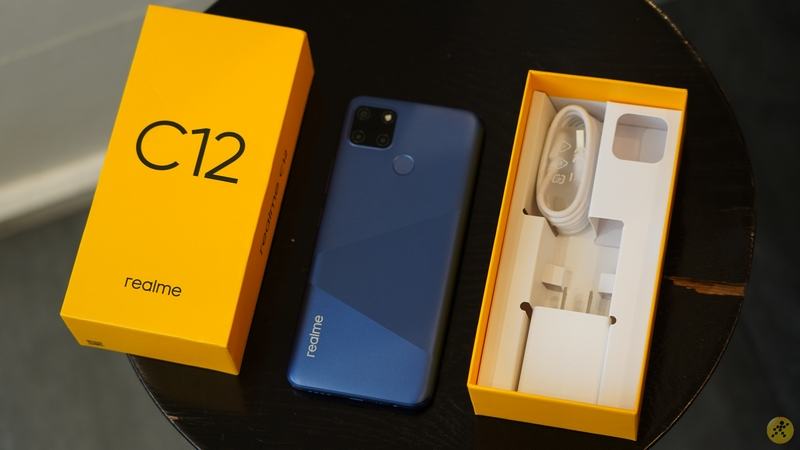
The term “Stock ROM” or “Firmware” describes the version of the operating system that the device’s creator pre-installs. It is the original firmware that comes with a device and can be used to return it to its default settings.
OPPO Realme C12 (RMX2189) Stock Firmware – is useful for fixing issues such as hang on Logo, FRP lock, fastboot mode, display blank or white after flash, dead recovery, dead after flash etc. Stock ROMs are often specific to a particular device and are not interchangeable between different devices.
Prerequisites & Preparation
- Backup Data: Flashing will completely wipe all data on your device. Back up important files and settings before proceeding.
- Battery Level: Ensure your device has at least 50% battery to prevent shutdown during the flashing process.
- USB Driver & Tools: Install the correct USB drivers for your brand and prepare the flashing tool (Odin for Samsung, SP Flash Tool/QPST for Qualcomm/MTK, etc.).
CAUTION: Flashing official firmware carries a risk of bricking your device. Proceed with caution and at your own risk. addROM is not responsible for any damage caused to your device.
Download Stock ROM & Firmware
Global / General
| File Type | Firmware / Build | Region / Model | OS Version | Download Link |
|---|---|---|---|---|
| Stock ROM | RMX2189export | Global / General | Android 11 | Google Drive |
| Stock ROM | RMX2189export | Global / General | Android 11 | Google Drive |
| Stock ROM | RMX2189export | Global / General | Android 11 | Google Drive |
| Stock ROM | RMX2189export | Global / General | Android 11 | Google Drive |
| Stock ROM | 93cb189a | Global / General | Android 11 | Google Drive |
| Stock ROM | 93cb189a | Global / General | Android 11 | Google Drive |
| Stock ROM | 4f3d4a31 | Global / General | Android 11 | Google Drive |
| Stock ROM | cb2e53b4 | Global / General | Android 11 | Google Drive |
| Stock ROM | e6e6c09b | Global / General | Android 11 | Google Drive |
| Stock ROM | RMX2189_11_A.67_200729_RFT.zip | Global / General | Android 11 | Google Drive |
How to Flash Firmware / Stock ROM
To flash the firmware or stock ROM on your OPPO device, prepare the compatible flashing tool specifically required for your device chipset, install the appropriate USB drivers, and follow the standard instructions for that tool.