You plug in your pen drive or memory card, double-click it in This PC, and instead of your files, Windows throws a frustrating error:
“#:\ is not accessible. The volume does not contain a recognized file system.”
This problem often shows up out of nowhere. Your device may have worked fine yesterday, but today Windows can’t open it and may even ask you to format it. Fret not! Here, we’ll briefly explain what this common error means, why it happens, and how to fix it step by step. So, stay with us.
What Does “The Volume Does Not Contain a Recognized File System” Mean?
When you see the message “The volume does not contain a recognized file system,” it usually means something has gone wrong with the file system on your drive. It may be missing, damaged, or simply unreadable. As a result, you won’t be able to access any files stored on the affected drive for now.
In the Disk Management app, the drive may appear without a drive letter, be labeled as RAW, or show its space as “Unallocated.” This issue can be caused by various factors, including bad sectors on the disk, improper removal of the drive, or a virus or malware infection.
How to Recover Data from an Inaccessible Drive Safely?
How to fix “the volume does not contain a recognized file system” error? Windows may prompt you to format the problematic disk. While formatting can make the drive usable again, it will also wipe out all existing data. If there are irreplaceable files on the drive, formatting should never be your first step.
That’s where Tenorshare 4DDiG Data Recovery comes in. It provides an easy and safe solution for extracting data from RAW drives. Here are more details about this tool:
- Compatible with more than 2,000 types of storage media, including HDDs, SSDs, USB drives, and SD cards.
- Recovers a wide range of data types, including images, videos, MS office files, and archives.
- Supports data recovery from accidental deletion, formatting, system crashes, virus attacks, and corrupted partitions.
- Offers a clean and intuitive interface, making data recovery easy for beginners.
- Delivers fast scanning and an impressive recovery success rate.
Follow the below steps to recover data from an unreadable drive:
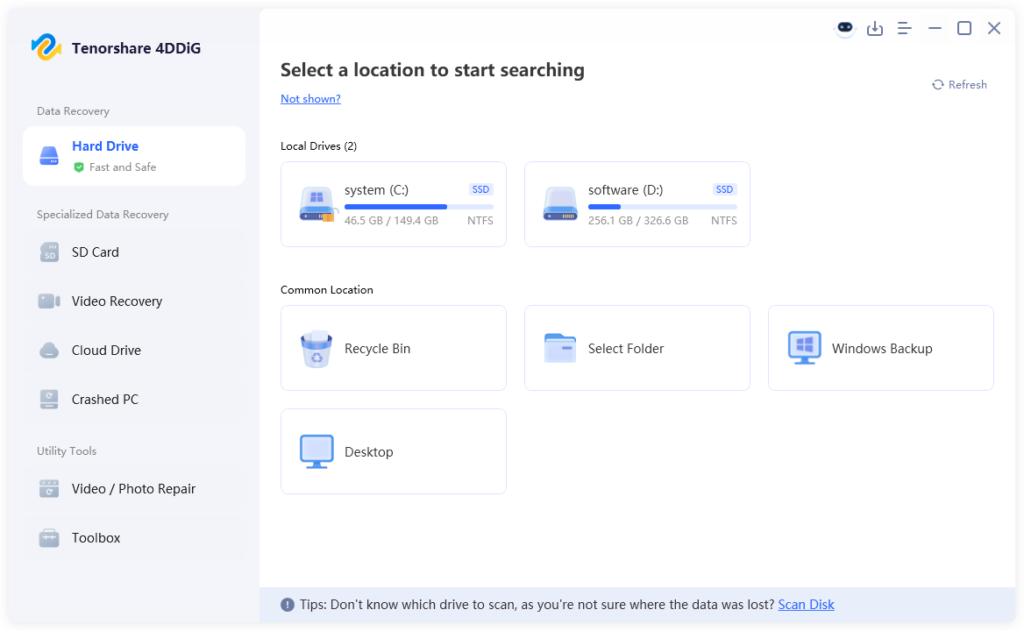
Step 1: To begin, install the 4DDiG Data Recovery tool and connect the affected external hard drive to your PC. Next, launch the tool, pick the problematic disk and click “Scan.”
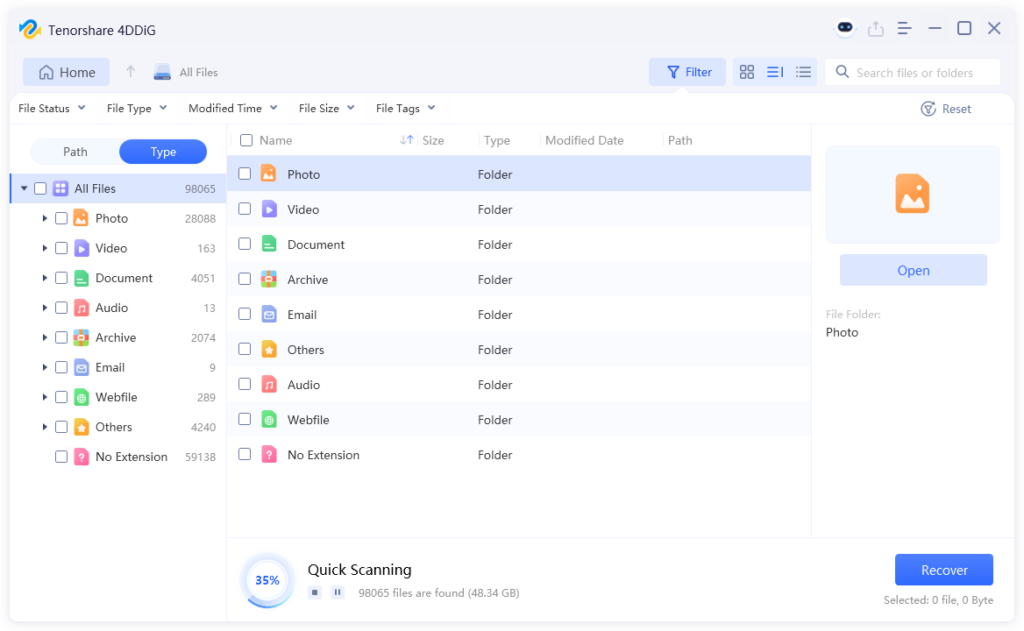
Step 2: 4DDiG will perform a deep scan of the selected drive to look for inaccessible files. This may take a little time depending on the size of the disk, but you don’t have to sit and wait. You can pause the process whenever you like or stop it early if you’ve already found what you need.
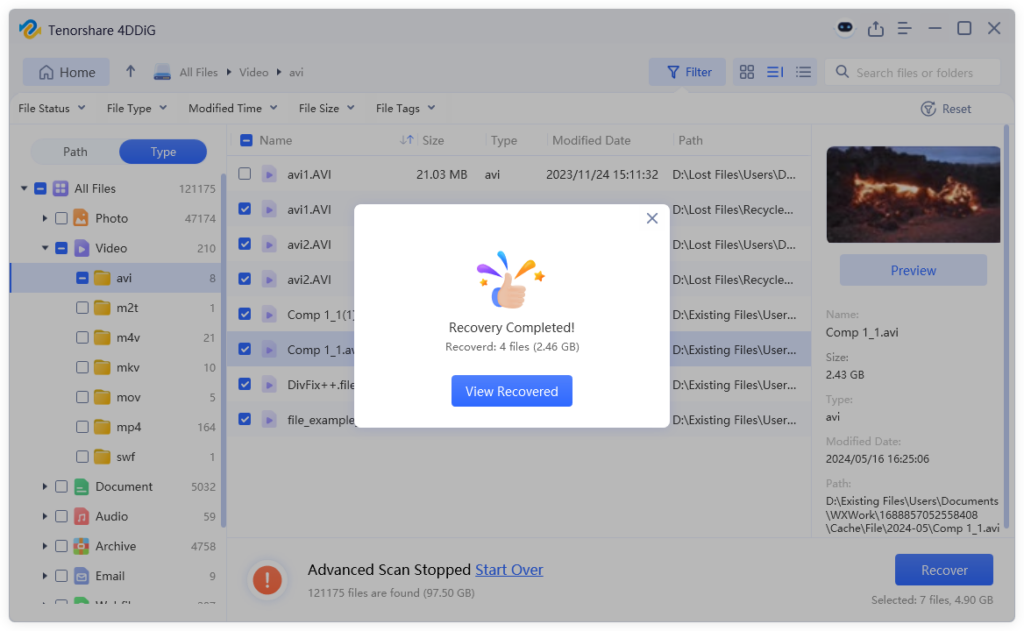
Step 3: After the scan finishes, double-click on any file to preview its contents. Finally, select the desired files followed by clicking the “Recover” button. Be sure to save the recovered files to a different location to avoid overwriting existing data.
Methods to Fix “The Volume Does Not Contain a Recognized File System” Error
Option A: Assign a New Drive Letter
Sometimes, the reason Windows reports that “the volume does not contain a recognized file system” is surprisingly simple: your drive may not have a drive letter assigned to it. To fix this, follow the steps below:
Step 1: Press Windows + R, type diskmgmt.msc, and press Enter to open Disk Management.
Step 2: Right-click on the affected drive, and then choose “Change Drive Letter and Paths.”
Step 3: Click “Add” if no drive letter is assigned, or “Change” if you want to assign a different one.
Step 4: Select an unused drive letter from the list, click “OK,” and confirm the change.
Option B: Repair Disk Errors
If the drive has a valid drive letter but still shows the error “The volume does not contain a recognized file system,” the next method you should try is running the CHKDSK utility. This built-in tool can check for and repair logical file system errors, helping you regain access to the problematic drive. Here’s how:
Step 1: Start by opening the Command Prompt with administrator privileges.
Step 2: Once the command window is open, input chkdsk X: /f and press Enter, where X is the letter of the affected drive.
Option C: Check System File Issues
In some cases, the problem may not lie with the disk itself but with Windows system files that have become missing or corrupted. Fortunately, included in all versions of Windows is a command-line utility for automatically repairing damaged system files. Here’s how to fix the “The volume does not contain a recognized file system” error with the aid of SFC:
Step 1: Type “CMD” in the Windows search bar, right-click on Command Prompt, and choose “Run as administrator.”
Step 2: Next, type and run the sfc /scannnow command. Restart your computer once the repair process is complete.
Option D: Update Disk Drivers
Obsolete or incompatible drivers may prevent Windows from recognizing your external device, resulting in the “The volume does not contain a recognized file system” error. Follow the below-said steps to update the disk driver:
Step 1: Right-click on the Windows icon, and then choose “Device Manager.”
Step 2: Once the Device Manager is open, locate and expand the “Disk drives” section.
Step 3: Right-click the drive that is showing the error and pick the option to update the driver.
Step 4: When prompted, select the automatic search option so Windows can look for a newer or more compatible driver version.
Option E: Format the Drive
Have you tried all the methods above but the “The volume does not contain a recognized file system” error persists? One viable option is to format the drive, provided that data loss is not a concern. This process not only removes all corrupted data but also creates a new file system that Windows can recognize. The detail steps are as follows:
Step 1: Locate your drive in the Disk Management app. Right-click on it and choose the Format option.
Step 2: When prompted, select a file system that is compatible with Windows, such as NTFS or exFAT, and click “OK” to initiate the formatting process.
How to Avoid File System Errors in the Future?
Keeping your storage device healthy doesn’t require advanced technical skills. In most cases, file system errors happen because of everyday habits that can be easily improved. Here are some simple tips to help you avoid errors like “The volume does not contain a recognized file system.”
- Don’t unplug your external drive while it’s in use and always use the “Safely Remove Hardware” option.
- Make sure your PC/laptop has enough power, as unexpected shutdowns can lead to data corruption.
- No storage device is completely safe from failure. So, always keep backups of important files.
- Keep your storage device away from extreme heat, cold, or moisture.
- Run disk checks regularly to catch errors early.
- It’s not recommended to use the same storage device across many different systems.
Wrapping Up
Now, you shouldn’t feel confused by the “The volume does not contain a recognized file system” error anymore. As you have seen in this guide, the solution depends heavily on why the error appears. Sometimes, Windows’ built-in tools are enough to fix the issue with just a few clicks. In other cases, the file system may be severely damaged, and it’s best to get off your data from the drive first.