The OPPO Find 7 is a powerful and youthful smartphone, making it a top choice for many tech enthusiasts, especially with its attractive price point.
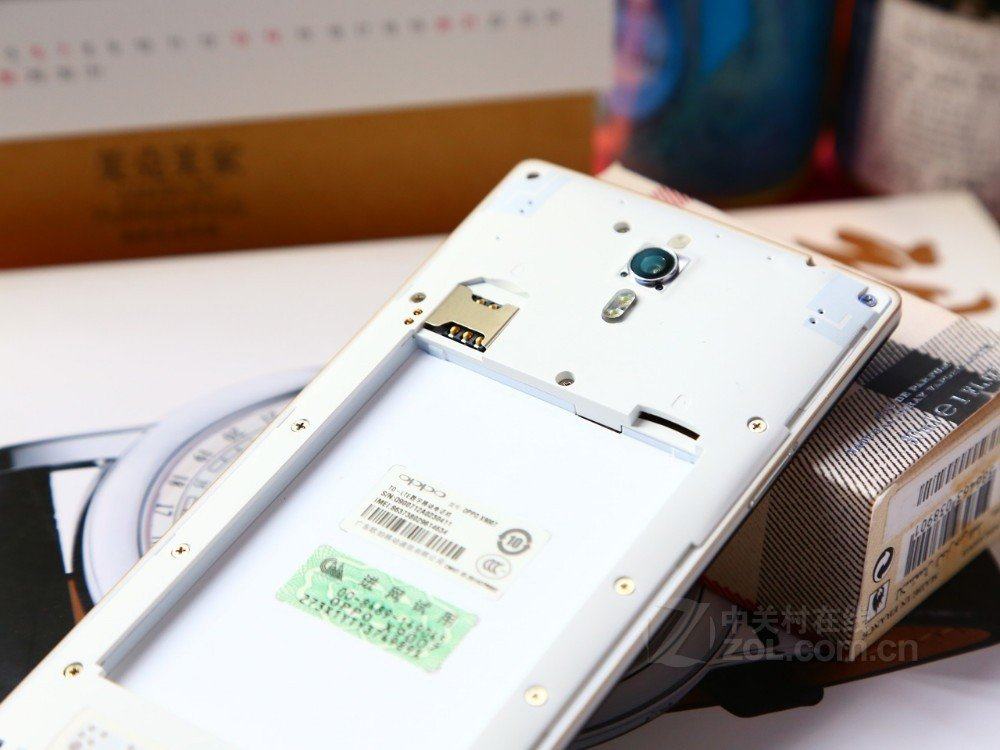
Running along the edges of the device are two sleek metallic strips that add a strong and sophisticated touch to the Find 7. The back cover is removable, yet the seamless design makes it nearly impossible to spot any gaps between the cover and the phone. On the side, there is a small slot, similar to the SIM card eject slot on unibody smartphones. Simply insert the ejector tool into this slot, and the back cover can be easily removed.
Powered by a Snapdragon 801 quad-core processor clocked at 2.5GHz—the same speed as the Galaxy S5—and paired with 3GB of RAM, the Find 7 delivers smooth and fast performance. This powerhouse allows you to enjoy entertainment, gaming, and graphics-intensive applications effortlessly.
Prerequisites & Preparation
- Backup Data: Flashing will completely wipe all data on your device. Back up important files and settings before proceeding.
- Battery Level: Ensure your device has at least 50% battery to prevent shutdown during the flashing process.
- USB Driver & Tools: Install the correct USB drivers for your brand and prepare the flashing tool (Odin for Samsung, SP Flash Tool/QPST for Qualcomm/MTK, etc.).
CAUTION: Flashing official firmware carries a risk of bricking your device. Proceed with caution and at your own risk. addROM is not responsible for any damage caused to your device.
Download Stock ROM & Firmware
Global / General
| File Type | Firmware / Build | Region / Model | OS Version | Download Link |
|---|---|---|---|---|
| Stock ROM | X9007 | Global / General | Android 12 | Google Drive | Backup |
| Stock ROM | X9007 | Global / General | Android 12 | Google Drive | Backup |
| Stock ROM | X9007 | Global / General | Android 12 | Google Drive | Backup |
How to Flash Firmware / Stock ROM
To flash the stock firmware on your OPPO device using MSMDownloadTool (DownloadTool), follow these steps:
- Download and install the OPPO / Realme USB Drivers on your computer.
- Download and extract the firmware package (which includes the
MsmDownloadTool.exeorDownloadTool.exe). - Launch
MsmDownloadTool.exeas administrator. If prompted, log in with authorized credentials or use an activation tool/bypass. - Power off your device completely.
- Hold the Volume Up and Volume Down buttons, then connect the device to the computer via USB cable.
- The tool should detect your device. Click the Start button to begin the flashing process.
- Wait until the progress bar reaches 100% and shows a green “Download Complete” or “Success” status.