
 By
By Adobe Illustrator 2023 – free download for macOS
Download
- Latest version is on page 1
- Adobe Illustrator 2023.dmg
Adobe Illustrator 2023 v27.6.1.dmg (2,2G)Adobe Illustrator 2023 V27.5.dmg (1,5G)Adobe Illustrator 2023 v27.0.dmg (1,5G)
How to install & activate
(For v27.6.1, v27.5, v27.0)
NOTE:
You still have to turn off Gatekeeper first
Step 1: Download the installation file (recommended to use the latest version in the above links)
Step 2 (Important): Go to the following link to download and install Adobe Creative Cloud on the Adobe homepage first (If yes, then only) or if you don’t want to install Creative Cloud, run the file AntiCC
Download Creative Cloud Or AntiCC
Step 3: Right-click Install file and choose Show package contents.
Step 4: Then select to Contents > MacOS > run Install.
Step 5: Type password of macOS and Continue.
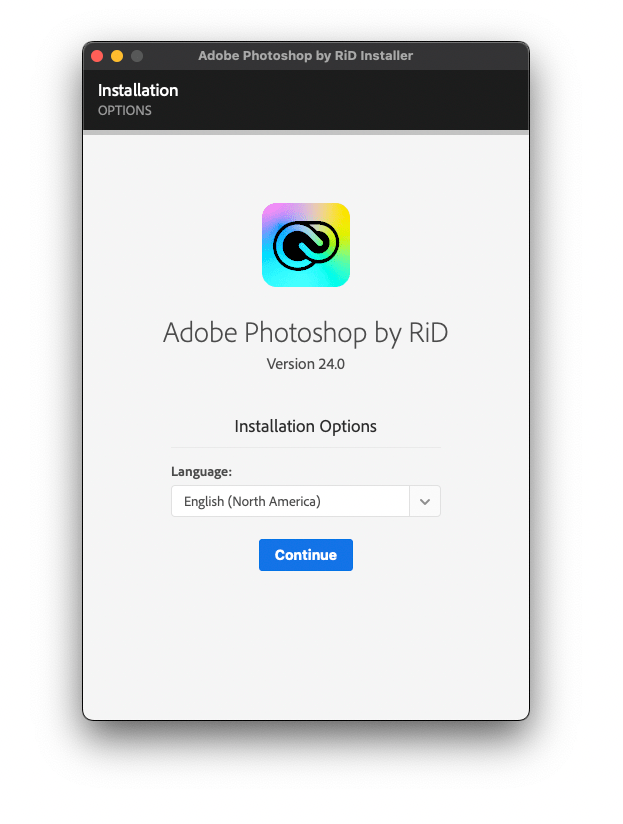
Step 6: Finally, run the Patch file next to it.





and what is the password?
Hello, i tried to install the app, however, when i click content – mac Os – the file shows ”applet ” the file is damaged.
Mac m 1 , it can start just 2 sec and disappear . how to fix pls.
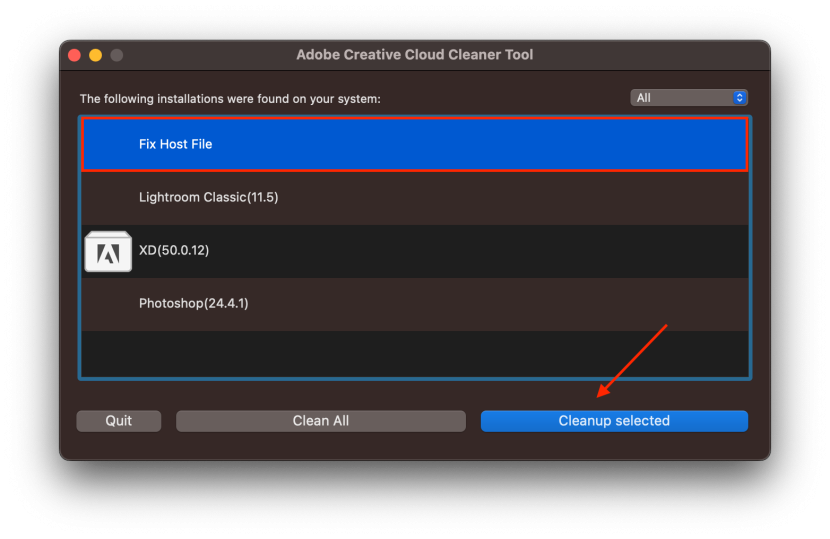
This error may be due to previously adding content to the Hosts file to block Adobe. To fix it, download Adobe Cleaner Tool. Open it and select as shown:
Hello, I have a question I hope you can answer me to be able to install version 27.8.1 should I have a previous version installed?
Oh no, each version is independent, you should cleanly uninstall the other versions (with Adobe Creative Cloud Cleaner Tool) before installing the new version.
I ask it because I followed all the steps I did a clean installation but when I open the install file I get the following message Error: Failed to launch task: The file “Setup” doesn’t exist and I can’t continue with the installation anymore
Hola, tengo una duda ojalá me puedan responder para poder instalar la versión 27.8.1 debo tener una versión anterior instalada?
I get “Failed with error code 146”, what does that mean?
Here are the steps to fix it, please try to follow:
1. Uninstall the Creative Cloud apps: https://helpx.adobe.com/creative-cloud/help/uninstall-remove-app.html
2. Then uninstall everything Creative Cloud including preferences: https://swupmf.adobe.com/webfeed/CleanerTool/mac/AdobeCreativeCloudCleanerTool.dmg
3. Restart your computer (don’t skip this)
4. Reinstall the Creative Cloud apps (or AntiCC): https://creativecloud.adobe.com/apps/download/creative-cloud
5. Finally follow the instructions to install Adobe Illustrator 2023 v27.6.1
thanks for reply.
I managed to install Photoshop, Lightroom Classic and InDesign yesterday but when I got to Illustrator I got the 146 error code and now it seems like I can only install Illustrator but none of the other apps. How to I easiest install all of them without getting an error code?
I figured out why it didn’t work. Now it does! thanks a bunch for uploading this! 🙂
Thank you for sharing these. Hope it helps you to be more productive