Key Takeaways: Aider turns your terminal into a powerful AI pair programmer that understands your entire Git repo, edits files safely, and automates testing and commits so you can ship features faster with more confidence.
What is Aider?
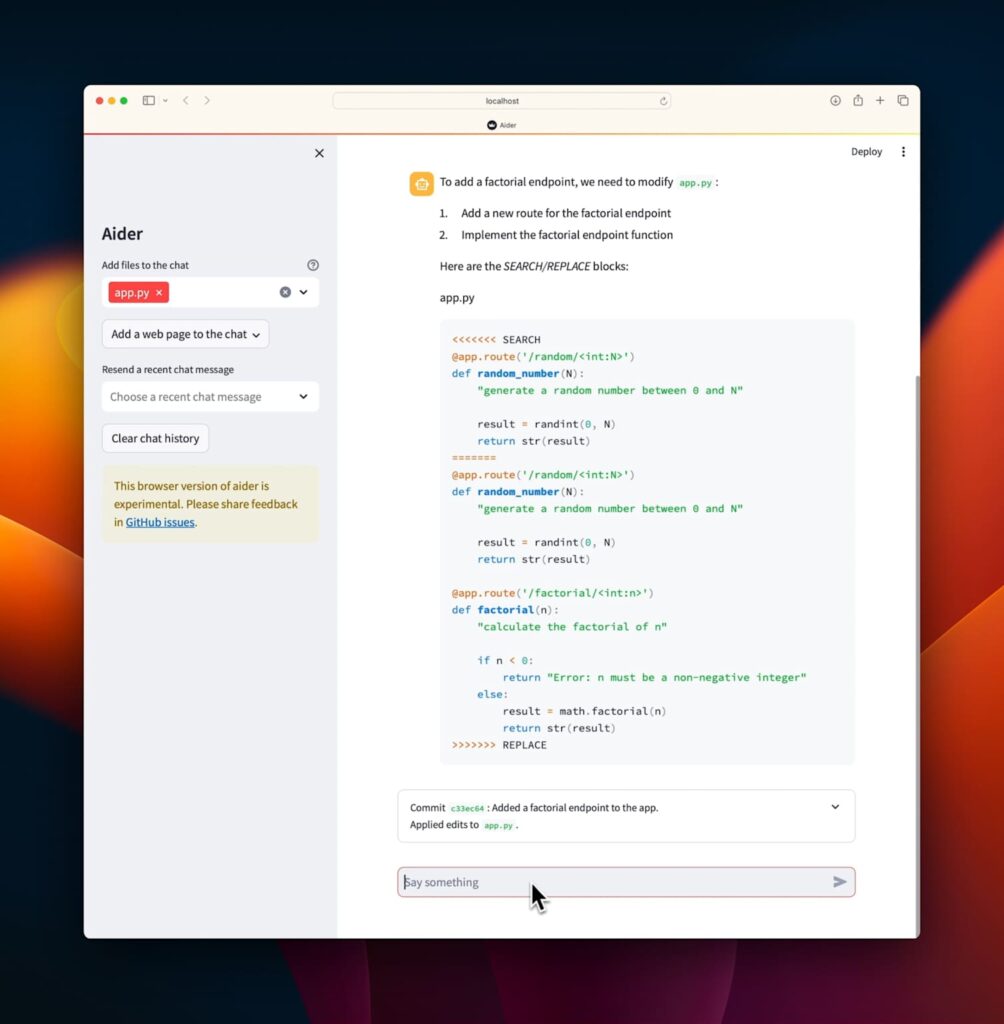
Aider is a terminal-native AI pair-programming tool that plugs an LLM directly into your local Git repository and edits files in place, tracking every change with Git commits by default. Instead of copy-pasting snippets into a browser, you describe changes in natural language and Aider locates the relevant files, applies edits, and shows you diffs that fit into your normal Git workflow.
Under the hood, Aider builds a “map” of your codebase, letting it scale to large projects and work intelligently across multiple files. It supports more than 100 programming languages—including Python, JavaScript, Rust, Go, Ruby, PHP, HTML, CSS, and many more—so you can use a single assistant across your polyglot monorepos.
Key features developers care about
Aider integrates tightly with Git: it automatically stages and commits changes with sensible, conventional commit messages, so you retain a clear history and can easily revert or cherry-pick AI edits. It can run linters and tests every time it changes code, then iteratively fix problems it discovers, which makes it particularly suited for production codebases where correctness matters.
On the LLM side, Aider works best with Claude 3.7 Sonnet, DeepSeek R1 & Chat V3, OpenAI o1, o3‑mini, GPT‑4o, and can also connect to many other cloud and local models. You can even attach images and web pages to the chat for multimodal models, giving the assistant screenshots of UIs, error dialogs, or design mockups as part of the context.
For a deeper overview and screenshots of the UI, check out the official homepage:
- https://aider.chat/
- GitHub repo: https://github.com/Aider-AI/aider
Installing Aider with pip
The recommended way to get started is via the dedicated installer package on PyPI. Make sure you have a recent Python (Aider even advertises experimental Python 3.14 support in its configuration) and pip available in your environment.
Run the following commands:
python -m pip install aider-install
aider-install
This flow installs the main aider application and sets up the necessary dependencies for you. Once the installation completes, you’ll have the aider CLI available on your PATH, ready to connect to your projects and LLM APIs.
For more detailed installation docs and troubleshooting tips, refer to the official documentation: https://aider.chat/docs/
Alternative installation options (direct package, Git, Docker)
If you prefer more control, you can install Aider directly as a Python package rather than via the helper installer. Some distributions and third‑party installers (like x‑cmd) expose Aider under the aider-chat package name:
python -m pip install aider-chatYou can also install the latest development version straight from the GitHub repository, which is useful if you want unreleased fixes or features.
python -m pip install --upgrade git+https://github.com/paul-gauthier/aider.gitThe repository itself includes a docker directory with Docker configuration, making it straightforward to build a containerized Aider image tailored to your stack (for example, bundling your preferred Python version and dependencies). This is handy if you want to run Aider in a repeatable devcontainer, CI environment, or shared remote machine.
Connecting Aider to your preferred LLM
After installation, the main configuration step is selecting a model and providing API credentials. Aider’s CLI uses a consistent pattern where you specify the model and a namespaced API key flag corresponding to the provider.
Here are typical examples:
# DeepSeek
aider --model deepseek --api-key deepseek=<key>

# Claude 3.7 Sonnet
aider --model sonnet --api-key anthropic=<key>

# OpenAI o3-mini
aider --model o3-mini --api-key openai=<key>

# OpenAI GPT-4o
aider --model gpt-4o --api-key openai=<key>
Aider supports many more models and providers, including custom endpoints; you can point it at local models as long as they present a compatible API. The official docs and model configuration guides walk through provider‑specific nuances, rate limits, and metadata for advanced setups.
First run: Pairing Aider with an existing project
To use Aider with a real project, you simply change into your repository directory and launch the CLI.
cd /path/to/your/project
aider --model sonnet --api-key anthropic=<key>
On startup, Aider scans your Git repo and builds a repo map, giving the LLM a structured view of your files and their relationships. You can then start a conversation in the terminal, asking for changes like “Add pagination to the blog listing page” or “Refactor the user authentication module to use JWT.”
A typical workflow looks like this:
- You describe a feature, bug fix, or refactor in natural language.
- Aider selects and edits the relevant files, often touching multiple modules in a single pass.
- It optionally runs tests or linters, capturing outputs back into the chat and fixing failures iteratively.
- Finally, it stages and commits the changes with a clear, informative commit message tied to your request.
Everyday commands and chat modes
Inside the Aider chat, you have a set of slash commands that let you control behavior without leaving the terminal. For example, you can ask questions only, run shell commands, or trigger tests and bring their output into context.
Common commands include:
/ask– Ask a question or request changes, with Aider editing files to satisfy the request./run <command>– Run a shell command and add its output to the chat, useful for including logs or tool output./test <command>– Run your test suite; if the exit code is non‑zero, failures are captured and Aider can attempt fixes./clear– Clear chat history when you want to reset or start a different task./exit– Quit Aider and return to your normal shell.
There’s also a “chat mode” concept (for example /chat-mode ask) that lets you switch between modes optimized for Q&A versus active code editing. This matters when you’re using Aider both as a coding assistant and as a general technical explainer.
Working with images and web pages
For multimodal models like GPT‑4o and Claude 3.5/3.7 Sonnet, Aider supports images as first‑class input. You can attach screenshots of UIs, error dialogs, design mockups, or diagrams to the chat, giving the LLM rich visual context about what you’re building or debugging.
You typically add images in two ways:
- From within the chat, using
/add <image-filename>to bring a local image into the conversation. - From the command line at launch time, passing image filenames as positional arguments alongside your model flags.
Similarly, Aider can ingest web pages as context, which is particularly useful for documentation-driven changes or when mirroring a design from a reference site. This multimodal support is a major differentiator compared to text‑only coding assistants.
Best practices for using Aider in serious codebases
Because Aider integrates directly with Git and can touch many files in a single request, it’s worth being intentional in how you adopt it:
- Treat Aider as a senior pair programmer, not a magical autopilot. Give it clear, high‑level intents and let it handle boilerplate and repetitive changes while you stay responsible for architecture and code review.
- Use feature branches and pull requests. Let Aider work on a dedicated branch so you can review diffs in your normal tooling (GitHub, GitLab, etc.) before merging.
- Keep tests fast and reliable. The more you invest in a solid test suite, the more value you’ll get from Aider’s ability to run tests and fix failures automatically.
- Start with incremental tasks. Begin with refactors, documentation updates, and small features to build intuition for how Aider behaves before delegating larger, cross‑cutting changes.
- Combine with your IDE. You can trigger Aider from your terminal while using your usual editor (VS Code, Vim, JetBrains, etc.), reading and tweaking the AI’s edits as you go.
How Aider fits into a modern AI‑powered dev stack
Aider slots neatly into an AI‑augmented development stack alongside tools like Copilot, ChatGPT, and agent frameworks, but its strength is being terminal‑native and Git‑aware. Where browser‑based assistants are great for exploration and isolated snippets, Aider is optimized for editing and maintaining real projects with version control, tests, and CI in the loop.
For developers who already live in the terminal, adopting Aider feels like gaining a highly capable collaborator that understands your codebase layout and respects your Git history. If you’re building tutorials, automation scripts, or production systems, it can dramatically reduce the friction of implementing ideas, especially when paired with high‑quality LLMs and a solid testing culture.
If you’re ready to experiment, grab the repo and start pairing with Aider in your next feature branch:
- GitHub: https://github.com/Aider-AI/aider
- Docs and guides: https://aider.chat/docs/