Deleted an important file by mistake, and it’s permanently gone now. But don’t panic. Whether you emptied the Recycle Bin, pressed Shift + Delete, or lost a folder after a system crash, your files may still be recoverable. This guide explains what really happens after deletion and the best ways to recover permanently deleted files on PC using built-in tools, backups, and recovery software.
Key Takeaways
- Deleted files are often not gone forever, as Windows usually removes the file’s record but keeps the data until it gets overwritten.
- Stop using the affected drive quickly after data loss to improve the chances of recovering deleted files.
- Start with simple recovery options like the Recycle Bin, backups, File History, or OneDrive before trying advanced tools.
- Data recovery software can help restore files lost through Shift + Delete, formatting, corrupted drives, and other situations.
- Periodic backups and safe file management habits can prevent future data loss.
Part 1: Understanding Permanent File Deletion on Windows
When you delete a file in Windows, it usually isn’t erased immediately. Emptying the Recycle Bin, using “Shift + Delete,” deleting from USB/SD cards, or formatting a drive only removes the file’s entry from the file system. The actual data remains until new data overwrites it, which is why recovery software can often recover permanently deleted files on PC.
The more you use the drive after deletion, the higher the chance new files will overwrite the old data, making recovery harder. SSDs differ because TRIM may automatically clear deleted data blocks, reducing the chances of recovery. But acting quickly improves the odds of recovery.
Part 2: Common Situations That Lead to Data Loss
Data loss on Windows rarely happens for just one reason. In practice, it shows up in a handful of recurring scenarios:
- Accidental Deletion: Files or folders deleted by mistake while working quickly or cleaning up storage.
- Recycle Bin Emptied: Permanently removes files that may still be needed.
- Shift + Delete: Skips the Recycle Bin, making recovery less obvious.
- Drive Formatting: Erases the visible file structure from internal, external, or SD cards.
- Drive Corruption or Failure: Bad sectors, file system errors, or RAW drives can make files inaccessible.
- System Crashes or Updates: Failed updates, crashes, or reinstalls may damage or overwrite data.
- Power Loss: Sudden shutdowns during writing can corrupt files or file tables.
- Malware or Ransomware: Malicious software may delete, encrypt, or hide files.
- Partition Loss: Missing partitions due to errors or disk changes can make data unavailable.
Recognizing which of these applies to your situation is useful because it points you toward the right fix to restore lost data on Windows 10/11. A Recycle Bin check solves nothing if the real problem is a corrupted partition, for instance
Part 3: Effective Ways to Recover Deleted Files on Windows
There is no single solution for deleted files. The best method for retrieving deleted files depends on how the files were lost and the current recovery situation. But before starting, stop using the affected drive to avoid overwriting data, and install recovery software on a different drive whenever possible. Then, follow the fixes beneath based on your situation:
Fix 1: Check Recycle Bin First
Check the Recycle Bin first, as files deleted normally from an internal drive may still be restored if the bin hasn’t been emptied. Though this method is not for files deleted with Shift + Delete or from most removable drives. Here’s how to check the Recycle Bin for deleted files recovery:
Step 1: Open the “Recycle Bin” from the desktop. Search or sort files by “Date Deleted” to find the missing file.
Step 2: Right-click the file and select “Restore” to return it to its original location.
If the file is missing, it may have been permanently deleted or removed from a USB/SD card, so try another recovery method.
Fix 2: Use Professional Data Recovery Software
When files are deleted without going to the Recycle Bin, or the bin has been emptied, file recovery software for Windows can scan the drive for leftover data. 4DDiG Data Recovery is one tool designed to recover deleted files after emptying Recycle Bin on Windows. It’s also useful to retrieve data lost due to Shift + Delete, formatted drives, partition errors, corrupted drives, and system crashes. Here are a few features worth knowing about 4DDiG:
Main Features of 4DDiG:
- Wide File Support: Scans and recovers from 2,000+ file types, such as documents, photos, videos, audio, emails, and archives.
- Broad Device Support: Compatible with numerous storage media, including HDDs, SSDs, USB drives, SD cards, and Recycle Bin files.
- Read-Only Scanning: Runs in read-only mode, guaranteeing the scan does not write to or modify the original drive.
- File Preview: Allows users to preview recoverable files and restore only the needed data.
- Advanced Recovery Support: Recovers data from formatted drives, RAW or unallocated partitions, and drives showing “not initialized” or “you need to format the disk” errors.
- Free Recovery Option: The free version allows users to scan, preview, and recover up to 2GB of data at no cost.
Step-by-Step Guide to Use 4DDiG:
Here’s how to recover permanently deleted files on Windows with 4DDiG:
Step 1: Install 4DDiG
Download, install, and execute 4DDiG on a different drive from the one you’re recovering files from.
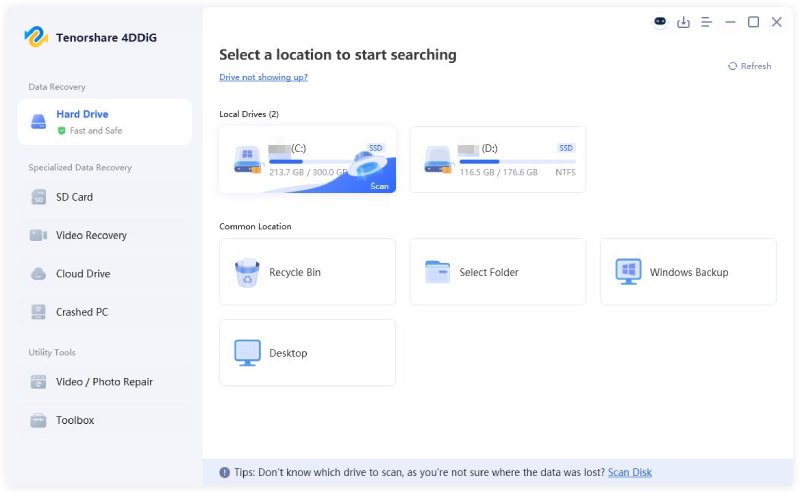
Step 2: Select the drive or location
Pick the location where the files were lost. This could be a specific partition, an external drive, a memory card, or a general location like “Desktop” or “Recycle Bin.”
Step 3: Begin the scan
Select the file types to scan. Start the scan. You can pick between quick and deep scans. The scan works through the drive sector by sector, surfacing deleted and lost files as it goes. You can pause and resume if needed.
Step 4: Preview recoverable files
Use the file-type filters and preview pane to check photos, documents, and other files before committing to a restore.
Step 5: Recover files
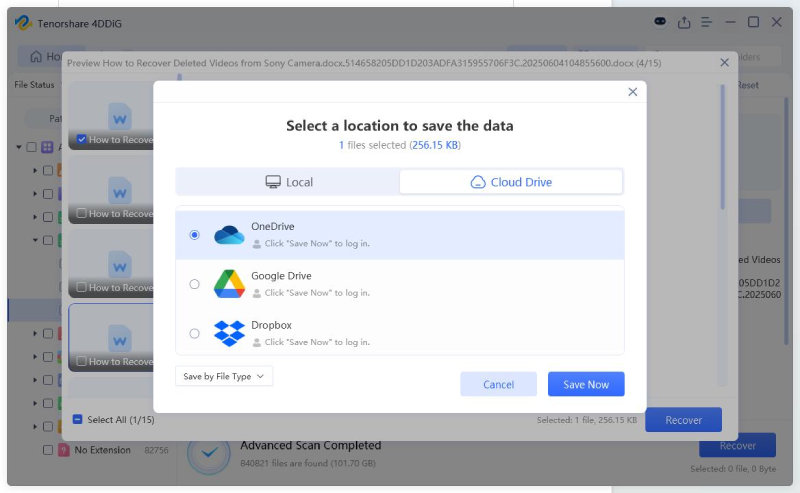
Select the files you want and click “Recover.” Then choose a save location on a different drive from the one being scanned. Saving recovered files back to the original drive risks overwriting other recoverable data.
Fix 3: Restore from Backup Sources
If a backup exists, restoring deleted files from it is usually faster and more complete than drive recovery because it avoids overwrite risks. Check options like File History, System Restore, OneDrive sync, or manual backups before trying other methods. It won’t help without a backup, but it’s worth checking first. Here’s how to restore lost data on Windows 10/11:
- File History: Right-click the original folder where the deleted files once existed. Then, select “Restore previous versions,” or use “Settings.” Choose “Backup.” Tap “Restore files from a current backup” to recover an earlier version.
- OneDrive Recovery: For OneDrive-synced files, check the “OneDrive Recycle Bin” online. Deleted files are typically kept for up to 30 days.
- Previous Versions: Right-click the folder where the deleted files once existed and open “Properties.” Choose “Previous Versions,” and restore from available restore points or shadow copies.
- External or Cloud Backups: Check third-party backup services or external drives for the latest saved copy of the lost file.
Part 4: Preventing Future File Loss on Windows
Recovery tools are a safety net, not a substitute for countermeasures against data loss. Here are a few adjustments you can make now to avoid losing files later:
- Enable Backups: Turn on File History or scheduled backups to keep recent versions of files available.
- Keep Extra Copies: Store important files on a separate external drive or cloud storage.
- Avoid Risky Deletions: Use Shift + Delete only when certain, as the Recycle Bin provides a safety net.
- Check Before Formatting: Verify drives before formatting, especially external drives and SD cards.
- Safely Remove Devices: Properly eject drives to reduce the risk of data corruption.
- Use Security Protection: Keep antivirus software up to date to prevent malware-related data loss.
- Act Quickly After Loss: Stop using the affected drive immediately to avoid overwriting recoverable data.
Final Words
Most “permanently deleted” files are not immediately erased. They remain recoverable until overwritten. Act quickly by stopping drive use and checking the Recycle Bin or backups first. If those options fail,
how to, windows, can help recover permanently deleted files on PC. It can retrieve lost data from scenarios, such as Shift + Delete, formatted drives, and corrupted partitions, with features like read-only scanning and file previews.