Lightpanda Browser rewrites headless browsing from the ground up in Zig, delivering an ultra‑light engine that starts instantly, uses a fraction of Chrome’s memory, and slots cleanly into AI and automation pipelines.
Introduction to Lightpanda Browser
Lightpanda Browser is an open‑source, headless‑only browser engine built from scratch in Zig specifically for automation, scraping, and AI agents. Unlike Chrome, Firefox, or WebKit derivatives, it focuses solely on programmatic page loading and JavaScript execution without any graphical UI, tab management, or extensions system.
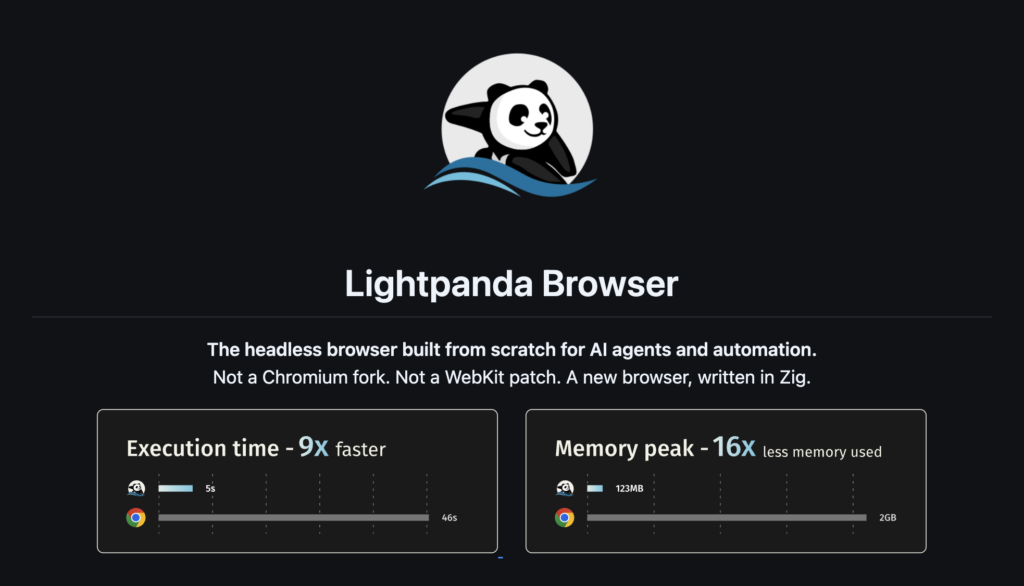
By stripping away everything intended for human browsing, Lightpanda delivers dramatically lower memory usage and faster startup than full Chrome in headless mode. Benchmarks from the project and community show Lightpanda reaching up to roughly 9–11× faster execution and around 9–16× lower memory consumption depending on workload and measurement method.
Why Traditional Headless Browsers Struggle for AI Workloads
Most AI and automation stacks today wrap Chrome or Chromium via Puppeteer or Playwright, even when running in so‑called “headless” mode. Under the hood, those stacks still carry a full rendering engine, GPU layers, UI pipeline, accessibility tree, and extension machinery that are simply disabled but not removed.
This leads to three common bottlenecks in large‑scale automation or agent workloads:
- Slow cold start: Spawning a full Chrome process often takes a couple of seconds before your script can even execute JavaScript on the first page.
- High memory footprint: Even headless Chrome processes routinely consume hundreds of megabytes each, which scales poorly under dozens or hundreds of parallel tasks or containers.
- Complex dependency stack: Installing and updating Chrome in CI, containers, and remote environments can be heavy, especially across mixed architectures and OSes.
For AI agents that need to spin up short‑lived browsing sessions at scale, those overheads translate directly into higher latency, less throughput, and more infrastructure cost.
How Lightpanda’s Architecture Benefits AI Agents
Lightpanda is designed as “a browser for machines, not humans”: it implements the pieces AI agents actually need—HTTP loader, HTML parser, DOM tree, V8‑based JavaScript engine, and key Web APIs—without any graphical rendering layer. It exposes a Chrome DevTools Protocol (CDP) server so that existing Puppeteer and Playwright tooling can connect to it much like they would to Chrome.
Key advantages for AI and automation workloads include:
- Instant startup: Lightpanda’s lightweight process and Zig implementation let it start effectively instantly compared to multi‑second Chrome startups.
- Tiny memory footprint: Benchmarks show single‑digit tens of megabytes per process versus hundreds of megabytes for Chrome; some tests report around 9–16× less memory usage.
- Drop‑in CDP compatibility: Because it speaks CDP, you can often switch an existing Puppeteer/Playwright stack by just pointing
browserWSEndpointto Lightpanda instead of a Chrome instance.
For AI developers, this means you can scale parallel crawlers, synthetic data generation, or agentic browsing flows much further on the same hardware, while keeping your existing automation code mostly intact.
Installing Lightpanda Browser
You can install Lightpanda in three main ways: a one‑line shell installer, direct nightly binaries, or an official Docker image.
One‑line installer (fastest start)
The official site exposes a curl‑based installer script that downloads and configures Lightpanda for your platform:
curl -fsSL https://pkg.lightpanda.io/install.sh | bashThis method is ideal for quickly experimenting on Linux or macOS machines without manually tracking nightly URLs or Docker configuration.
Installing from nightly binaries
If you prefer explicit control over the binary, you can download the latest nightly build from the GitHub releases for your architecture.
For Linux x86_64:
curl -L -o lightpanda \
  https://github.com/lightpanda-io/browser/releases/download/nightly/lightpanda-x86_64-linux && \
chmod a+x ./lightpanda
For macOS aarch64 (Apple Silicon):
curl -L -o lightpanda \
  https://github.com/lightpanda-io/browser/releases/download/nightly/lightpanda-aarch64-macos && \
chmod a+x ./lightpanda
On Windows, Lightpanda runs inside WSL2, so you follow the Linux steps from an Ubuntu or Debian environment and then connect to it from browser automation clients on the Windows host.
Running Lightpanda with Docker
The official Docker image is often the cleanest path in CI, containerized agents, or when you want a self‑contained CDP endpoint.
Pull the nightly image:
docker pull lightpanda/browser:nightlyStart a container exposing the CDP server on port 9222:
docker run -d --name lightpanda \
  -p 127.0.0.1:9222:9222 \
  lightpanda/browser:nightly
This launches Lightpanda in “serve” mode inside the container and binds CDP to ws://127.0.0.1:9222, ready for Puppeteer or Playwright to connect.
First Steps: Running Lightpanda from the CLI
Once installed, you can use the Lightpanda binary directly for quick fetches or to host a CDP server.
Fetching and dumping a page
To fetch a page and dump its HTML to stdout using a downloaded binary:
./lightpanda --dump https://lightpanda.ioWith newer CLI subcommands, you can run a richer fetch with logging and robots.txt handling:
./lightpanda fetch \
  --obey_robots \
  --log_format pretty \
  --log_level info \
  https://demo-browser.lightpanda.io/campfire-commerce/
These fetch‑style commands are useful for scripting lightweight checks, content snapshotting, or building simple scrapers without spinning up CDP or an automation client.
Starting the CDP server
To use Lightpanda with Puppeteer/Playwright, start it in CDP server mode.
From a local binary:
./lightpanda --host 127.0.0.1 --port 9222From Docker with explicit serve mode and debug logging:
docker run -d --name lightpanda \
  -p 127.0.0.1:9222:9222 \
  lightpanda/browser:nightly \
  lightpanda serve --host 0.0.0.0 --port 9222 --log_level debug
Once the server is running, any CDP‑compatible client can connect over WebSocket to ws://127.0.0.1:9222 and control Lightpanda just like a browser instance.
Using Lightpanda with Puppeteer
Because Lightpanda speaks the Chrome DevTools Protocol, it can act as a drop‑in backend for Puppeteer scripts with minimal changes.
Here is a minimal Node.js example that connects Puppeteer to a running Lightpanda instance and extracts the page title:
'use strict';

import puppeteer from 'puppeteer-core';

// Connect to Lightpanda's CDP server
const browser = await puppeteer.connect({
  browserWSEndpoint: 'ws://127.0.0.1:9222',
});

// Create an isolated browser context
const context = await browser.createBrowserContext();
const page = await context.newPage();

// Navigate and wait for the page to load
await page.goto('https://wikipedia.org/', { waitUntil: 'networkidle2' });

// Extract page title
const title = await page.title();
console.log('Page title:', title);

// Clean up
await page.close();
await context.close();
await browser.disconnect();
The rest of your Puppeteer code—selectors, clicks, scraping logic—stays the same; the main change is replacing puppeteer.launch() with puppeteer.connect() and pointing browserWSEndpoint at Lightpanda.
Practical Automation and AI Workflows with Lightpanda
Once wired into Puppeteer or Playwright, Lightpanda becomes an engine you can plug into any AI or automation stack that expects a browser backend.
Common patterns include:
- High‑throughput web scraping: Use Lightpanda as the browser layer in a scraping cluster, spinning up many more concurrent sessions per node thanks to its low memory usage and fast startup.
- Agentic browsing for LLMs: Connect Lightpanda to an “agent browser” or tools framework so language models can reliably click, fill forms, and read DOM state through CDP without the overhead of full Chrome.
- Synthetic data generation and testing: Run Playwright end‑to‑end tests or synthetic interaction workloads against complex web apps while keeping CI machines and build agents lean.
Because Lightpanda emphasizes JavaScript execution and core Web APIs, you can still interact with SPAs, fetch XHR responses, and query DOM structures, even though graphical rendering itself is omitted. This makes it well‑suited for environments where machines, not humans, are the primary “users” of the web content.
When to Choose Lightpanda in Your Stack
Lightpanda is currently in an active beta, with some websites and advanced APIs still marked as work‑in‑progress, so it is not a universal replacement for Chrome yet. However, for many automation and AI scenarios where you control the target sites or primarily need DOM, JS, and network behavior, its performance profile can be game‑changing.
You should seriously consider Lightpanda when:
- You run many parallel crawlers or agents and are hitting CPU/memory ceilings with Chrome‑based headless setups.
- You want faster cold‑start times for short‑lived browsing tasks triggered by serverless functions, queues, or agents.
- You value a lean, open‑source browser engine that is purpose‑built for automation, scraping, and AI, rather than adapted from a human‑first browser.
To follow updates, review benchmarks, or file issues, start from the official repository at https://github.com/lightpanda-io/browser and the Lightpanda documentation site.