Key Takeaways
OpenChamber transforms OpenCode from a terminal-only AI coding agent into a full-scale, cross-platform AI development studio complete with branchable chat timelines, visual tool interfaces, and zero-config remote access.
OpenChamber originated as a fan-made interface for the OpenCode AI coding agent and has since evolved into a community-led project that serves as the primary graphical user interface across web, desktop, and VS Code environments. While OpenCode itself delivers the core engine—an open-source, terminal-first AI agent capable of autonomous coding tasks across 75+ LLM providers including local models—OpenChamber supplies the visual layer that bridges the gap between command-line TUIs and modern development workflows.
The relationship is straightforward: OpenCode handles the agent logic, tool execution, and model orchestration via its CLI backend, while OpenChamber consumes the OpenCode API to render interactive sessions. This separation allows developers to retain the full power of OpenCode’s LSP-enabled coding, multi-agent runs, and GitHub integration while gaining persistent, visual context that scales across devices and long-running sessions.
Traditional AI coding agents remain confined to terminals, limiting collaboration, debugging of visual diffs, and seamless remote work. OpenChamber solves these constraints by providing a branchable chat timeline, native GitHub workflows, and Cloudflare-powered remote tunnels that make the agent accessible from any browser or mobile device.
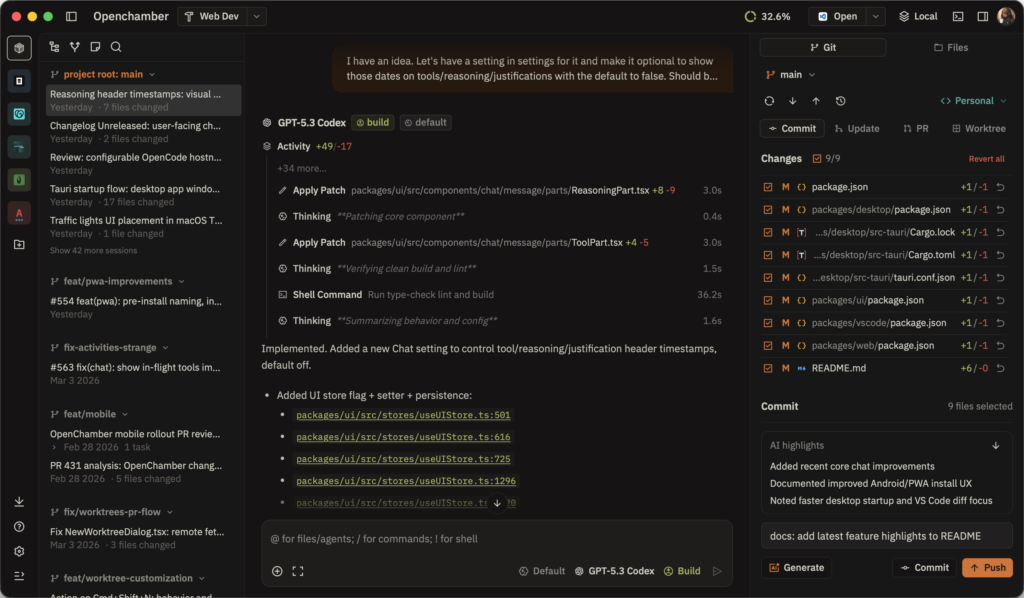
Core Features Analysis
Branchable Chat Timeline
At the heart of OpenChamber lies its branchable chat timeline, which elevates session management beyond linear logs. Every agent interaction forms a navigable history where users can issue /undo to revert the last turn, /redo to restore it, or fork a new branch with one click from any earlier message. This capability proves essential for long-term agent sessions that span hours or days: experiment with alternative prompts or model choices without losing prior context, then merge successful branches back into the main timeline.
Forking creates isolated worktrees, enabling safe parallel exploration of competing approaches—such as one branch using Claude for architecture planning and another using a local Llama model for implementation. Context, token counts, and cost breakdowns remain visible at every step, ensuring transparency during extended autonomous coding runs.
Visual Tool UIs
OpenChamber renders OpenCode’s tool outputs as interactive, native-grade interfaces rather than raw terminal text. File edits appear as color-coded diffs with inline comment drafting; permission prompts display as clear approval dialogs; long-running tasks show real-time progress bars with cancel and resume controls. Integrated terminals run per-directory with stable performance, while project actions—such as launching dev servers—execute via single-click buttons that surface stdout in dedicated panes.
These visual layers accelerate review cycles: scan a 200-line refactor in seconds, approve changes selectively, and feed inline feedback directly to the agent without switching contexts.
Remote Access
Remote accessibility stands as one of OpenChamber’s most distinctive advantages. The built-in Cloudflare Quick Tunnel generates temporary, password-protected URLs in seconds, while managed modes offer persistent hostnames. Three tunnel variants exist:
- Quick mode for one-time sharing
- Managed-remote mode tied to a Cloudflare account for production domains
- Managed-local mode leveraging an existing
cloudflaredconfiguration
Onboarding occurs via QR code scan or direct link sharing. Mobile-first layouts preserve full functionality on phones and tablets, with background notifications and cross-tab synchronization ensuring continuity whether the session runs on a laptop, server, or phone.
GitHub Native Workflows
OpenChamber embeds GitHub workflows directly into the interface. Start a session by referencing an issue or pull request; the agent automatically pulls repository context and attaches it to the timeline. In-app actions support committing, creating PRs, running checks, and merging—all without leaving the GUI. Identities and SSH keys configure once, after which push/pull operations execute seamlessly.
This native integration eliminates the context-switching tax that plagues terminal-only agents, allowing engineering leads to review agent-generated PRs with visual diffs and inline comments before merging.
Installation & Setup Guide
Prerequisites
OpenChamber requires the OpenCode CLI as its backend engine. Install it first with the official one-line script:
curl -fsSL https://opencode.ai/install | bashVerify installation by running opencode --version. Configure at least one LLM provider in ~/.config/opencode/opencode.json—either free included models, OpenAI, Anthropic, Gemini, or local servers via Models.dev. Node.js is not required for the core CLI, though the web components leverage it internally.
Desktop (macOS/Windows/Linux)
Download the latest prebuilt release from https://github.com/openchamber/openchamber/releases (v1.8.7 as of March 2026). The macOS binary provides native menu integration, multi-window support, and deep links.
After installation, launch OpenChamber and connect to your local OpenCode instance. For remote desktop connections, enable SSH port forwarding:
ssh -L 4096:localhost:4096 user@remote-hostThen set the environment variable OPENCODE_HOST=http://localhost:4096 before starting OpenChamber. Windows and Linux support follows identical release binaries with upcoming native enhancements.
Web/PWA
The web interface installs via the unified CLI:
curl -fsSL https://raw.githubusercontent.com/openchamber/openchamber/main/scripts/install.sh | bash
openchamber --ui-password your-secure-password --daemon
Access the server at http://localhost:3000 (or the configured port). The interface installs as a progressive web app with project-specific naming and offline caching. For quick testing without full installation, the CLI also supports direct web server mode alongside OpenCode.
Configure tunnels immediately:
openchamber tunnel start --provider cloudflare --mode quick --qrThe QR code and password URL enable instant mobile onboarding.
VS Code Extension
Search for “OpenChamber” in the VS Code Marketplace (publisher: fedaykindev) and install directly. The extension activates automatically when opencode runs in the integrated terminal. It provides editor-native actions: right-click to add context, explain code, or trigger in-place improvements. Parallel agent management and theme synchronization with the main OpenChamber instance complete the setup.
Practical Usage Workflow
Begin a session by opening a project directory and launching OpenChamber (or the VS Code extension). The default view presents a Plan/Build toggle. In Plan mode, draft high-level steps with the @general agent or specialized sub-agents invoked via @mention syntax—such as @refactor for targeted file changes or @test for coverage generation.
Once the plan solidifies, switch to Build mode. The agent executes steps autonomously while OpenChamber renders live diffs, progress indicators, and approval gates. Use the branchable timeline to fork mid-session if a direction requires revision: /undo reverts the last tool call, then fork and apply a different model or prompt.
Project Actions appear in the sidebar: one-click buttons launch dev servers, run tests, or open preview URLs. For multi-agent comparisons, spawn isolated worktrees from the same prompt and switch between results side-by-side. Inline comments on diffs or plans feed directly back to the agent, closing the feedback loop without terminal commands.
Typical session duration extends comfortably beyond terminal limits because visual context and remote persistence eliminate fatigue during hour-long autonomous runs.
Integration & Advanced Config
Customization begins with themes. OpenChamber ships 18 built-in light and dark variants. For custom theming, place JSON files in ~/.config/openchamber/themes/; hot reload applies changes instantly without restart. Token-based variables allow fine control over colors, spacing, and corner radii.
LLM integration occurs entirely through OpenCode’s configuration. Switch providers mid-session, connect local models for privacy, or use enterprise endpoints via Models.dev. OpenChamber surfaces token usage and cost breakdowns regardless of backend.
Additional advanced options include keyboard shortcut remapping, custom project icons with automatic favicon discovery, and skill catalog management for reusable automations. Docker Compose deployments suit self-hosted environments:
mkdir -p data/openchamber data/opencode/share data/opencode/config data/ssh
docker compose up -d
Environment variables control passwords and tunnel behavior.
Conclusion
A visual interface multiplies productivity for long-term AI agent sessions by preserving context, accelerating reviews, and enabling collaboration at scale. OpenChamber does not merely wrap OpenCode’s terminal capabilities—it redefines them into a cohesive, cross-device AI development studio. Developers and engineering leads gain branchable timelines that support iterative experimentation, visual tools that eliminate parsing fatigue, and remote tunnels that make autonomous coding truly location-independent.
Whether operating from a desktop, browser tab on a tablet, or VS Code extension during pair-programming reviews, OpenChamber delivers the interface that lets OpenCode’s engine operate at its full potential. Install today, connect your existing OpenCode CLI, and experience the difference a purpose-built GUI makes for open-source AI coding agents. The future of agentic development is visual, persistent, and accessible—OpenChamber makes that future available now.