Key Takeaway: Orca is a free, open‑source Agent Development Environment (ADE) that lets you run multiple coding agents side by side in isolated worktrees on desktop and mobile, turning your whole dev loop into an orchestrated agent workflow.
What is Orca?
Orca is described as “the AI Orchestrator for 100x builders,” a next‑generation IDE built specifically for working with a fleet of parallel agents instead of just a single editor and terminal. It lets you run tools like Claude Code, Codex, Grok, OpenCode and other agent CLIs side by side across repositories, each in its own worktree, all tracked in one unified environment.
Unlike traditional IDEs or simple terminal wrappers, Orca is an Agent Development Environment (ADE): terminals, worktrees, browser, file editor, Git integration, and agent orchestration live in one app designed around agents as first‑class citizens. Orca is free and open source under the MIT license, with binaries available for macOS, Windows, and Linux, plus a mobile companion app for iOS and Android.
Why Orca is different from traditional IDEs
Standard IDEs like VS Code or JetBrains products were built with human developers at the center and agents added later as extensions, while parallel‑agent wrappers usually stop at a terminal window. Orca goes further by making parallel agents, worktrees, and orchestration the core of the product: every feature is arranged around the idea that multiple agents are coding, testing, and reviewing your work at once.
Key differences highlighted by Orca’s homepage and README include Ghostty‑class terminals with WebGL splits, embedded Chromium‑based design mode, remote worktrees over SSH, inline diff comments that can be sent back to agents, and more than 25 built‑in agent integrations. Combined with a first‑class CLI and skills/hooks support, Orca aims to be the “whole environment” for agentic development rather than just a plugin on top of an existing IDE.
Supported platforms and agents
Orca ships for macOS, Windows, and Linux, with installers and packages covering common desktop environments. It also offers a mobile companion app for iOS via the App Store and for Android via APK or GitHub releases, letting you monitor and control agents from your phone.
On the agent side, Orca works with “any CLI agent,” but the README and marketing site list a long roster: Claude Code, Codex, Grok, Gemini, Cursor, GitHub Copilot, OpenCode, Antigravity, Pi, and many more. The pattern is simple: if your agent has a CLI interface you can call from a terminal, you can plug it into Orca and run it alongside others in isolated worktrees.
Installing Orca on macOS, Windows, and Linux
macOS, Windows, Linux – From website or GitHub
The simplest way to install Orca is to download it directly:
- Desktop downloads are linked from the official homepage: https://www.onorca.dev/download
- Alternative installers and release archives are available via the GitHub Releases page in the
stablyai/orcarepository.
These prebuilt binaries cover all three major desktop platforms, and Orca emphasizes that no login is required—you bring your own agent subscriptions such as Claude Code or Codex.
macOS via Homebrew
If you prefer package managers on macOS, Orca provides a Homebrew cask:
brew install --cask stablyai/orca/orcaThis installs Orca like any other GUI app, adding it to your Applications folder and keeping updates manageable through Brew.
Arch Linux via AUR
On Arch Linux and derivatives, Orca can be installed from the AUR:
# Precompiled binary
yay -S stably-orca-bin

# Build from GitHub source
yay -S stably-orca-git
The stably-orca-bin package gives you precompiled binaries, while stably-orca-git builds directly from the GitHub source if you prefer tracking the latest changes.
First launch: Getting oriented in the ADE
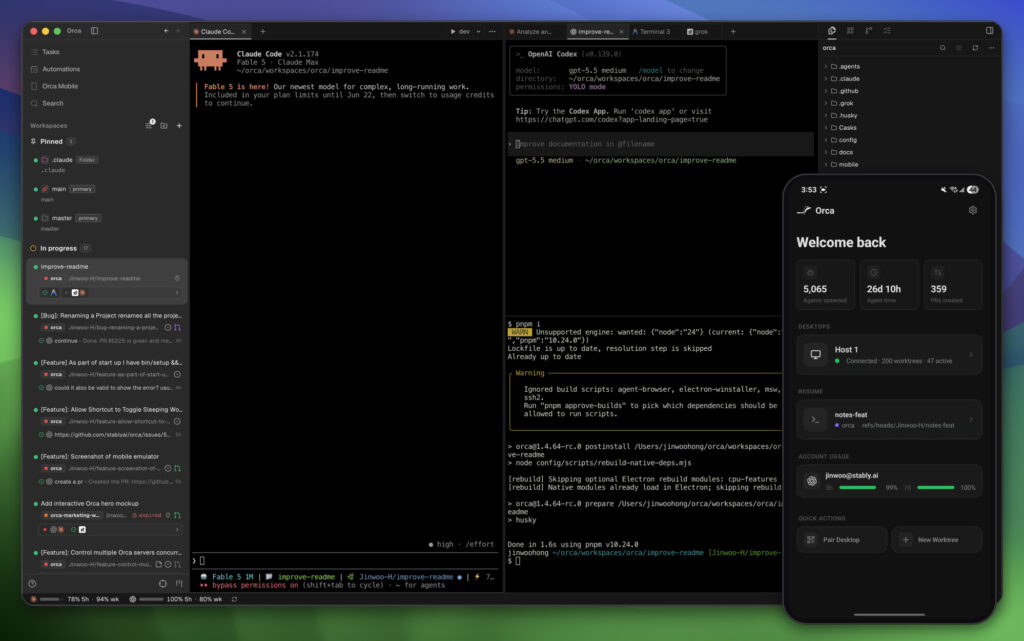
When you first open Orca after installation, you land in an environment that looks part terminal, part IDE, and part orchestrator dashboard. Worktrees, terminals, and repos are central, with a design inspired by Ghostty‑style terminal UX and a built‑in file editor to keep code changes close to agent activity.
The homepage walkthrough emphasizes “your dev loop, agentified”: you define workspaces, configure orca.yaml, and then assign tasks like fixing login race conditions, speeding up CI pipelines, or editing specific files to agents that work in parallel. All of this is tracked through worktree views, usage metrics, and event streams showing agent time, PRs created, and active sessions.
Setting up your first workspace
Workspaces in Orca represent isolated environments—repos or projects—where agents and terminals operate without stepping on each other. A typical first setup looks like this:
- Create or choose a repository
Open a project you want agents to work on, such as your main app repo or a dedicated playground. - **Configure
orca.yaml**
Orca encourages you to define tasks, agent roles, and any custom commands in anorca.yamlfile, making your workflows explicit and repeatable. - Add worktrees for tasks
Split your project into worktrees per feature or initiative: one for authentication, one for performance, one for documentation, etc. Agents can then operate on those worktrees side by side, each with its own terminals and pipelines. - Attach agents to terminals
From within Orca, start terminals wired to specific CLIs—Claude Code, Codex, OpenCode, or others—and give them instructions tied to that worktree.
This design makes it easy to keep feature work and agent experiments neatly separated while still visible in one place.
Bringing your own agents and subscriptions
Orca does not bundle a proprietary agent subscription; instead, it lets you bring your own accounts for services like Claude Code, Codex, Gemini, or OpenCode. In practice, that means you configure each CLI agent with its own environment variables or credentials, then plug it into Orca’s terminals and orchestrations.
Because Orca supports “any CLI agent,” you’re not locked into one vendor: you might run a closed‑source agent like Claude Code alongside an open‑source alternative like OpenCode in different panes, comparing results or assigning them to different parts of your stack.
Working with parallel worktrees and built‑in Git
One of Orca’s defining features is being “worktree‑native”: every major capability is built to run in its own worktree. That design eliminates stashing and branch juggling: instead of constantly switching branches in a single repo view, you spin up separate worktrees and let agents work independently.
Within each worktree, Orca provides:
- Multi‑agent terminals with splits and tabs, so you can see which agents are currently active and what commands they’re running.
- Built‑in source control, allowing you to review AI‑generated diffs, make quick manual edits, and commit directly from Orca without switching back to another Git client.
- GitHub integration, linking PRs, issues, and Actions checks to each worktree so you can follow CI and review status inside the ADE.
That combination makes Orca particularly suited for agentic coding sprints: you can have one worktree focused on PR review, another on migration work, and another on experimental refactors, all driven by agents and tracked natively.
Mobile companion: Orchestrate agents away from your desk
Orca’s mobile companion app extends the ADE concept to your phone, letting you keep agents moving when you’re not at your desktop. From the mobile interface, you can see metrics like agents spawned, aggregate agent time, PRs created, and the status of each connected desktop machine and worktree.
Typical mobile actions include watching live agent status, checking account usage, switching accounts, resuming specific worktrees, and triggering quick actions linked to GitHub or Linear tasks. The companion app is available via the App Store for iOS and via Android APK or GitHub releases for Android users.
External links and resources
To explore Orca further, start with the official links:
- GitHub repository: https://github.com/stablyai/orca
- Product homepage and downloads: https://www.onorca.dev/download
Between these two, you’ll find detailed feature lists, installation instructions, release notes, usage guides, and community links (Discord, X/Twitter) where the team shares frequent updates and new capabilities.