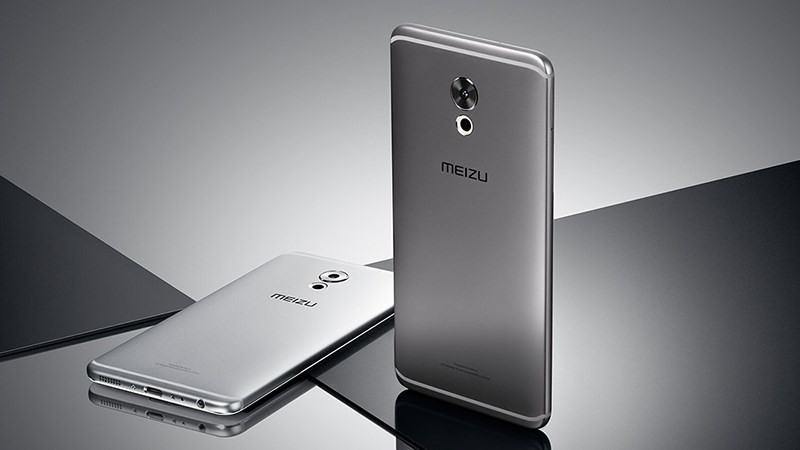
Here you can download the latest official Stock ROM (Firmware) files for the Global ROM for Meizu Pro 6 Plus M96. These files are essential for repairing software issues, fixing bootloops, upgrading/downgrading the OS, or restoring your device to its factory state.
Prerequisites & Preparation
- Backup Data: Flashing will completely wipe all data on your device. Back up important files and settings before proceeding.
- Battery Level: Ensure your device has at least 50% battery to prevent shutdown during the flashing process.
- USB Driver & Tools: Install the correct USB drivers for your brand and prepare the flashing tool (Odin for Samsung, SP Flash Tool/QPST for Qualcomm/MTK, etc.).
CAUTION: Flashing official firmware carries a risk of bricking your device. Proceed with caution and at your own risk. addROM is not responsible for any damage caused to your device.
Download Stock ROM & Firmware
Global / General
| File Type | Firmware / Build | Region / Model | OS Version | Download Link |
|---|---|---|---|---|
| Stock ROM | UNSIGNED | Global / General | – | Google Drive | AFH | OneDrive | DropBox | Google Drive |
| Stock ROM | Flyme 8.9.11.28A daily.zip | Global / General | – | Google Drive | AFH | OneDrive | DropBox | Google Drive |
| Stock ROM | Flyme 8.19.11.5A daily.zip | Global / General | – | Google Drive | AFH | OneDrive | DropBox | Google Drive |
| Stock ROM | Flyme 8.0.5.0A stable.zip | Global / General | – | Google Drive | AFH | OneDrive | DropBox | Google Drive |
| Stock ROM | Flyme 7.8.6.5 Beta.zip | Global / General | – | Google Drive | AFH | OneDrive | DropBox | Google Drive |
| Stock ROM | Flyme 7.8.4.22 Daily.zip | Global / General | – | Google Drive | AFH | OneDrive | DropBox | Google Drive |
| Stock ROM | Flyme 7.8.7.9G Beta.zip | Global / General | – | Google Drive | AFH | OneDrive | DropBox | Google Drive |
| Stock ROM | Flyme 7.8.7.16G Beta.zip | Global / General | – | Google Drive | AFH | OneDrive | DropBox | Google Drive |
| Stock ROM | Flyme 7.0.1.0G.zip | Global / General | – | Google Drive | AFH | OneDrive | DropBox | Google Drive |
| Stock ROM | Flyme 6.3.0.0G.zip | Global / General | – | Google Drive | AFH | OneDrive | DropBox | Google Drive |
| Stock ROM | Flyme 6.1.0.0G.zip | Global / General | – | Google Drive | AFH | OneDrive | DropBox | Google Drive |
Additional Files & Tools
- 20170724154007_intl_prd_stable_fvcs_stable_6.1.0.0G.rar
- AFH
- OneDrive
- DropBox
- GD2
- 20170309112709_intl_prd_stable_fvcs_stable_5.2.7.1G.rar
- AFH
- OneDrive
- DropBox
- GD2
How to Flash Firmware / Stock ROM
To flash the stock firmware on your Meizu device using Flyme Recovery Mode, follow these steps:
- Download the
update.zipfirmware file and copy it to the root directory of your device’s internal storage (if the device can boot). If the device is bricked/bootlooping, you can copy the file later in recovery mode. - Power off your Meizu device completely.
- Press and hold the Volume Up and Power buttons simultaneously until the device vibrates and enters Flyme Recovery Mode.
- Connect your device to the computer using a USB cable. Your computer will detect a new drive named “Recovery”.
- Copy the downloaded
update.zipfile directly into this “Recovery” drive. - Once copying is complete, disconnect the USB cable (or keep it connected) and check the options on your phone’s screen: select System Upgrade and Clear Data (optional, but highly recommended to avoid bootloops).
- Tap the Start button to begin the upgrade process. Keep the device powered on and wait for the process to finish. The device will reboot automatically when done.