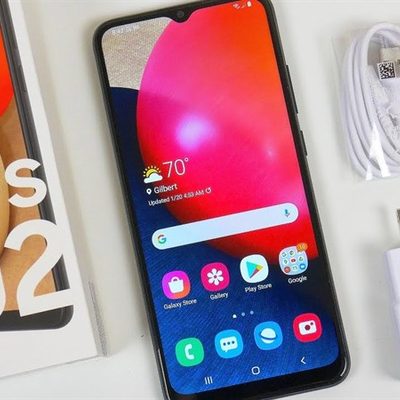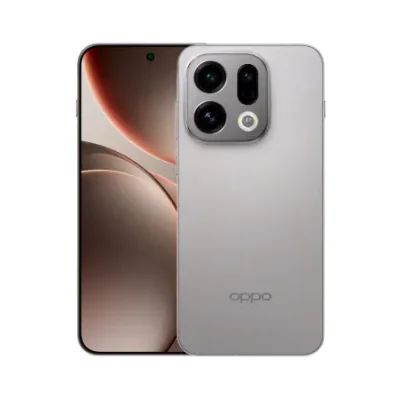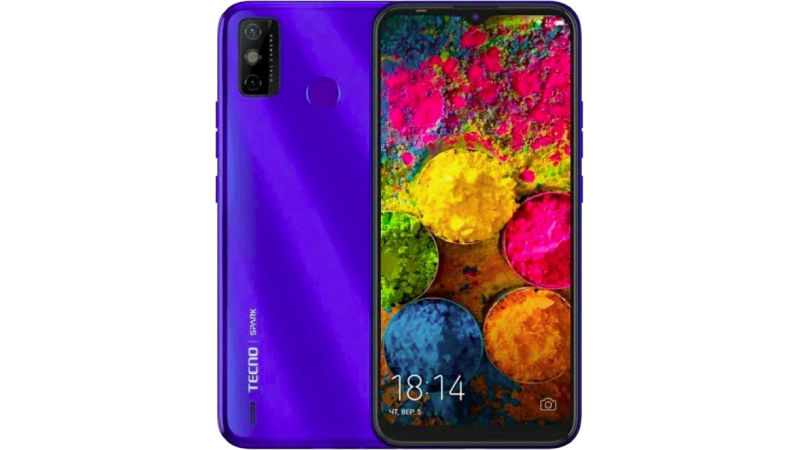
Featuring a massive 5000 mAh battery that offers up to 36 days of standby time, the Spark Go 2020 lets you play games for up to 14 hours, watch videos for up to 21 hours and listen to your favourite music for up to 145 hours.
With the 16.56-cm (6.52) large screen, an aspect ratio of 20:9, and 480 nits of brightness, the Spark Go 2020 lets you enjoy a spectacular visual experience whether you are gaming, binge-watching or e-learning.
Click vivid and stunning pictures even in low-light conditions with the 13 MP AI dual rear camera that comes with ƒ/1.8 large aperture and dual flashlight. Also, with multiple AI modes such as HDR, Bokeh, ASD, and more, take your photography game up a notch. Make your selfies truly Insta-worthy with the 8 MP AI Selfie camera that comes with a front flash and AI Beauty Mode which captures 1028 facial points, making sure that your precious smile never fades.
You can unlock your phone in just about 0.2 seconds, thanks to the advanced fingerprint sensor at the back. What’s more, you can even click pictures, dismiss alarms, accept and record calls with just a single touch of the fingerprint sensor. With this feature, you can bring home the party by connecting 2 Bluetooth earphones or 3 Bluetooth speakers simultaneously. You can even control the volume of each connected device separately.
Prerequisites & Preparation
- Backup Data: Flashing will completely wipe all data on your device. Back up important files and settings before proceeding.
- Battery Level: Ensure your device has at least 50% battery to prevent shutdown during the flashing process.
- USB Driver & Tools: Install the correct USB drivers for your brand and prepare the flashing tool (Odin for Samsung, SP Flash Tool/QPST for Qualcomm/MTK, etc.).
CAUTION: Flashing official firmware carries a risk of bricking your device. Proceed with caution and at your own risk. addROM is not responsible for any damage caused to your device.
Download Stock ROM & Firmware
Global / General
| File Type | Firmware / Build | Region / Model | OS Version | Download Link |
|---|---|---|---|---|
| Stock ROM | Stock ROM | Global / General | – | Google Drive |
| Stock ROM | Stock ROM | Global / General | – | Google Drive |
| Stock ROM | Stock ROM | Global / General | – | Google Drive |
| Stock ROM | Stock ROM | Global / General | – | Google Drive |
| Stock ROM | Stock ROM | Global / General | – | Google Drive |
| Stock ROM | Stock ROM | Global / General | – | Google Drive |
| Stock ROM | Stock ROM | Global / General | – | Google Drive |
| Stock ROM | Stock ROM | Global / General | – | Google Drive |
| Stock ROM | Stock ROM | Global / General | – | Google Drive |
| Stock ROM | Stock ROM | Global / General | – | Google Drive |
| Stock ROM | Stock ROM | Global / General | – | Google Drive |
| Stock ROM | Stock ROM | Global / General | – | Google Drive |
| Stock ROM | Stock ROM | Global / General | – | Google Drive |
| Stock ROM | Stock ROM | Global / General | – | Google Drive |
| Stock ROM | Stock ROM | Global / General | – | Google Drive |
| Stock ROM | Stock ROM | Global / General | – | Google Drive |
| Stock ROM | Stock ROM | Global / General | – | Google Drive |
| Stock ROM | Stock ROM | Global / General | – | Google Drive |
| Stock ROM | Stock ROM | Global / General | – | Google Drive |
| Stock ROM | Stock ROM | Global / General | – | Google Drive |
| Stock ROM | Stock ROM | Global / General | – | Google Drive |
How to Flash Firmware / Stock ROM
To flash the stock firmware on your Tecno device using SP Flash Tool, follow these steps:
- Download and install the MTK USB Drivers on your computer.
- Download and extract the SP Flash Tool.
- Launch
Flash_tool.exeas administrator. - Click on the Scatter-loading button and select the Android scatter file (
.txt) from the extracted firmware folder. - Click the Download button.
- Power off your device completely, hold the Volume Down or Volume Up button, and connect it to the computer via USB cable.
- The flashing process will start automatically. Wait for the green “Download OK” checkmark to appear.