
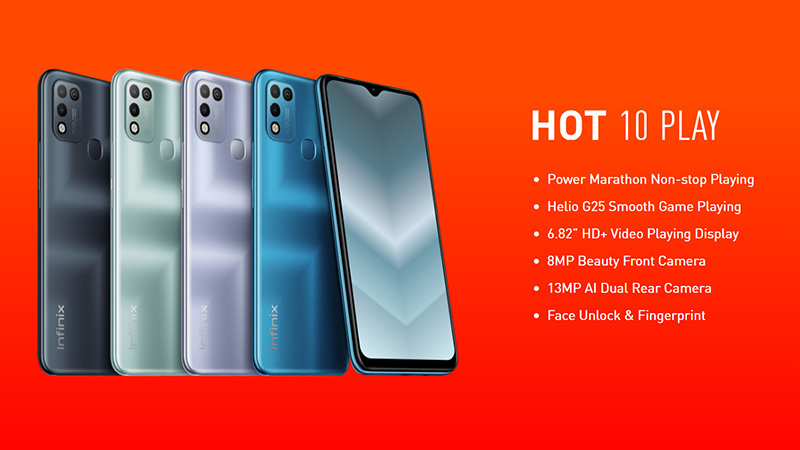
The Infinix Hot 10 has an immersive 17.32 cm (6.82) HD+ Drop notch display along with narrow bezels and an optimal aspect ratio so that you can enjoy an uninterrupted view of the screen. With 440 nits of brightness and its contrast ratio, your viewing experience will be exhilarating. You can also enjoy durable usage with NEG Dinorex T2X-1 glass protection.
Thanks to the 13 MP AI Dual Rear Camera with a 13 MP primary lens of f1.8 big aperture and a depth sensor along with Quad-LED flash so that every picture or video that you take make an impression. You can also enjoy slo-mo recording, Full HD video recording, Document mode, Bokeh, AI HDR, AI 3D Beauty, and Panorama mode so that you can shoot content that suits your liking. And, with Auto Scene detection, the phone can detect 9 different outdoor scenarios.
This mobile phone is powered by an 8 MP AI selfie, f/2.0 aperture, and a dedicated LED flash so that you can take dazzling selfies. And, with a portrait and wide selfie mode, you can take selfies with ease. And, you can use the 3D Face Beauty mode, you can smoothen the skin, enlarge the eyes, and so on as per your liking.
Thanks to the large 6000 mAh battery and the Power Marathon Tech, you can enjoy extended usage and increase the battery backup by up to 25%. This enables you to enjoy up to 23 hours of video playback, 23 hours of web surfing, and much more. This mobile phone has a 3 GB+32 GB memory variant and is also powered by 12nm Helio G35 2.3GHz Octa-core processor. You can use the Dual 4G SIM slot along with a dedicated SD card slot that can support up to 256 GB of storage. It also supports Dual VoLTE, VoWiFi calling, and also supports Bluetooth v5.0.
Prerequisites & Preparation
- Backup Data: Flashing will completely wipe all data on your device. Back up important files and settings before proceeding.
- Battery Level: Ensure your device has at least 50% battery to prevent shutdown during the flashing process.
- USB Driver & Tools: Install the correct USB drivers for your brand and prepare the flashing tool (Odin for Samsung, SP Flash Tool/QPST for Qualcomm/MTK, etc.).
CAUTION: Flashing official firmware carries a risk of bricking your device. Proceed with caution and at your own risk. addROM is not responsible for any damage caused to your device.
Download Stock ROM & Firmware
Global / General
| File Type | Firmware / Build | Region / Model | OS Version | Download Link |
|---|---|---|---|---|
| Stock ROM | Stock ROM | Global / General | – | Google Drive |
| Stock ROM | Stock ROM | Global / General | – | Google Drive |
| Stock ROM | Stock ROM | Global / General | – | Google Drive |
| Stock ROM | Stock ROM | Global / General | – | Google Drive |
| Stock ROM | Stock ROM | Global / General | – | Google Drive |
| Stock ROM | Stock ROM | Global / General | – | Google Drive |
| Stock ROM | Stock ROM | Global / General | – | Google Drive |
| Stock ROM | Stock ROM | Global / General | – | Google Drive |
| Stock ROM | Stock ROM | Global / General | – | Google Drive |
| Stock ROM | Stock ROM | Global / General | – | Google Drive |
| Stock ROM | Stock ROM | Global / General | – | Google Drive |
| Stock ROM | Stock ROM | Global / General | – | Google Drive |
| Stock ROM | Stock ROM | Global / General | – | Google Drive |
| Stock ROM | Stock ROM | Global / General | – | Google Drive |
| Stock ROM | Stock ROM | Global / General | – | Google Drive |
| Stock ROM | Stock ROM | Global / General | – | Google Drive |
| Stock ROM | Stock ROM | Global / General | – | Google Drive |
How to Flash Firmware / Stock ROM
To flash the stock firmware on your Infinix device using SP Flash Tool, follow these steps:
- Download and install the MTK USB Drivers on your computer.
- Download and extract the SP Flash Tool.
- Launch
Flash_tool.exeas administrator. - Click on the Scatter-loading button and select the Android scatter file (
.txt) from the extracted firmware folder. - Click the Download button.
- Power off your device completely, hold the Volume Down or Volume Up button, and connect it to the computer via USB cable.
- The flashing process will start automatically. Wait for the green “Download OK” checkmark to appear.






all link of download from google drive (X688B Firmware) Error/Can’t Download
I have updated the Google Drive link, you can try downloading again.