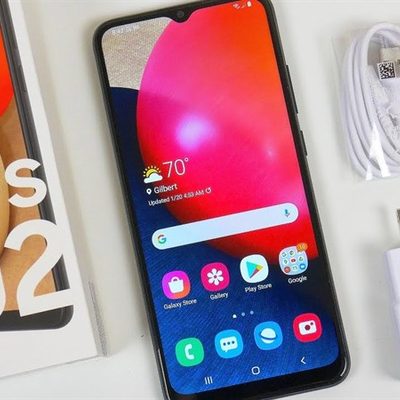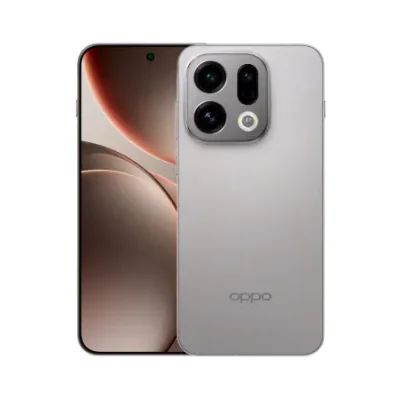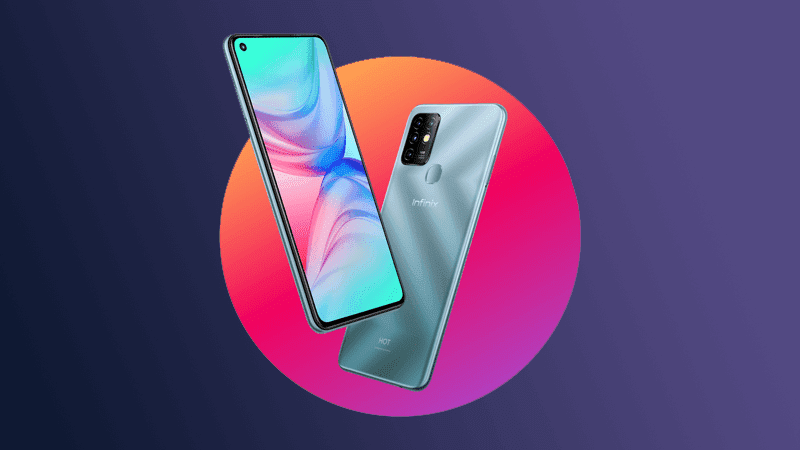
The smartphone’s 17.22cm (6.78”) HD+ Pin Hole Display, along with its narrow bezels and 20.5:9 aspect ratio, paves the way for stunning visuals that will leave you in awe. It boasts a 91.5% screen-to-body ratio and gives you edge-to-edge access to its display. On top of that, its 480 nits brightness and 1500:1 contrast ratio ensure that you can see the finest details in your favorite video content.
Its 16-megapixel Quad AI rear camera includes a 16MP (f/1.85) primary lens, a 2MP depth sensor, a 2MP macro lens, and a low-light sensor with a Quad LED flash. Additionally, Auto Scene Detection, Custom Bokeh, AI HDR, AI 3D Beautify, AI 3D Body Shaping, Panorama, and AR Animoji make it even more capable of helping you take stunning photos and selfies. It has an 8-megapixel (f/2.0) AI In-Display Camera and Dual LED Flash to make your selfies perfect. It even comes with some really cool features, like AI HDR, Portrait Mode and Wide Selfie, and 3D Face Beautify, which you can use to smoothen your skin, slim your face, and also enlarge your eyes, to make your selfies look beautiful.
The phone is equipped with a massive 5200 mAh battery that allows you to use it for long hours and can be charged quickly with the help of 18W Fast Charging. Additionally, you can get the most out of this smartphone’s battery by using the Ultra Power Saving Mode that increases the battery backup by up to 25%.
It has a 64-bit Octa-core MediaTek Helio G70 Processor and ARM Mali G52 GPU, along with Hyper EngineGame Technology, so you can use the heaviest apps and play high-graphic games with ease. It also has 6GB RAM for a lag-free smartphone experience. You can store all your data
Prerequisites & Preparation
- Backup Data: Flashing will completely wipe all data on your device. Back up important files and settings before proceeding.
- Battery Level: Ensure your device has at least 50% battery to prevent shutdown during the flashing process.
- USB Driver & Tools: Install the correct USB drivers for your brand and prepare the flashing tool (Odin for Samsung, SP Flash Tool/QPST for Qualcomm/MTK, etc.).
CAUTION: Flashing official firmware carries a risk of bricking your device. Proceed with caution and at your own risk. addROM is not responsible for any damage caused to your device.
Download Stock ROM & Firmware
Global / General
| File Type | Firmware / Build | Region / Model | OS Version | Download Link |
|---|---|---|---|---|
| Stock ROM | Stock ROM | Global / General | – | Google Drive |
| Stock ROM | Stock ROM | Global / General | – | Google Drive |
| Stock ROM | Stock ROM | Global / General | – | Google Drive |
| Stock ROM | Stock ROM | Global / General | – | Google Drive |
| Stock ROM | Stock ROM | Global / General | – | Google Drive |
| Stock ROM | Stock ROM | Global / General | – | Google Drive |
| Stock ROM | Stock ROM | Global / General | – | Google Drive |
| Stock ROM | Stock ROM | Global / General | – | Google Drive |
| Stock ROM | Stock ROM | Global / General | – | Google Drive |
| Stock ROM | Stock ROM | Global / General | – | Google Drive |
| Stock ROM | Stock ROM | Global / General | – | Google Drive | Download |
| Stock ROM | Stock ROM | Global / General | – | Google Drive |
| Stock ROM | Stock ROM | Global / General | – | Google Drive |
| Stock ROM | Stock ROM | Global / General | – | Google Drive |
| Stock ROM | Stock ROM | Global / General | – | Google Drive |
| Stock ROM | Stock ROM | Global / General | – | Google Drive |
| Stock ROM | Stock ROM | Global / General | – | Google Drive |
| Stock ROM | Stock ROM | Global / General | – | Google Drive |
| Stock ROM | Stock ROM | Global / General | – | Google Drive |
| Stock ROM | Stock ROM | Global / General | – | Google Drive |
| Stock ROM | Stock ROM | Global / General | – | Google Drive |
| Stock ROM | Stock ROM | Global / General | – | Google Drive |
| Stock ROM | Stock ROM | Global / General | – | Google Drive |
| Stock ROM | Stock ROM | Global / General | – | Google Drive |
How to Flash Firmware / Stock ROM
To flash the stock firmware on your Infinix device using SP Flash Tool, follow these steps:
- Download and install the MTK USB Drivers on your computer.
- Download and extract the SP Flash Tool.
- Launch
Flash_tool.exeas administrator. - Click on the Scatter-loading button and select the Android scatter file (
.txt) from the extracted firmware folder. - Click the Download button.
- Power off your device completely, hold the Volume Down or Volume Up button, and connect it to the computer via USB cable.
- The flashing process will start automatically. Wait for the green “Download OK” checkmark to appear.