Cockpit Tools centralizes all your AI IDE accounts into a single control panel so you can switch, monitor, and automate them like a pro.
What Is Cockpit Tools And Why It Matters
Cockpit Tools is a universal AI IDE account management tool built for developers who juggle multiple AI coding assistants across different editors and services. Instead of manually logging in and out of Antigravity, GitHub Copilot, Cursor, Windsurf, Gemini-cli, CodeBuddy, and similar tools, you get a single cockpit that orchestrates all your accounts and quotas.
The application supports a wide range of AI coding platforms, including Antigravity, Codex, GitHub Copilot, Windsurf, Kiro, Cursor, Gemini Cli, CodeBuddy, CodeBuddy CN, Qoder, Trae, and Zed, giving you one pane of glass over your entire AI IDE stack. Its core feature set is designed for power users: multi-account switching, quota monitoring with reset time tracking, automated wake-up tasks, device fingerprint management for Antigravity, and multi-instance operation so you can run multiple accounts in parallel.
The Fragmentation Problem In AI Coding Workflows
Modern development workflows increasingly rely on multiple AI assistants, often mixing free-tier and paid accounts across different vendors and IDEs. Developers commonly maintain several Google or GitHub accounts to maximize free quotas, experiment with new models, or separate personal and team usage.
Without a central manager, this leads to constant friction: you lose track of which account still has quota, you get unexpectedly rate-limited in the middle of a coding session, and switching contexts between IDEs and accounts becomes a daily tax on productivity. Cockpit Tools was explicitly designed to eliminate this fragmentation by making account switching, quota visibility, and automation first-class citizens of the development environment.
Core Features Developers Care About
Multi-Account Switching
Cockpit Tools gives you one-click switching between multiple accounts for the same provider, such as different GitHub Copilot or Antigravity identities. Instead of logging out of one account in your IDE and logging into another, you toggle profiles in Cockpit Tools and the associated clients update accordingly.
Quota Monitoring And Reset Tracking
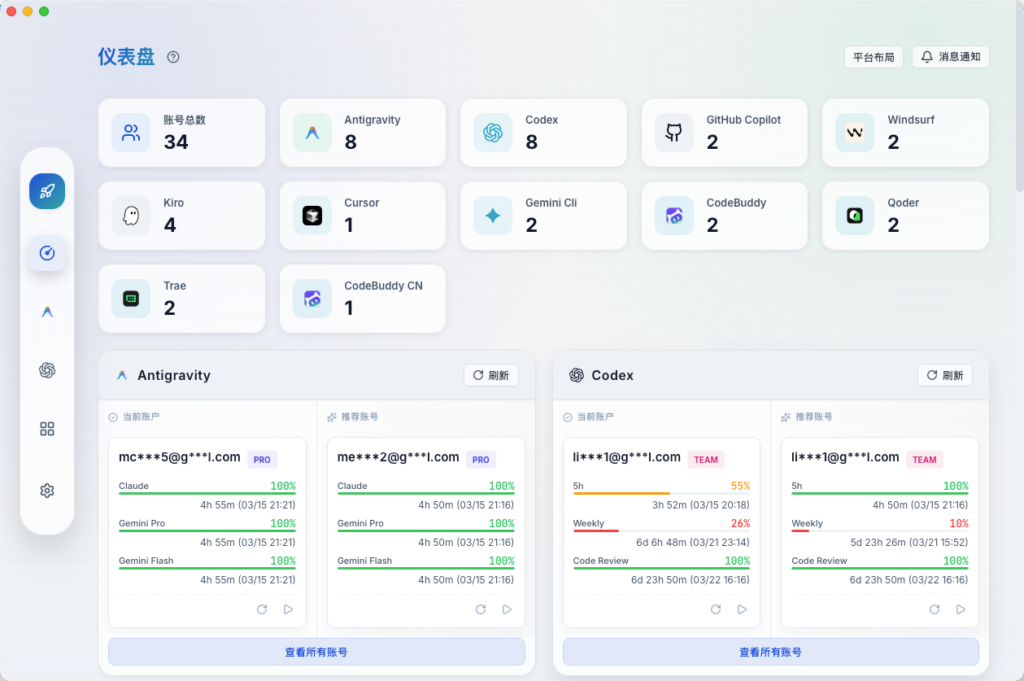
A central dashboard surfaces remaining quota, reset times, and usage progress for each account across supported platforms. This makes it easy to see, at a glance, which account is about to hit its limits and which one has fresh capacity, so you can proactively switch before you are blocked.
Wake-Up Automation And Device Fingerprints
For services like Antigravity, Cockpit Tools can schedule wake-up tasks and manage device fingerprints to help with quota resets and reduce risk when you rely on rate-limited or region-sensitive endpoints. These automation features help keep your accounts “warm” and ready, instead of discovering during a crunch that your main account is asleep or temporarily blocked.
Multi-Instance Management
Cockpit Tools supports multi-instance operation, allowing you to run multiple accounts for the same provider concurrently. This is particularly useful for teams sharing infrastructure or individuals who distribute their workloads across several free-tier or paid plans.
Supported IDEs And AI Coding Tools
Out of the box, Cockpit Tools is tailored for the AI coding ecosystem that many power users are already using daily. It currently supports:
- Antigravity
- Codex
- GitHub Copilot
- Windsurf
- Kiro
- Cursor
- Gemini Cli
- CodeBuddy and CodeBuddy CN
- Qoder
- Trae
- Zed
This coverage makes Cockpit Tools an ideal hub for developers who mix VS Code extensions like Antigravity Cockpit, browser-based editors, and command-line tools such as Gemini-cli.
Installation Guide: From Download To First Launch
Cockpit Tools is distributed as a desktop application with installers for major platforms, plus options for package managers and building from source.
Step 1: Choose Your Platform
The project publishes prebuilt releases for macOS (.dmg), Windows (.msi or .exe), and popular Linux formats (.deb or .AppImage) via its GitHub Releases page. Visit the official repository at https://github.com/jlcodes99/cockpit-tools and open the Releases section to download the latest version for your operating system.
# Example: download via browser or use your preferred download tool
open https://github.com/jlcodes99/cockpit-tools/releases
After the download:
- On macOS, open the
.dmg, drag Cockpit Tools intoApplications, and launch it from Spotlight or Launchpad. - On Windows, run the
.msi/.exeinstaller and follow the standard setup wizard. - On Linux, install the
.debwithdpkg -ior run the.AppImagedirectly, depending on your distro.
Step 2: Install Via Homebrew (macOS Alternative)
If you are a macOS user and prefer package managers, Cockpit Tools is available as a Homebrew cask.
brew tap jlcodes99/cockpit-tools https://github.com/jlcodes99/cockpit-tools
brew install --cask cockpit-tools
If macOS reports the app as “damaged” or from an unidentified developer, you may need to allow it in System Settings → Privacy & Security or re-run the installation with the recommended Gatekeeper workaround commands described in the project notes.
Step 3: (Optional) Build From Source
Power users who want to audit or contribute to the project can build Cockpit Tools from source. The typical prerequisites include:
- Node.js v18 or newer
- npm v9 or newer
- Rust and the Tauri toolchain for building the desktop runtime
A common setup flow looks like:
git clone https://github.com/jlcodes99/cockpit-tools.git
cd cockpit-tools

# Install JavaScript dependencies
npm install

# Build the Tauri desktop app
npm run tauri build
This produces a local build of Cockpit Tools that you can run and debug directly from your development environment.
First Launch: Navigating The Cockpit
On first launch, Cockpit Tools opens into a main dashboard that lists supported platforms and any accounts you have already connected. You will typically see cards or rows for each platform, with status indicators, quota summaries, and quick actions such as refresh or wake-up.
The UI is designed for quick scanning: one section for account status, one for quota monitoring (remaining tokens or credits, estimated reset times), and shortcuts for switching accounts or opening related IDE extensions.
Adding And Organizing AI Accounts
The core of Cockpit Tools is its account registry, where you connect the various identities you use across Antigravity, Copilot, Cursor, and other tools.
A typical workflow looks like this:
- Open the Accounts view in Cockpit Tools.
- Select a platform, such as “GitHub Copilot” or “Cursor.”
- Add a new account, following the prompts (OAuth login, access token, or other credentials depending on provider).
- Label the account (e.g., “Personal,” “Work,” “Team A”) so you can recognize it at a glance.
Once configured, each account appears in the dashboard with its own status and quota panel, allowing you to group or filter by platform and usage priority.
You can also conceptually model account profiles with a structure like:
{
  "platform": "cursor",
  "label": "work-main",
  "accountId": "[email protected]",
  "priority": 1
}
This kind of structure (or its equivalent UI form) helps you keep your Cockpit organized as your number of accounts grows.
Monitoring Token Quotas And Reset Times
Quota visibility is one of the biggest reasons to adopt Cockpit Tools. For each connected account, the dashboard surfaces:
- Remaining quota (tokens, requests, or credits, depending on provider).
- Estimated reset time for the current billing/usage cycle.
- Progress visualization (bars or percentage) so you can quickly tell which account is “healthy,” “warning,” or “critical.”
You can use this information to make decisions like:
- Route heavy coding sessions to accounts with the most remaining capacity.
- Reserve certain accounts for team work and others for experiments.
- Set thresholds where you manually or automatically switch accounts before hitting hard limits.
Configuring Wake-Up Automation
Some AI providers enforce idle or region-based behavior that benefits from regular “wake-up” activity. Cockpit Tools includes wake-up task automation, especially for Antigravity, to help keep your accounts active and aligned with quota reset rules.
In practice, you can:
- Select an account (e.g., an Antigravity profile).
- Configure a wake-up schedule, such as periodic lightweight calls or heartbeat checks.
- Tie wake-up tasks to specific time windows so they do not interfere with your peak development hours.
Add device fingerprint management into the mix, and you get more predictable behavior across multiple machines or virtual environments when using sensitive providers.
Seamless Profile Switching In Cursor, Windsurf, And Beyond
One of the most satisfying use cases for Cockpit Tools is smooth profile switching while you are deep in an editor like Cursor or Windsurf. Instead of digging through each tool’s settings and logging out/in every time an account runs out of quota, you switch from the cockpit and let the integration handle the rest.
A common pattern is:
- Keep multiple Cursor accounts connected (e.g., free, personal paid, team).
- Let Cockpit Tools show you which account has the healthiest quota.
- When you approach a threshold, trigger a one-click switch in Cockpit Tools; the associated IDE session aligns with the new account, minimizing interruption.
This approach works similarly for Antigravity in VS Code and other supported platforms, turning what used to be a disruptive context switch into a quick, controlled operation.
Best Practices For Power Users And Teams
To get the most out of Cockpit Tools in a professional setup:
- Standardize labels and naming so everyone on the team understands which accounts are for experiments, production, or shared use.
- Monitor quotas daily during heavy development cycles and set internal rules for when to switch or top up accounts.
- Combine with your existing observability stack by periodically exporting or capturing quota data as part of your broader DevOps monitoring.
- Regularly update Cockpit Tools from the official GitHub repository so you benefit from new provider support, bug fixes, and UI improvements.
With these habits, Cockpit Tools becomes more than just a convenience tool—it becomes a critical part of how your organization manages AI capacity and developer productivity at scale.