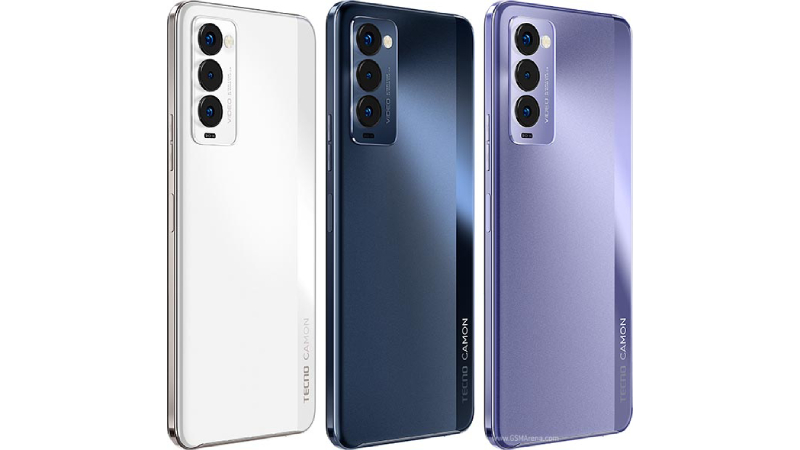
Tecno Camon 18P houses a triple camera configuration. These are a 48 MP, f/1.8, 26mm (wide), PDAF main lens, a 13 MP, 45mm (telephoto), PDAF, 1.7x optical zoom, and a 2 MP, f/2.4, (depth). Now that 13 MP, 45mm (telephoto) is what sets it apart when it comes to camera performance with the base Camon 18 that has a 2 MP, f/2.4, (macro) instead.
The front-facing camera on the other hand is the same 16-megapixel wide sensor which does a decent job in terms of the camera. And that’s a good thing! Videos on both the front and rear cameras can be recorded at up to 1080p@30fps resolution for better quality videos.
Now, this is a 1080 x 2460 (excellent choice this one and an improvement also), with a 6.8-inch dot-in the IPS panel. It comes with a 120Hz (and not 90Hz like on Camon 18) refresh rate which is one of the major upgrades on the smartphone this year. From within the settings, you can set the display to 120, 60 Hertz for longer battery life, or the auto switch suite automatically switches your refresh rates depending on the actual use case. This display can attain a higher 550 nits brightness which is great especially for viewing outdoors.
The 5,000 mAh battery capacity is what you get with Tecno Camon 18P. Its fast charging capability is better than the 18’s 18W at 33W. With the 33W fast flash charge feature on the smartphone, you get to charge it from 0 to 100 in a matter of minutes.
Prerequisites & Preparation
- Backup Data: Flashing will completely wipe all data on your device. Back up important files and settings before proceeding.
- Battery Level: Ensure your device has at least 50% battery to prevent shutdown during the flashing process.
- USB Driver & Tools: Install the correct USB drivers for your brand and prepare the flashing tool (Odin for Samsung, SP Flash Tool/QPST for Qualcomm/MTK, etc.).
CAUTION: Flashing official firmware carries a risk of bricking your device. Proceed with caution and at your own risk. addROM is not responsible for any damage caused to your device.
Download Stock ROM & Firmware
Global / General
| File Type | Firmware / Build | Region / Model | OS Version | Download Link |
|---|---|---|---|---|
| Stock ROM | Stock ROM | Global / General | – | Google Drive |
| Stock ROM | Stock ROM | Global / General | – | Google Drive |
| Stock ROM | Stock ROM | Global / General | – | Google Drive |
| Stock ROM | Stock ROM | Global / General | – | Google Drive |
| Stock ROM | Stock ROM | Global / General | – | Google Drive |
| Stock ROM | Stock ROM | Global / General | – | Google Drive |
| Stock ROM | Stock ROM | Global / General | – | Google Drive |
| Stock ROM | Stock ROM | Global / General | – | Google Drive |
How to Flash Firmware / Stock ROM
To flash the stock firmware on your Tecno device using SP Flash Tool, follow these steps:
- Download and install the MTK USB Drivers on your computer.
- Download and extract the SP Flash Tool.
- Launch
Flash_tool.exeas administrator. - Click on the Scatter-loading button and select the Android scatter file (
.txt) from the extracted firmware folder. - Click the Download button.
- Power off your device completely, hold the Volume Down or Volume Up button, and connect it to the computer via USB cable.
- The flashing process will start automatically. Wait for the green “Download OK” checkmark to appear.