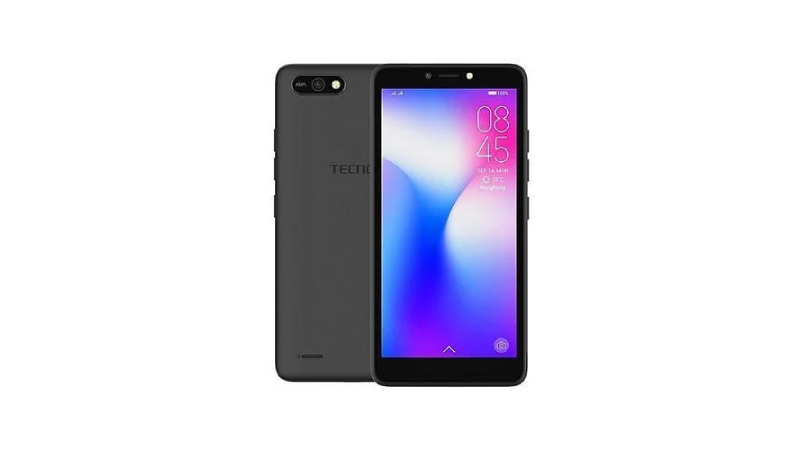
Tecno POP 2F features a 5.5-inch full-screen touchscreen, coupled with a MediaTek MT6580A chip, 1GB RAM, 16GB internal storage, and a 2400mAh battery
Take selfies as you wish with the Tecno POP 2F 8MP front camera. POP 2F will not miss your vivid and beautiful moments even in low light conditions with its front flash. You will have a better selfie experience with its excellent performance. POP 2F is equipped with a beauty camera with 7 levels of beauty modes. You will have a whole new photography experience with this amazing update. Choose different levels of beauty modes in different situations, you will find wonderful moments just for you.
Equipped with 16GB of storage, you have more space to store your favorite and precious memories. Expanding memory, a big step towards superior performance, brings a great user experience. Unlock Tecno POP 2F with your face. Recording your facial information, POP 2F will learn and recognize your face when you turn on the phone and unlock it. A big step towards a more secure and advanced phone, bringing a whole new user experience. In addition, unlock your phone with just one touch. Equipped with a fingerprint sensor, POP 2F can complete some actions easier and faster, such as taking photos, recording calls, accepting calls and turning off alarms.
The newly updated HiOS Lite 3.3 operating system provides more content and easier interaction. You can handle junk files faster and manage data better. This new HiOS Lite 3.3 aims to bring you a simpler, smoother and more efficient user experience.
Prerequisites & Preparation
- Backup Data: Flashing will completely wipe all data on your device. Back up important files and settings before proceeding.
- Battery Level: Ensure your device has at least 50% battery to prevent shutdown during the flashing process.
- USB Driver & Tools: Install the correct USB drivers for your brand and prepare the flashing tool (Odin for Samsung, SP Flash Tool/QPST for Qualcomm/MTK, etc.).
CAUTION: Flashing official firmware carries a risk of bricking your device. Proceed with caution and at your own risk. addROM is not responsible for any damage caused to your device.
Download Stock ROM & Firmware
Global / General
| File Type | Firmware / Build | Region / Model | OS Version | Download Link |
|---|---|---|---|---|
| Stock ROM | Stock ROM | Global / General | – | Google Drive |
| Stock ROM | Stock ROM | Global / General | – | Google Drive |
| Stock ROM | Stock ROM | Global / General | – | Google Drive |
| Stock ROM | Stock ROM | Global / General | – | Google Drive |
| Stock ROM | Stock ROM | Global / General | – | Google Drive |
| Stock ROM | Stock ROM | Global / General | – | Google Drive |
| Stock ROM | Stock ROM | Global / General | – | Google Drive |
| Stock ROM | Stock ROM | Global / General | – | Google Drive |
| Stock ROM | Stock ROM | Global / General | – | Google Drive |
| Stock ROM | Stock ROM | Global / General | – | Google Drive |
| Stock ROM | Stock ROM | Global / General | – | Google Drive |
| Stock ROM | Stock ROM | Global / General | – | Google Drive |
| Stock ROM | Stock ROM | Global / General | – | Google Drive |
| Stock ROM | Stock ROM | Global / General | – | Google Drive |
How to Flash Firmware / Stock ROM
To flash the stock firmware on your Tecno device using SP Flash Tool, follow these steps:
- Download and install the MTK USB Drivers on your computer.
- Download and extract the SP Flash Tool.
- Launch
Flash_tool.exeas administrator. - Click on the Scatter-loading button and select the Android scatter file (
.txt) from the extracted firmware folder. - Click the Download button.
- Power off your device completely, hold the Volume Down or Volume Up button, and connect it to the computer via USB cable.
- The flashing process will start automatically. Wait for the green “Download OK” checkmark to appear.