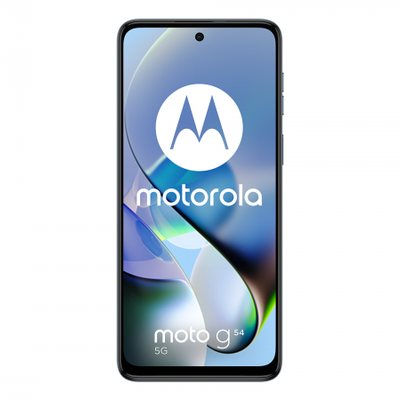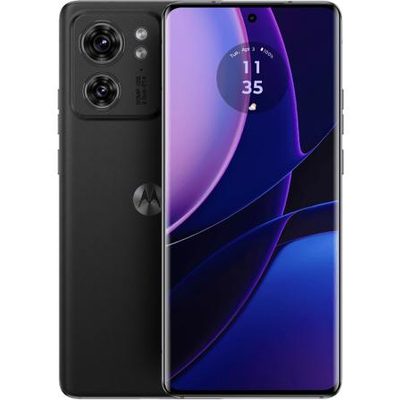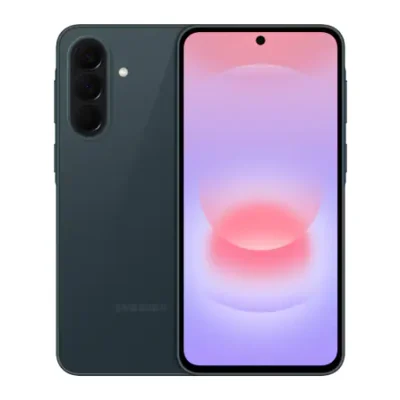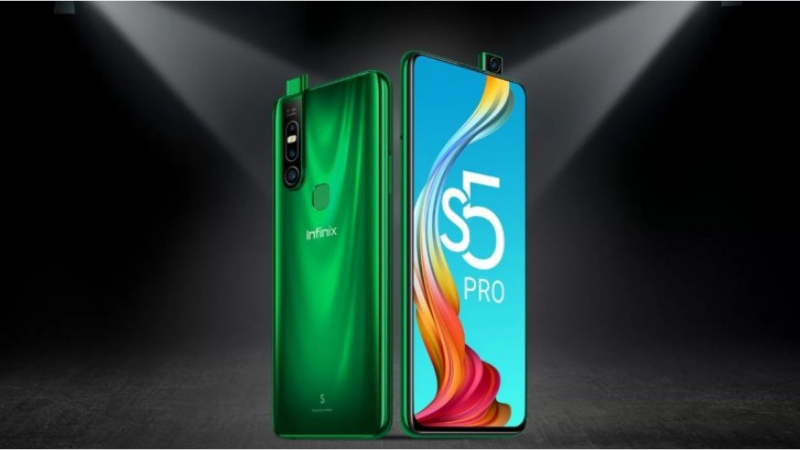
With a 16.59 (6.53) FHD+ Full View display, a 19.5:9 aspect ratio and 91% of screen-to-body ratio, the Infinix S5 Pro lets you enjoy a truly immersive viewing experience. Also, with 480 nits brightness and rich colour reproduction, you are sure to get the best out of your video experience.
Featuring a 16 MP AI POP-UP selfie camera, f/2.0 aperture and screen flash, take your selfie game up a notch. You can also record 15-second videos with the Short Video feature and post it on your social media handle. Apart from features such as Portrait & wide selfie mode, you can also use 3D Face Beauty which will smoothen your skin, slim the face and enlarge the eyes for great selfies. With a 48 MP AI Triple rear Camera, a 2 MP depth sensor, dedicated low light sensor and Dual LED flash, and Auto Scene Detection, take your smartphone photography game to a whole ‘nother level! Also, with the 3D Body Shaping feature, your pictures will look better than ever.
The S5 Pro features a 2.3 GHz octa-core processor, 4 GB of RAM, and 64 GB of storage capacity, giving you a fluid smartphone experience. It also supports Dual 4G SIM and a dedicated SD card slot which is expandable up to 256 GB. Apart from features such as Fingerprint sensor and Face Unlock, it also comes with DTS-HD Surround sound which provides a truly cinematic sound experience.
You don’t need to worry about your phone running out of juice as the Infinix S5 Pro Equipped with a massive 4000 mAh battery. It also features AI Smart power-saving and restricts backstage-running of apps, thereby extending power time by 3 hours.
Prerequisites & Preparation
- Backup Data: Flashing will completely wipe all data on your device. Back up important files and settings before proceeding.
- Battery Level: Ensure your device has at least 50% battery to prevent shutdown during the flashing process.
- USB Driver & Tools: Install the correct USB drivers for your brand and prepare the flashing tool (Odin for Samsung, SP Flash Tool/QPST for Qualcomm/MTK, etc.).
CAUTION: Flashing official firmware carries a risk of bricking your device. Proceed with caution and at your own risk. addROM is not responsible for any damage caused to your device.
Download Stock ROM & Firmware
X660C
| File Type | Firmware / Build | Region / Model | OS Version | Download Link |
|---|---|---|---|---|
| Stock ROM | Infinix-S5-Pro-X660C-H653CF-Q-OP-220314V441.zip | X660C | – | Google Drive |
| Stock ROM | Infinix-S5-Pro-X660C-H653CF-Q-OP-211028V428.zip | X660C | – | Google Drive |
| Stock ROM | Infinix-S5-Pro-X660C-H653CF-Q-OP-210720V420.zip | X660C | – | Google Drive |
| Stock ROM | Infinix-S5-Pro-X660C-H653CF-Q-OP-210506V414.zip | X660C | – | Google Drive |
| Stock ROM | Infinix-S5-Pro-X660C-H653CF-Q-OP-210315V406.zip | X660C | – | Google Drive |
| Stock ROM | Infinix-S5-Pro-X660C-H653CF-Q-OP-201216V396.zip | X660C | – | Google Drive |
| Stock ROM | Infinix-S5-Pro-X660B-H653DE-Q-OP-201216V546.zip | X660C | – | Google Drive |
| Stock ROM | Infinix-S5-Pro-X660B-H653DE-Q-200305V449.zip | X660C | – | Google Drive |
| Stock ROM | Infinix-S5-Pro-X660B-H653DE-Q-200220V434.zip | X660C | – | Google Drive |
| Stock ROM | Infinix-S5-Pro-X660B-H653DE-Q-200217V426.zip | X660C | – | Google Drive |
X660
| File Type | Firmware / Build | Region / Model | OS Version | Download Link |
|---|---|---|---|---|
| Stock ROM | Infinix-S5-Pro-X660 | X660 | – | Google Drive |
| Stock ROM | Infinix-S5-Pro-X660 | X660 | – | Google Drive |
| Stock ROM | Infinix-S5-Pro-X660 | X660 | – | Google Drive |
| Stock ROM | Infinix-S5-Pro-X660 | X660 | – | Google Drive |
| Stock ROM | Infinix-S5-Pro-X660 | X660 | – | Google Drive |
| Stock ROM | Infinix-S5-Pro-X660 | X660 | – | Google Drive |
| Stock ROM | Infinix-S5-Pro-X660 | X660 | – | Google Drive |
How to Flash Firmware / Stock ROM
To flash the stock firmware on your Infinix device using SP Flash Tool, follow these steps:
- Download and install the MTK USB Drivers on your computer.
- Download and extract the SP Flash Tool.
- Launch
Flash_tool.exeas administrator. - Click on the Scatter-loading button and select the Android scatter file (
.txt) from the extracted firmware folder. - Click the Download button.
- Power off your device completely, hold the Volume Down or Volume Up button, and connect it to the computer via USB cable.
- The flashing process will start automatically. Wait for the green “Download OK” checkmark to appear.