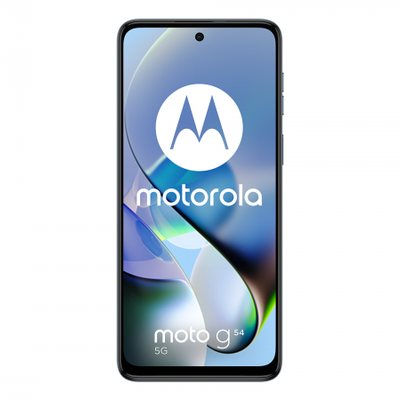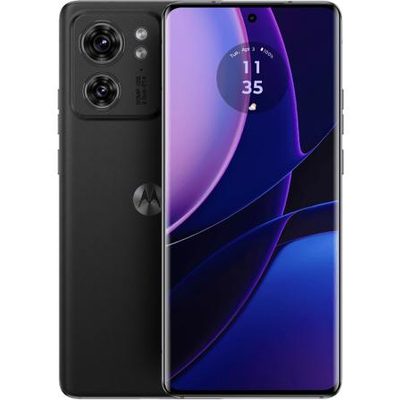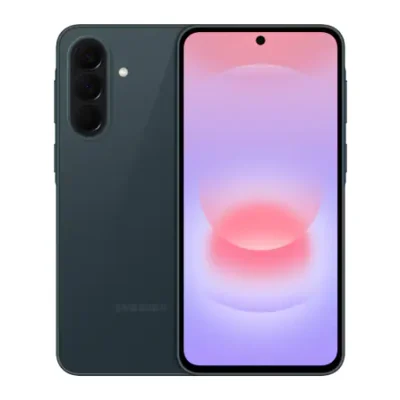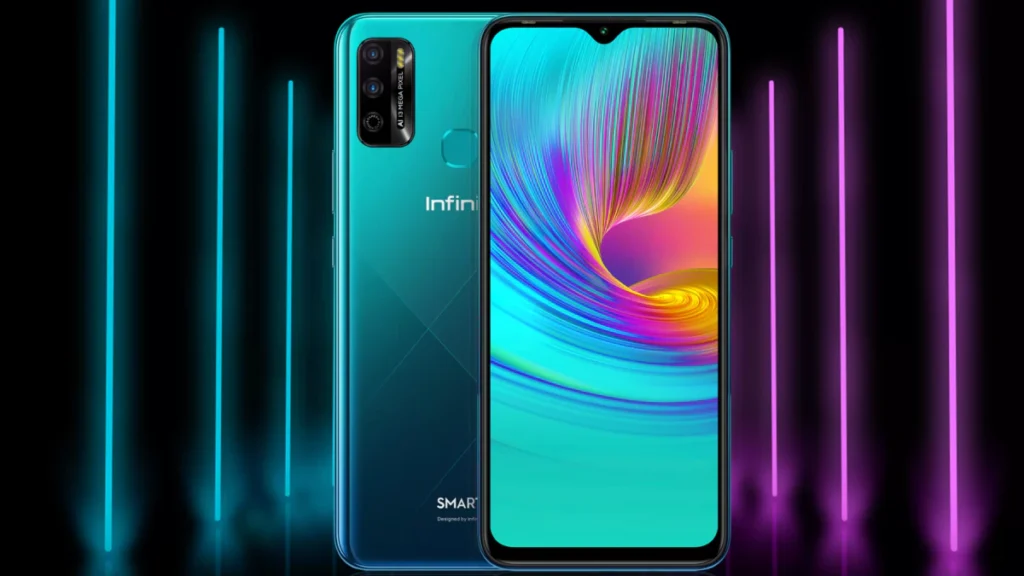
Infinix Smart 4 houses a 6.6 inch HD Plus display screen with a resolution of 720 x 1600. It has an actual aspect ratio of 20:9 with the 266 pixels per inch density. The 83.9% screen to body ratio tells you that it has a much noticeable chin on top and bottom.
The Infinix Smart 4 comes with Helio A22 quad-core processor. The Smart 4 comes with only 1GB of RAM It comes up with 16GB of storage, which gets occupied by already installed apps and updates.
With the specs mentioned above, performance is questionable. Even light game struggle a bit when you have up to 4 or 5 background apps running. The fingerprint scanner and face unlock work surprisingly well. This device is not a powerhouse; you will experience a lot of sluggishness. We would say don’t buy it if you intend to play games on it.
The Infinix Smart 4 has 4000 mAh battery power that lasts for one day. However, it took us nearly three hours to charge from zero to hundred percent. With the big battery and intelligent power management, you can enjoy your entertainment all day long without power worries. The smart four comes with a single camera at the back and the front. The rear camera is only 8MP, while the front is a 5-megapixel selfie shooter. The AI-powered dual camera lenses will capture better moments with more clarity, and you’ll see sharper details in all your photos.
Prerequisites & Preparation
- Backup Data: Flashing will completely wipe all data on your device. Back up important files and settings before proceeding.
- Battery Level: Ensure your device has at least 50% battery to prevent shutdown during the flashing process.
- USB Driver & Tools: Install the correct USB drivers for your brand and prepare the flashing tool (Odin for Samsung, SP Flash Tool/QPST for Qualcomm/MTK, etc.).
CAUTION: Flashing official firmware carries a risk of bricking your device. Proceed with caution and at your own risk. addROM is not responsible for any damage caused to your device.
Download Stock ROM & Firmware
Global / General
| File Type | Firmware / Build | Region / Model | OS Version | Download Link |
|---|---|---|---|---|
| Stock ROM | Stock ROM | Global / General | – | Google Drive |
| Stock ROM | Stock ROM | Global / General | – | Google Drive |
| Stock ROM | Stock ROM | Global / General | – | Google Drive |
| Stock ROM | Stock ROM | Global / General | – | Google Drive |
| Stock ROM | Stock ROM | Global / General | – | Google Drive |
| Stock ROM | Stock ROM | Global / General | – | Google Drive |
| Stock ROM | Stock ROM | Global / General | – | Google Drive |
| Stock ROM | Stock ROM | Global / General | – | Google Drive |
| Stock ROM | Stock ROM | Global / General | – | Google Drive |
| Stock ROM | Stock ROM | Global / General | – | Google Drive |
| Stock ROM | Stock ROM | Global / General | – | Google Drive |
| Stock ROM | Stock ROM | Global / General | – | Google Drive |
How to Flash Firmware / Stock ROM
To flash the stock firmware on your Infinix device using SP Flash Tool, follow these steps:
- Download and install the MTK USB Drivers on your computer.
- Download and extract the SP Flash Tool.
- Launch
Flash_tool.exeas administrator. - Click on the Scatter-loading button and select the Android scatter file (
.txt) from the extracted firmware folder. - Click the Download button.
- Power off your device completely, hold the Volume Down or Volume Up button, and connect it to the computer via USB cable.
- The flashing process will start automatically. Wait for the green “Download OK” checkmark to appear.