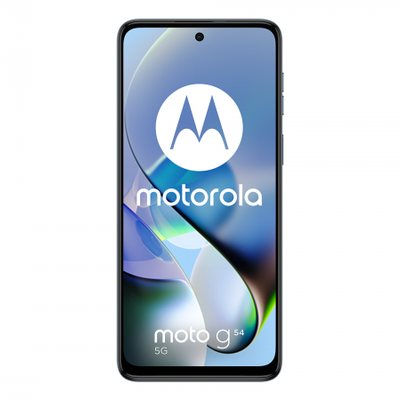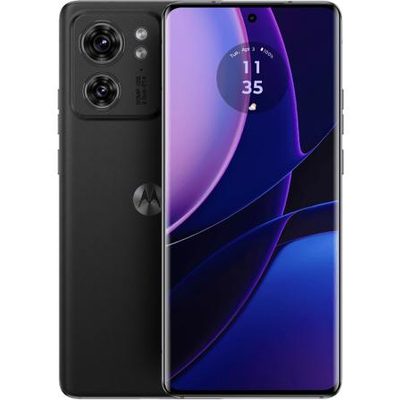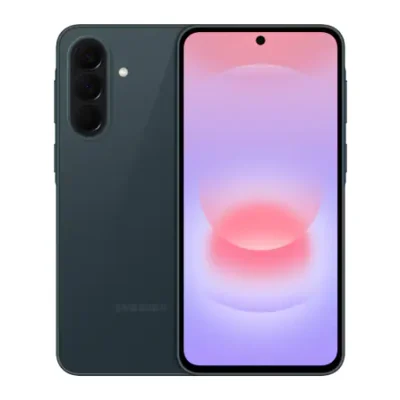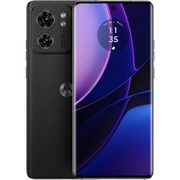
With its 180 W Thunder Charging capacity, the Infinix ZERO Ultra lets you charge your phone from 0% to 50% in approximately 4 minutes and from 50% to 100% in about 8 minutes more.
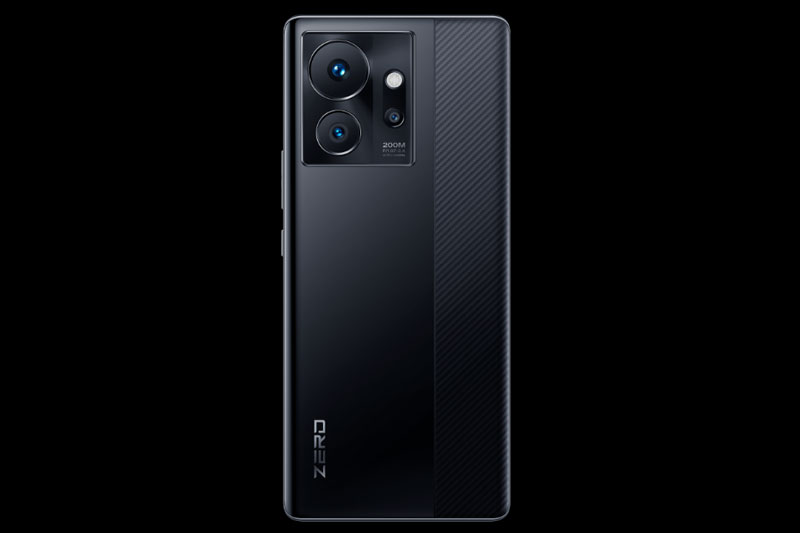
Optical Image Stabilisation (OIS) and a 200 MP triple camera are among the features of the Infinix ZERO Ultra. So, regardless of whether you’re recording films during the day or shooting photographs at night, the output will always be razor-sharp, dazzling, and stable. Additionally, a high-definition 32 MP Selfie Camera with Dual LED Flash has been incorporated for brilliant and vibrant selfies all around.
The Infinix ZERO Ultra’s 3D Curved AMOLED Display and 120 Hz Refresh Rate bring all of your content to life. As a result, everything you surf through, play in a game, or watch appears stunning on this smartphone.
The Infinix ZERO Ultra is equipped with the potent MediaTek Dimensity 920 Chipset which makes this phone extremely quick and responsive. Furthermore, because it has been developed using a 6 nm technology, it is also incredibly power-efficient. The sophisticated 11-layer cooling mechanism on this phone keeps it cool and responsive even during prolonged gaming or productivity sessions.
The Infinix ZERO Ultra has 256 GB of internal storage and 8 GB of RAM, which allows for efficient performance. Moreover, using the creative MemFusion technology, the 8 GB RAM can be seamlessly increased by up to 5 GB more. That means you can enjoy up to 13 GB of RAM on your phone and stay on top of your game.
Prerequisites & Preparation
- Backup Data: Flashing will completely wipe all data on your device. Back up important files and settings before proceeding.
- Battery Level: Ensure your device has at least 50% battery to prevent shutdown during the flashing process.
- USB Driver & Tools: Install the correct USB drivers for your brand and prepare the flashing tool (Odin for Samsung, SP Flash Tool/QPST for Qualcomm/MTK, etc.).
CAUTION: Flashing official firmware carries a risk of bricking your device. Proceed with caution and at your own risk. addROM is not responsible for any damage caused to your device.
Download Stock ROM & Firmware
Global / General
| File Type | Firmware / Build | Region / Model | OS Version | Download Link |
|---|---|---|---|---|
| Stock ROM | Stock ROM | Global / General | – | Google Drive |
| Stock ROM | Stock ROM | Global / General | – | Google Drive |
| Stock ROM | Stock ROM | Global / General | – | Google Drive |
| Stock ROM | Stock ROM | Global / General | – | Google Drive |
| Stock ROM | Stock ROM | Global / General | – | Google Drive |
| Stock ROM | Stock ROM | Global / General | – | Google Drive |
| Stock ROM | Stock ROM | Global / General | – | Google Drive |
| Stock ROM | Stock ROM | Global / General | – | Google Drive |
| Stock ROM | Stock ROM | Global / General | – | Google Drive |
| Stock ROM | Stock ROM | Global / General | – | Google Drive |
| Stock ROM | Stock ROM | Global / General | – | Google Drive |
| Stock ROM | Stock ROM | Global / General | – | Google Drive |
How to Flash Firmware / Stock ROM
To flash the stock firmware on your Infinix device using SP Flash Tool, follow these steps:
- Download and install the MTK USB Drivers on your computer.
- Download and extract the SP Flash Tool.
- Launch
Flash_tool.exeas administrator. - Click on the Scatter-loading button and select the Android scatter file (
.txt) from the extracted firmware folder. - Click the Download button.
- Power off your device completely, hold the Volume Down or Volume Up button, and connect it to the computer via USB cable.
- The flashing process will start automatically. Wait for the green “Download OK” checkmark to appear.