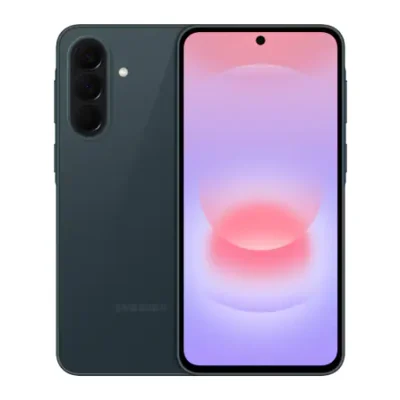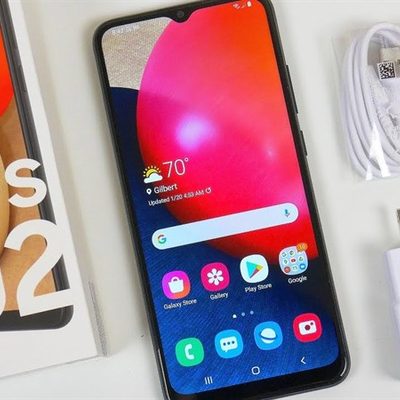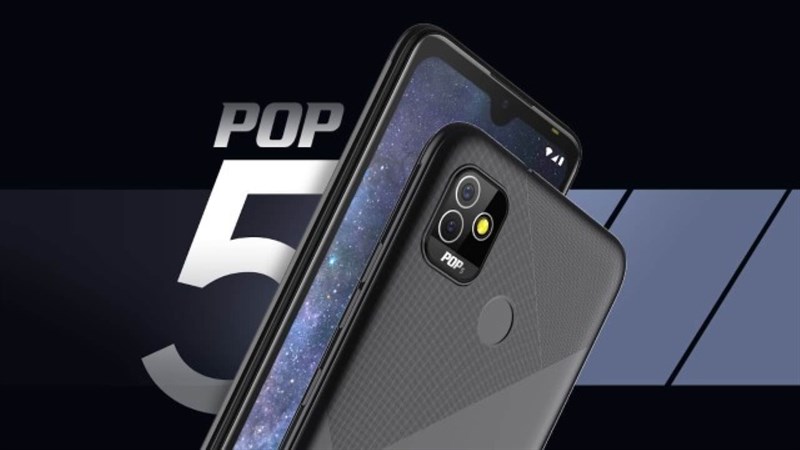
The Tecno POP 5P has a polycarbonate body and sports a 6.52-inch HD+ (720 x 1,600 pixels) display with a waterdrop notch.
The device sports a dual 5MP rear camera setup and a single 8MP front camera. The Tecno POP 5P supports face unlock and fingerprint scanning.
Under the hood, the phone is powered by an unnamed quad-core processor, coupled with 2GB of RAM and 32GB of internal storage.
One of the key highlights of the Tecno POP 5P is its large battery. The phone’s battery has been upgraded to 5,000mAh
Prerequisites & Preparation
- Backup Data: Flashing will completely wipe all data on your device. Back up important files and settings before proceeding.
- Battery Level: Ensure your device has at least 50% battery to prevent shutdown during the flashing process.
- USB Driver & Tools: Install the correct USB drivers for your brand and prepare the flashing tool (Odin for Samsung, SP Flash Tool/QPST for Qualcomm/MTK, etc.).
CAUTION: Flashing official firmware carries a risk of bricking your device. Proceed with caution and at your own risk. addROM is not responsible for any damage caused to your device.
Download Stock ROM & Firmware
Global / General
| File Type | Firmware / Build | Region / Model | OS Version | Download Link |
|---|---|---|---|---|
| Stock ROM | Stock ROM | Global / General | – | Google Drive |
| Stock ROM | Stock ROM | Global / General | – | Google Drive |
| Stock ROM | Stock ROM | Global / General | – | Google Drive |
| Stock ROM | Stock ROM | Global / General | – | Google Drive |
| Stock ROM | Stock ROM | Global / General | – | Google Drive |
| Stock ROM | Stock ROM | Global / General | – | Google Drive |
| Stock ROM | Stock ROM | Global / General | – | Google Drive |
How to Flash Firmware / Stock ROM
To flash the stock firmware on your Tecno device using SPD Upgrade Tool, follow these steps:
- Download and install the SPD USB Drivers on your computer.
- Download and extract the SPD Upgrade Tool (ResearchDownload).
- Open the tool and click on the Gear (Load Packet) icon to load the
.pacfirmware file. - Click the Play (Start Downloading) button.
- Power off your device completely, hold the Volume Down (or Volume Up) button, and connect it to the computer via USB cable.
- Wait for the flashing process to complete and show the “Passed” status.