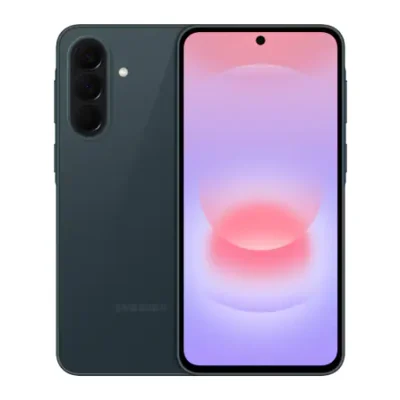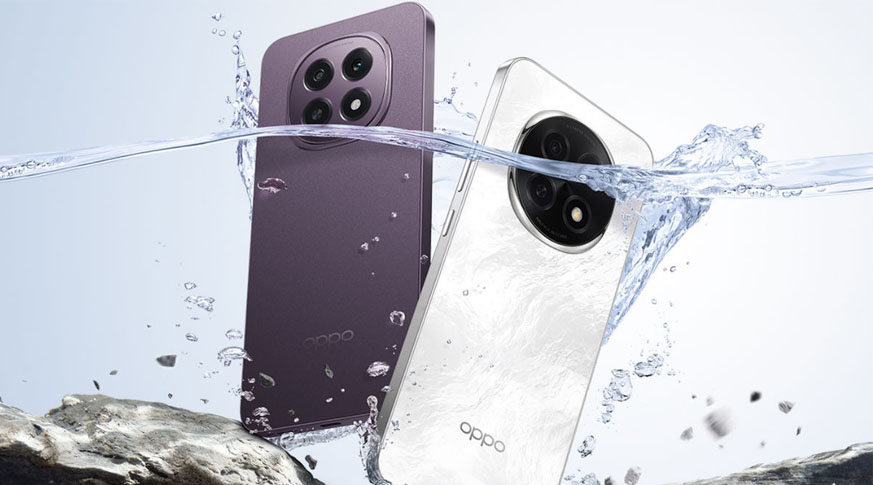
The device measures 161.5 x 74.9 x 7.6 mm and weighs 180g, featuring a Gorilla Glass Victus 2 front and a fiber fabric back. It supports dual Nano-SIMs and is IP68/IP69-rated for water and dust resistance. The 6.7-inch AMOLED display offers 120Hz refresh rate, 1B colors, and 1080 x 2412 pixels resolution, protected by Gorilla Glass Victus 2.
Powered by Android 15 (ColorOS 15), it runs on the Mediatek Dimensity 7300 Energy (4nm) chipset with an octa-core CPU and Mali-G615 MC2 GPU. Storage options include 128GB 8GB RAM, 256GB 8GB RAM, and 256GB 12GB RAM (UFS 3.1). The dual rear camera setup features a 50 MP main sensor with OIS and a 2 MP depth sensor, supporting 4K video recording. The 16 MP selfie camera records 1080p videos with gyro-EIS.
Audio includes stereo speakers but no 3.5mm jack. Connectivity features Wi-Fi 6, Bluetooth 5.4, infrared port, and USB-C 2.0 with OTG, but no NFC or FM radio.
The 6000 mAh battery supports 80W wired fast charging, reaching 45% in 20 minutes. Available in Marble White and Granite Black.
Prerequisites & Preparation
- Backup Data: Flashing will completely wipe all data on your device. Back up important files and settings before proceeding.
- Battery Level: Ensure your device has at least 50% battery to prevent shutdown during the flashing process.
- USB Driver & Tools: Install the correct USB drivers for your brand and prepare the flashing tool (Odin for Samsung, SP Flash Tool/QPST for Qualcomm/MTK, etc.).
CAUTION: Flashing official firmware carries a risk of bricking your device. Proceed with caution and at your own risk. addROM is not responsible for any damage caused to your device.
Download Stock ROM & Firmware
Global / General
| File Type | Firmware / Build | Region / Model | OS Version | Download Link |
|---|---|---|---|---|
| Stock ROM | Oppo_F29_5G_CPH2721_EX_11_15.0.0.604EX01_250225_QFIL.zip | Global / General | Android 11 | Google Drive |
How to Flash Firmware / Stock ROM
To flash the stock firmware on your OPPO device using SP Flash Tool, follow these steps:
- Download and install the MTK USB Drivers on your computer.
- Download and extract the SP Flash Tool.
- Launch
Flash_tool.exeas administrator. - Click on the Scatter-loading button and select the Android scatter file (
.txt) from the extracted firmware folder. - Click the Download button.
- Power off your device completely, hold the Volume Down or Volume Up button, and connect it to the computer via USB cable.
- The flashing process will start automatically. Wait for the green “Download OK” checkmark to appear.