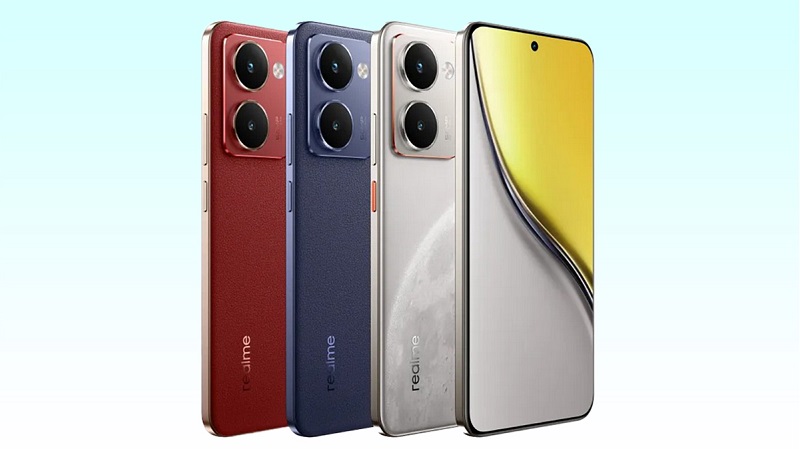
The Realme P3 Ultra boasts a 6.7-inch AMOLED display with a 1080 x 2400 pixel resolution and 388 ppi density, offering decent clarity and color reproduction. However, its brightness is capped at 2000 nits (peak), which may limit visibility under direct sunlight despite the Pro-XDR technology and 2160Hz PWM certification for smoother viewing in low light. The display supports a 120Hz refresh rate for a smooth scrolling experience, though the overall brightness and contrast may not stand out compared to premium models.
For the camera setup, the Realme P3 Ultra features a 50MP + 12MP + 5MP triple rear camera system, equipped with OIS for improved image stability and clarity. It supports 4K video recording at 30fps for high-quality video capture. The 32MP front camera ensures crisp and detailed selfies. The rear camera setup includes sensors like Sony LYT-600 for the main camera and Hynix Hi846W for the wide-angle lens.
The phone runs on the Qualcomm Snapdragon 7 Gen3 chipset, with an octa-core processor clocked at 2.63GHz, along with 8GB of RAM and 8GB of virtual RAM, providing solid performance for day-to-day tasks. It has 256GB of internal storage, but no expandable memory.
The 5500mAh battery supports 80W SUPERVOOC charging and reverse charging, offering excellent power efficiency. Connectivity options include 5G, Bluetooth v5.4, and Wi-Fi.
Prerequisites & Preparation
- Backup Data: Flashing will completely wipe all data on your device. Back up important files and settings before proceeding.
- Battery Level: Ensure your device has at least 50% battery to prevent shutdown during the flashing process.
- USB Driver & Tools: Install the correct USB drivers for your brand and prepare the flashing tool (Odin for Samsung, SP Flash Tool/QPST for Qualcomm/MTK, etc.).
CAUTION: Flashing official firmware carries a risk of bricking your device. Proceed with caution and at your own risk. addROM is not responsible for any damage caused to your device.
Download Stock ROM & Firmware
Global / General
| File Type | Firmware / Build | Region / Model | OS Version | Download Link |
|---|---|---|---|---|
| Stock ROM | RMX5030 | Global / General | Android 11 | Google Drive |
How to Flash Firmware / Stock ROM
To flash the stock firmware on your Realme device using SP Flash Tool, follow these steps:
- Download and install the MTK USB Drivers on your computer.
- Download and extract the SP Flash Tool.
- Launch
Flash_tool.exeas administrator. - Click on the Scatter-loading button and select the Android scatter file (
.txt) from the extracted firmware folder. - Click the Download button.
- Power off your device completely, hold the Volume Down or Volume Up button, and connect it to the computer via USB cable.
- The flashing process will start automatically. Wait for the green “Download OK” checkmark to appear.