Quick takeaways: LocalAI is an open-source AI engine for running LLMs, vision, voice, image, and video workloads locally or on your own server. The official README documents a simple Docker CPU quickstart on port 8080 and several GPU-specific images. This guide keeps to official commands only and does not claim local benchmarks.
What is LocalAI?
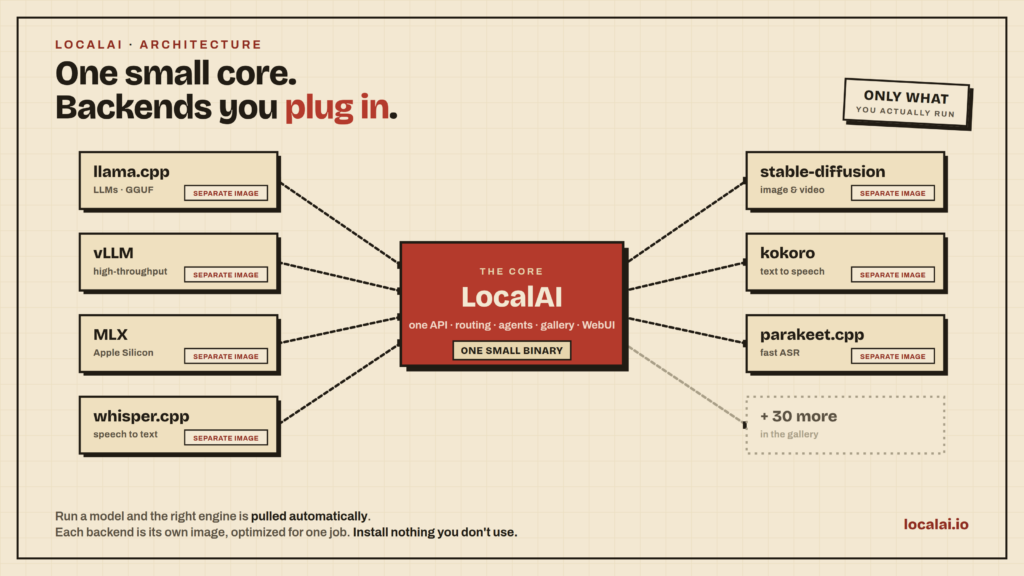
LocalAI is an open-source AI engine from the mudler/LocalAI GitHub repository. Its README describes support for LLMs, vision, voice, image, and video workloads, with a basic path that does not require a GPU.
A key design point is that backends are separated. The README mentions engines such as llama.cpp, vLLM, whisper.cpp, stable-diffusion, and MLX, pulled only when a model needs them. That makes LocalAI a good candidate for a self-hosted AI lab where you want to start small and expand later.
When should you use LocalAI?
Use LocalAI when you want a local or self-hosted AI API, want to experiment with multiple model backends, or need a controlled environment for LLM, speech, image, and vision workflows.
Do not treat a quickstart container as production-ready by default. For production, review deployment docs, model storage, authentication, updates, and hardware limits.
Prerequisites
For the container path, you need Docker or Podman. For GPU acceleration, choose the image documented for your hardware: NVIDIA CUDA 12/13, AMD ROCm, Intel oneAPI, Vulkan, or Jetson.
For macOS, the README links a DMG and notes that it is not signed by Apple. It documents this command after installation if needed:
sudo xattr -d com.apple.quarantine /Applications/LocalAI.appInstall LocalAI with Docker CPU
The official CPU quickstart command is:
docker run -ti --name local-ai -p 8080:8080 localai/localai:latestIf you have already created the container, the README suggests restarting it with:
docker start -i local-aiThe service is mapped to port 8080 on the host. If another service already uses that port, change the host-side Docker port mapping.
GPU examples from the README
For NVIDIA GPU with CUDA 13:
docker run -ti --name local-ai -p 8080:8080 --gpus all localai/localai:latest-gpu-nvidia-cuda-13For NVIDIA GPU with CUDA 12:
docker run -ti --name local-ai -p 8080:8080 --gpus all localai/localai:latest-gpu-nvidia-cuda-12For AMD ROCm:
docker run -ti --name local-ai -p 8080:8080 --device=/dev/kfd --device=/dev/dri --group-add=video localai/localai:latest-gpu-hipblasUse the GPU command only after confirming your Docker runtime, drivers, and device permissions are configured correctly.
Basic model loading workflow
The README documents several model sources. From the model gallery:
local-ai run llama-3.2-1b-instruct:q4_k_mFrom Hugging Face:
local-ai run huggingface://TheBloke/phi-2-GGUF/phi-2.Q8_0.ggufFrom the Ollama OCI registry:
local-ai run ollama://gemma:2bStart with a smaller model first. It is easier to debug downloads, backend selection, and memory usage before moving to larger models.
Verification
Check that the container is running, port 8080 is reachable, logs do not show backend errors, and model downloads complete. If a local-ai run command fails, inspect whether the model source is reachable and whether the required backend was downloaded.
This article does not invent API calls beyond what was confirmed in the README quickstart. Use the official LocalAI documentation for the exact endpoint set supported by your version.
Common issues
Port 8080 may already be in use. Change the host-side port mapping if needed.
GPU containers may fail or silently fall back if the Docker runtime or drivers are not configured correctly. Match the image to your hardware.
Large models can exceed RAM or VRAM. Test a small model before scaling up.
Safety and legal notes
LocalAI’s repository license is MIT, but each downloaded model has its own license. Check model terms before commercial use or redistribution. If you process sensitive data, also review API exposure, logs, and storage paths.
FAQ
Does LocalAI require a GPU?
No for the basic quickstart. Performance and model size depend heavily on hardware.
Is LocalAI only for LLMs?
No. The README describes LLM, vision, voice, image, and video workloads with multiple backends.
Is the Docker quickstart production-ready?
It is a starting point. Production use needs security, monitoring, model governance, and update planning.